












Official plugin guide
Amazing Orders & Reorder
Replace the plain WooCommerce My Account orders list with a modern, visual order history — product thumbnails, live search, date & status filters, one-click reorder, a “Buy it again” tab, shipment tracking and inline review prompts. Fully configurable, HPOS-ready, and available as blocks and shortcodes.
Requirements
| Component | Requirement |
|---|---|
| WordPress | 6.2 or newer |
| PHP | 7.4 or newer |
| WooCommerce | 8.0 or newer (required) |
| High-Performance Order Storage (HPOS) | Fully supported — the plugin reads orders through WooCommerce CRUD, so it works with custom order tables or the legacy posts storage |
| Shipment tracking (optional) | WooCommerce Shipment Tracking or Advanced Shipment Tracking, only if you want tracking numbers shown in the list |
The plugin enhances the customer My Account → Orders area. It leaves the rest of WooCommerce untouched, loads its front-end assets only where its lists appear, and adds no third-party services.
Installation and upgrade
- Upload the plugin ZIP through Plugins → Add New Plugin → Upload Plugin, then activate it.
- Open WooCommerce → Orders & Reorder License and activate your license key to unlock the features and receive automatic updates.
- Configure the list under WooCommerce → Settings → Orders & Reorder.
- Visit My Account → Orders to see the new layout.
A valid license is required
Without an active license the plugin leaves WooCommerce’s default orders table in place. Activate your license (next section) to enable the visual list, reorder, Buy it again, tracking and reviews.
Upgrades are backward-compatible: your settings and the customer experience are preserved. As always, back up before upgrading a production site.
License and updates
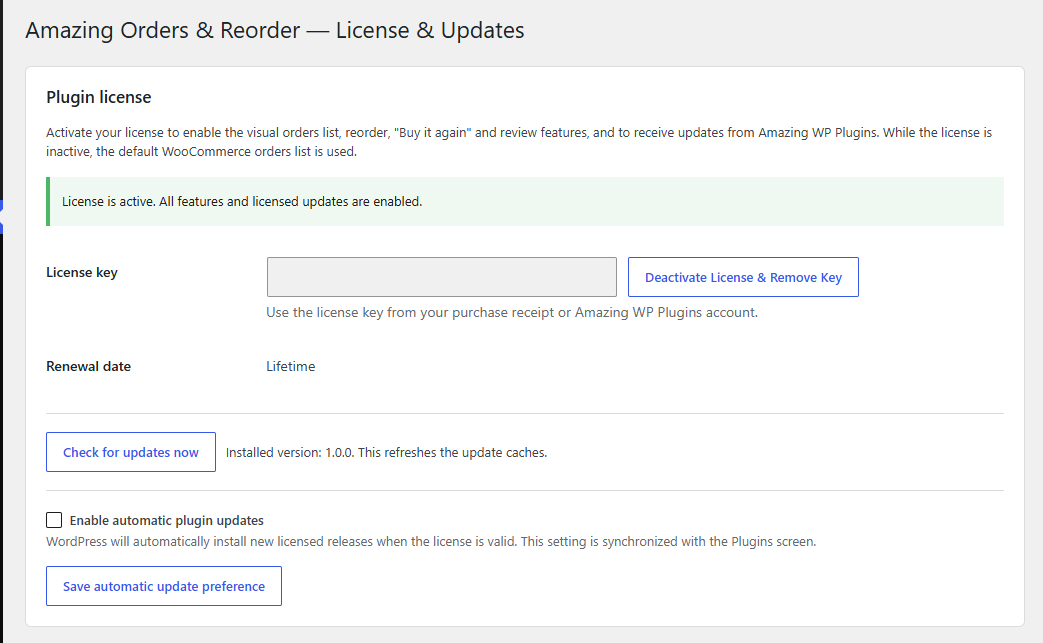
Go to WooCommerce → Orders & Reorder License, paste the license key from your Amazing WP Plugins receipt, and select Activate License. The page shows the activation state, renewal date, a manual Check for updates button, and an automatic-updates toggle. A valid license enables one-click updates from the Plugins screen.
What the gate does
While the license is inactive, the default WooCommerce orders list is used and all premium features (reorder, Buy it again, tracking, reviews, blocks and shortcodes) stay off. Activating unlocks everything instantly.
What is transmitted
License and update requests include only the license key, site URL, product title, and update metadata — never any order, customer or review data.
Quick start
- Activate your license under WooCommerce → Orders & Reorder License.
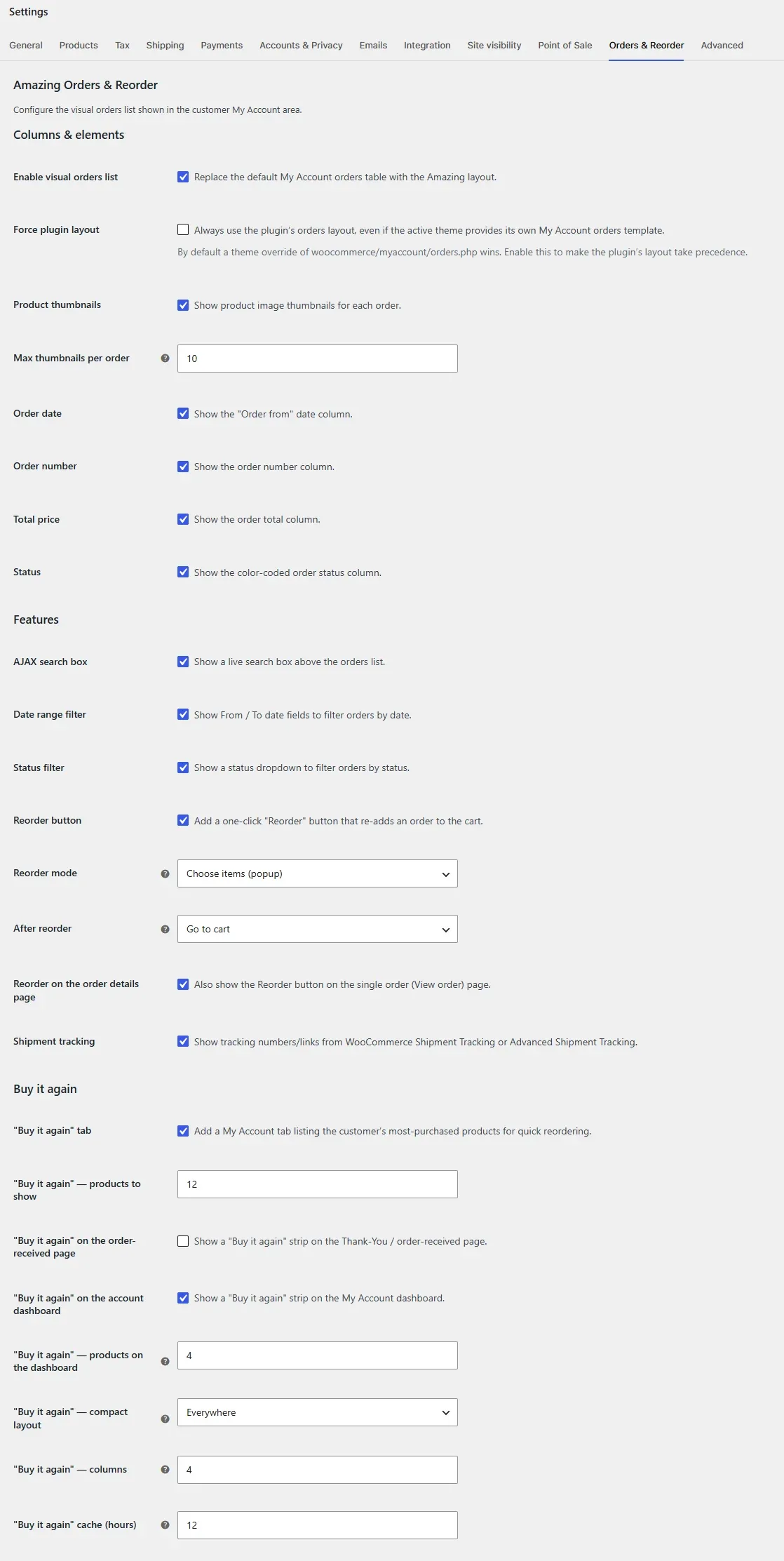
- Open WooCommerce → Settings → Orders & Reorder and confirm Enable visual orders list is on. Toggle the columns and features you want.
- Choose a Reorder mode (add the whole order, or a choose-items popup) and an After reorder action (go to cart, or stay with a toast).
- Pick your colors under Appearance, or leave them empty to inherit the theme.
- Log in as a customer and open My Account → Orders — search, filter, reorder, and try the Buy again tab.
Everything is one settings tab
All configuration lives under WooCommerce → Settings → Orders & Reorder, and every column and feature has its own on/off switch.
The visual orders list
A cleaner, more useful order history than the default WooCommerce table — built to look right in any theme.
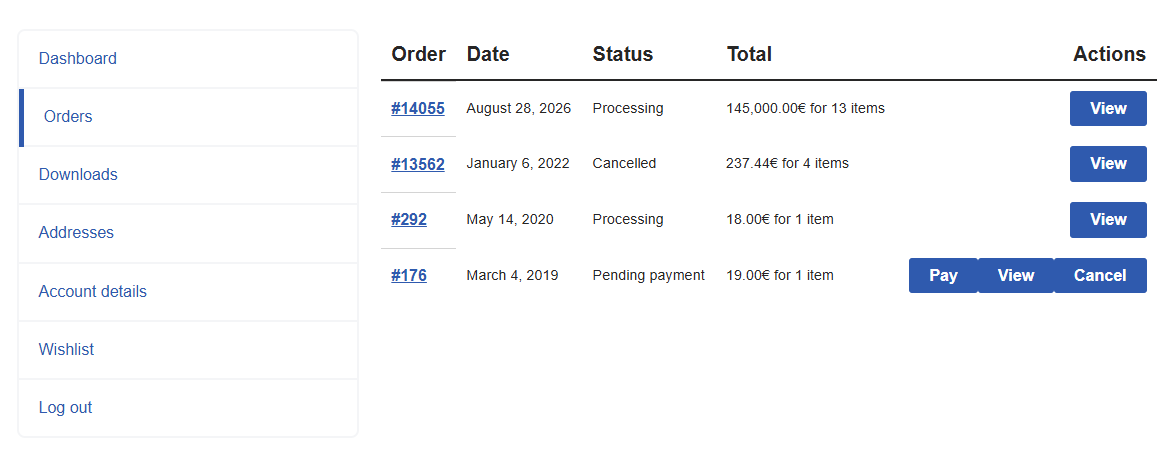
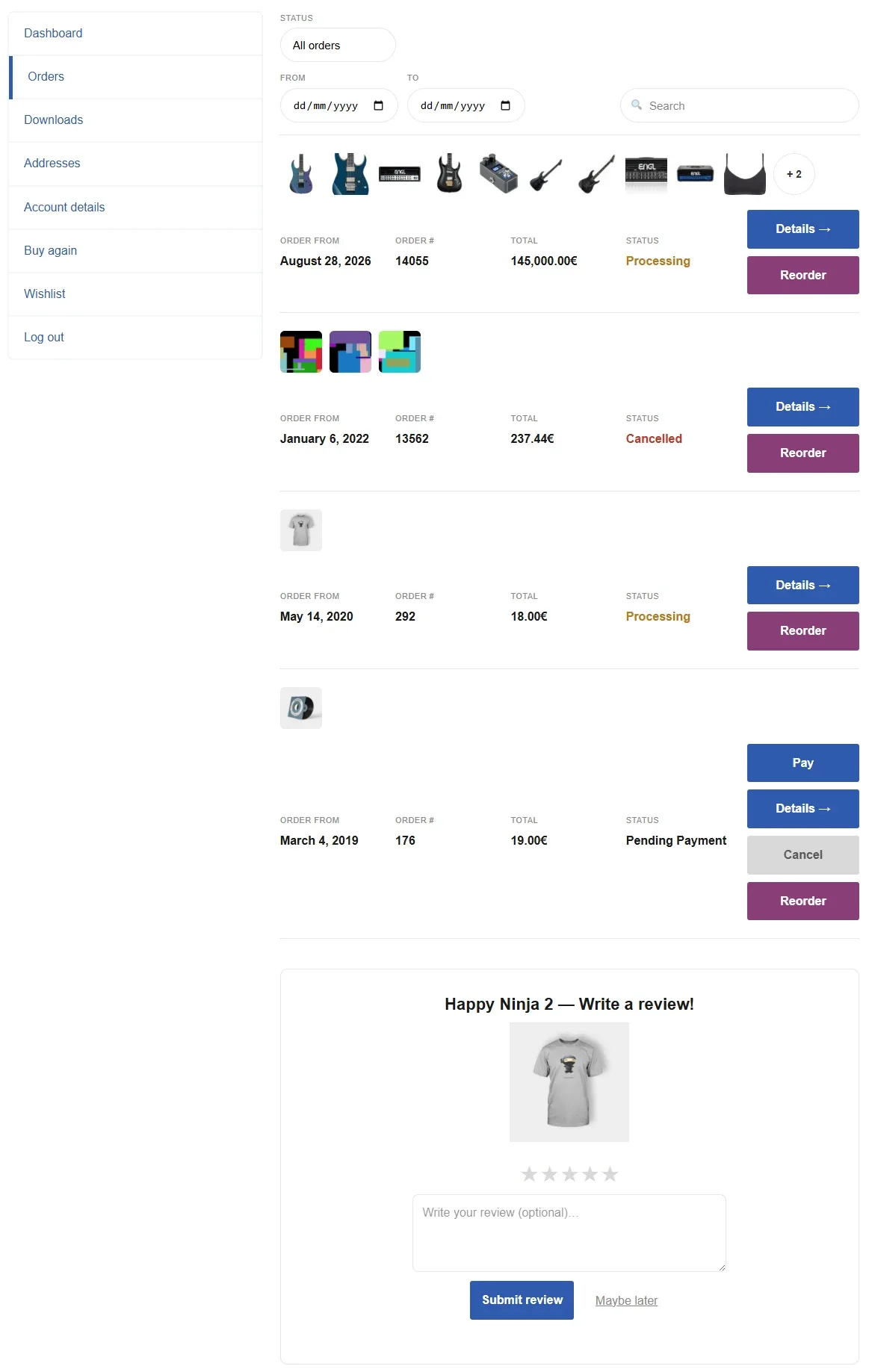
The plugin replaces WooCommerce’s myaccount/orders.php with a modern layout: a strip of product thumbnails per order, the date, order number, total and a colour-coded status, plus action buttons. If an order contains more items than the thumbnail limit, a “+N” badge appears; clicking it reveals the rest in place.
Theme override & the “Force plugin layout” option
The list is applied through WooCommerce’s template loader. By default, if your theme provides its own woocommerce/myaccount/orders.php, that override takes precedence. Turn on Force plugin layout (General settings) to make the plugin’s layout win over the theme instead.
Order actions (View, Pay, Cancel & Reorder)
Each row shows WooCommerce’s own contextual order actions — so a pending order still shows Pay and Cancel, a completed order shows Details (View), and any actions added by other extensions (tracking, subscriptions…) are preserved too. The plugin adds its own Reorder button alongside them.
| Button | When it appears |
|---|---|
| Details | Always — opens the full order (WooCommerce’s “View” action, relabelled) |
| Pay | Orders awaiting payment |
| Cancel | Cancellable orders (muted style by default so Pay stands out) |
| Reorder | Orders with at least one item that can be re-added to the cart |
Native classes, native look
Buttons carry WooCommerce/WordPress button classes (button, woocommerce-button, wp-element-button), so they inherit your theme automatically. Each also has an aorwc-btn--{action} class (and the colour settings) for fine styling.
Search & filters
Customers can find orders fast with a live, AJAX-powered toolbar — no page reloads.
Live search
Type to filter by order number, product name or SKU. Results update as you type (debounced), with an accessible “N orders found” announcement.
Status filter
A dropdown to show only a chosen status (Completed, Processing, Cancelled…) or all orders. It sits directly above the date range.
Date range
From / To date fields filter orders to a period. The end date is inclusive of the whole day, and the query is paginated so older orders are reachable.
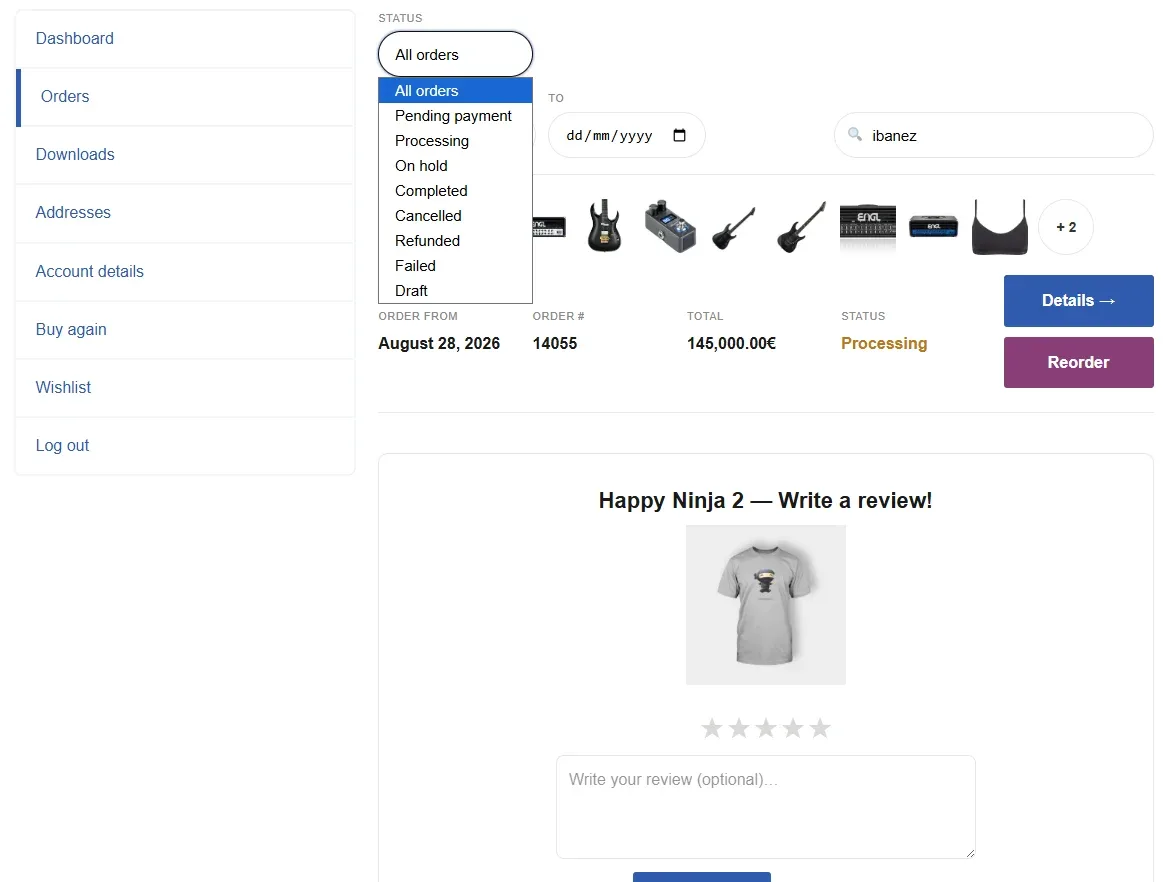
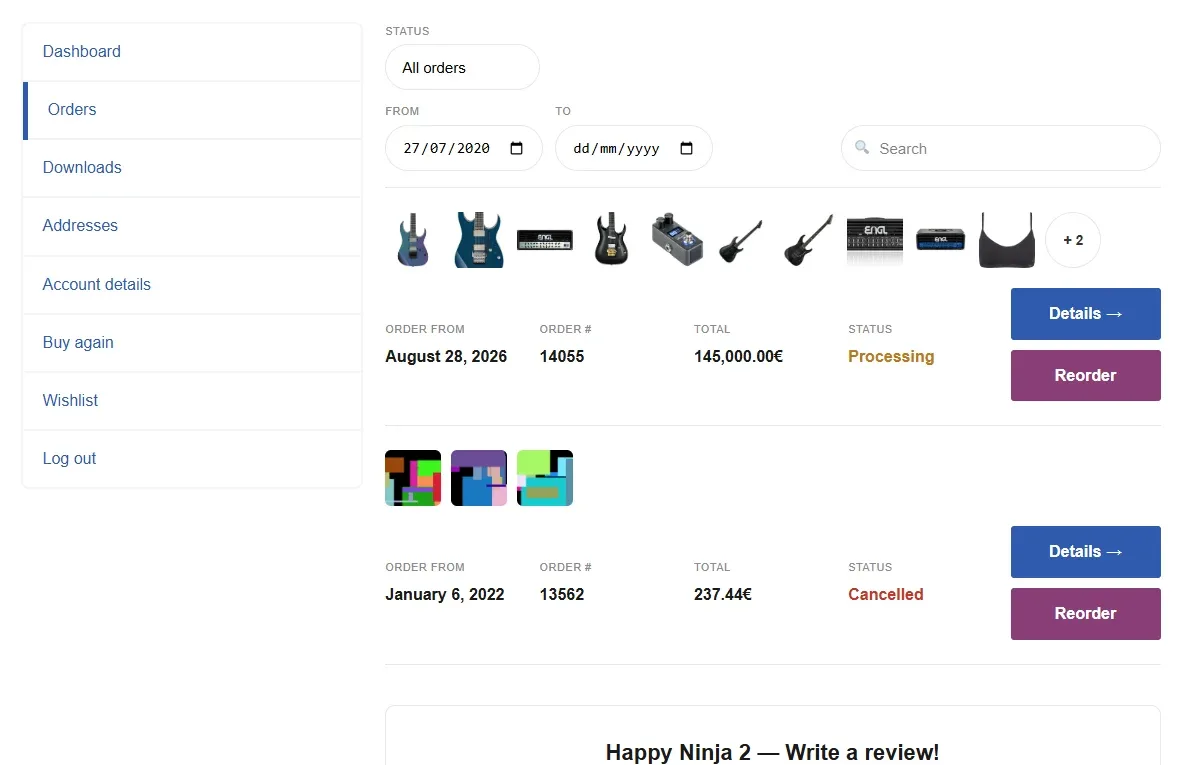
Each filter has its own on/off switch in the settings, so you can show any combination of search, status and date range — or none.
One-click reorder
Turn order history into repeat sales. The Reorder button re-adds a past order to the cart in a click.
Two modes
Add the whole order
One click re-adds every still-available item (variations reconstructed from the original order). Out-of-stock or removed items are skipped, and the customer is told how many.
Choose items (popup)
A tidy popup lists the order’s items with checkboxes and quantity fields, so the customer re-adds exactly what they want. Unavailable items are flagged.
After reorder
Choose what happens once items are added: Go to cart, or Stay on the page with a confirmation toast and a live mini-cart refresh — so customers can keep reordering from other orders. Reorder quantities are automatically capped to available stock.
On the order details page
Enable Reorder on the order details page to also show the Reorder button on the single View order screen — so a customer reviewing a past order can re-buy it without going back to the list.
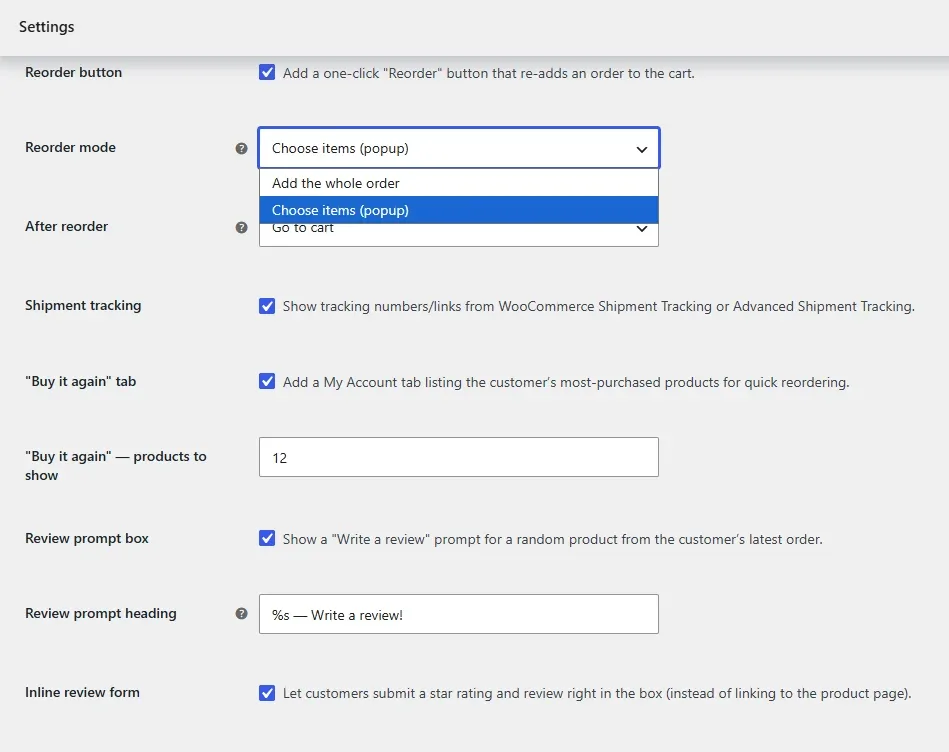
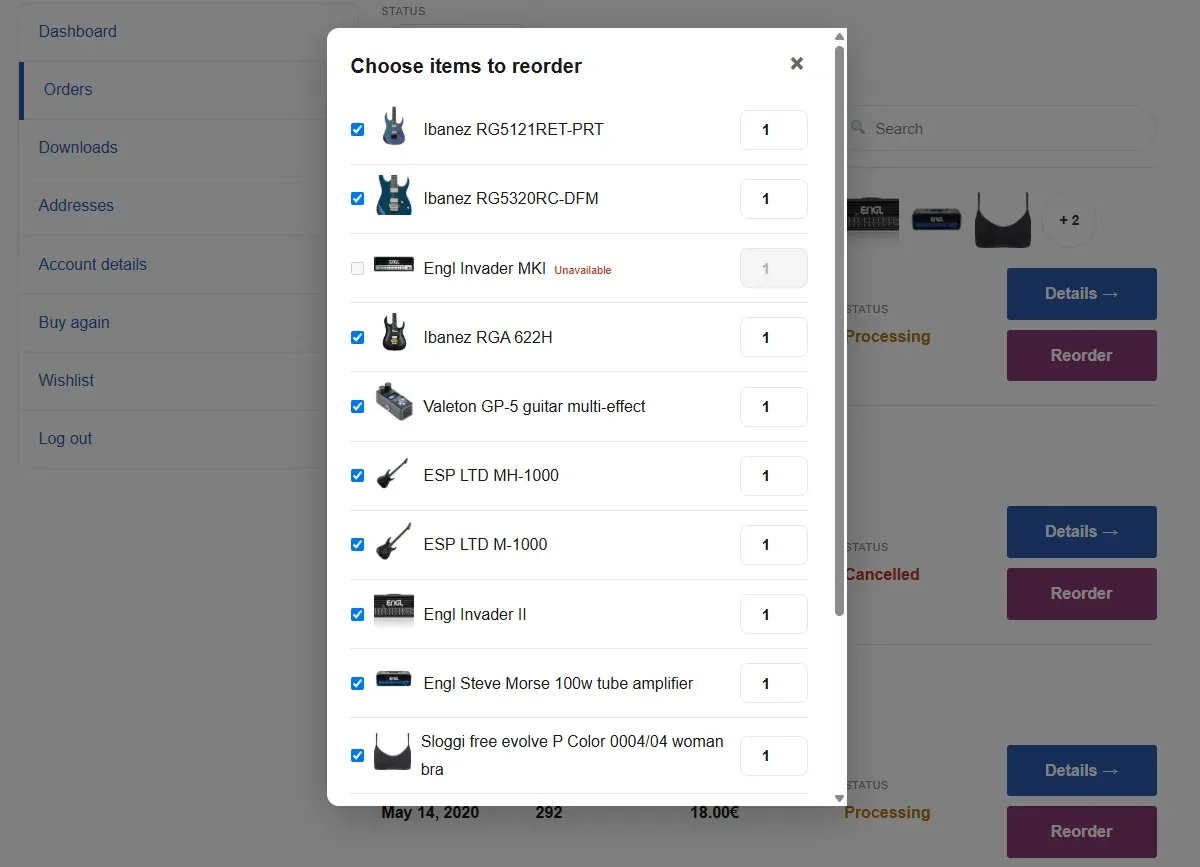
Complex products
Variation attributes are rebuilt from the order. Products that rely on add-ons or unusual custom fields can be adjusted with the aorwc_reorder_item_data filter.
Buy it again
An Amazon-style repeat-purchase surface. A “Buy again” tab is added to My Account listing the customer’s most-purchased products (still published and in the catalog) as a grid, each with an image, price and a one-click Buy again button. Variable or grouped products link to the product page to choose options.
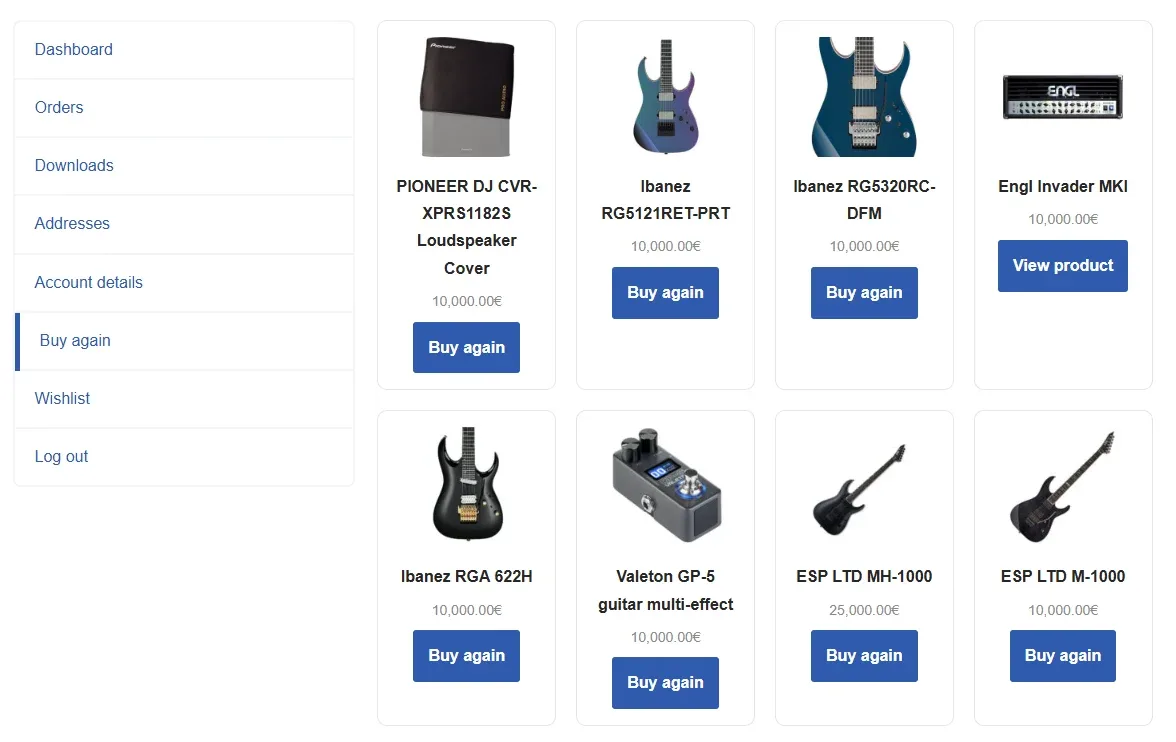
Place it anywhere with the block or shortcode too (see Blocks & shortcodes). The number of products and the account tab are controlled in the settings.
Show it at high-intent moments
Beyond the tab, you can surface a “Buy it again” strip on the order-received (Thank-You) page and the My Account dashboard — each an independent toggle — to prompt a repeat purchase exactly where intent peaks.
Fast by design
Each customer’s most-purchased list is cached for a configurable number of hours (default 12) and refreshed automatically whenever one of their orders changes status. Set the cache to 0 to disable it; it is also cleared automatically whenever you save the plugin settings.
Layout options
Tune how the grid looks in each place: a separate product count for the dashboard/order-received strips, a compact card layout (off, dashboard/order-received only, dedicated tab only, or everywhere), and a fixed column count for the tab and dashboard (0 = automatic, responsive).
If the tab doesn’t appear after enabling
The tab uses a My Account endpoint. Toggling it on flushes permalinks automatically; if you added it manually or migrated the site, re-save Settings → Permalinks once to register the endpoint.
Review prompt
Encourage reviews where customers already are. A prompt shows a random not-yet-reviewed product from the customer’s latest order, with a customizable heading. Customers can rate and review inline — a star rating plus an optional comment — without leaving the page, or dismiss with “Maybe later” to see another product.
Verified only
Reviews are accepted only from customers who actually purchased the product, one per product.
Spam-screened
Submissions run through WordPress moderation, a comment-flood check, and Akismet when it’s active.
Snooze, not nag
“Maybe later” hides a product for a configurable number of days (default 30), then it can be suggested again. Set 0 to never re-suggest.
Respects your store
The prompt only appears when reviews are enabled in WooCommerce and the product allows comments. The heading text is set in the settings — use %s for the product name.
Shipment tracking
When you use WooCommerce Shipment Tracking or Advanced Shipment Tracking (AST), the order row shows the tracking provider and number — linked to the carrier’s tracking page when a URL is available. It reads the standard _wc_shipment_tracking_items order meta both plugins write, so no extra setup is needed.
Display only
This surfaces existing tracking information to the customer; it does not create shipments or manage fulfilment. Other tracking sources can be supplied via the aorwc_tracking_items filter.
Settings
Everything is under WooCommerce → Settings → Orders & Reorder, grouped into sections.
| Section | Controls |
|---|---|
| General | Enable the visual orders list; Force plugin layout to override a theme template |
| Columns & elements | Product thumbnails (and max per order), order date, order number, total, status |
| Features | AJAX search, status filter, date range filter; reorder button, reorder mode, after-reorder action; shipment tracking; “Buy it again” tab & product count; review prompt, inline review form, heading, dismiss & snooze days |
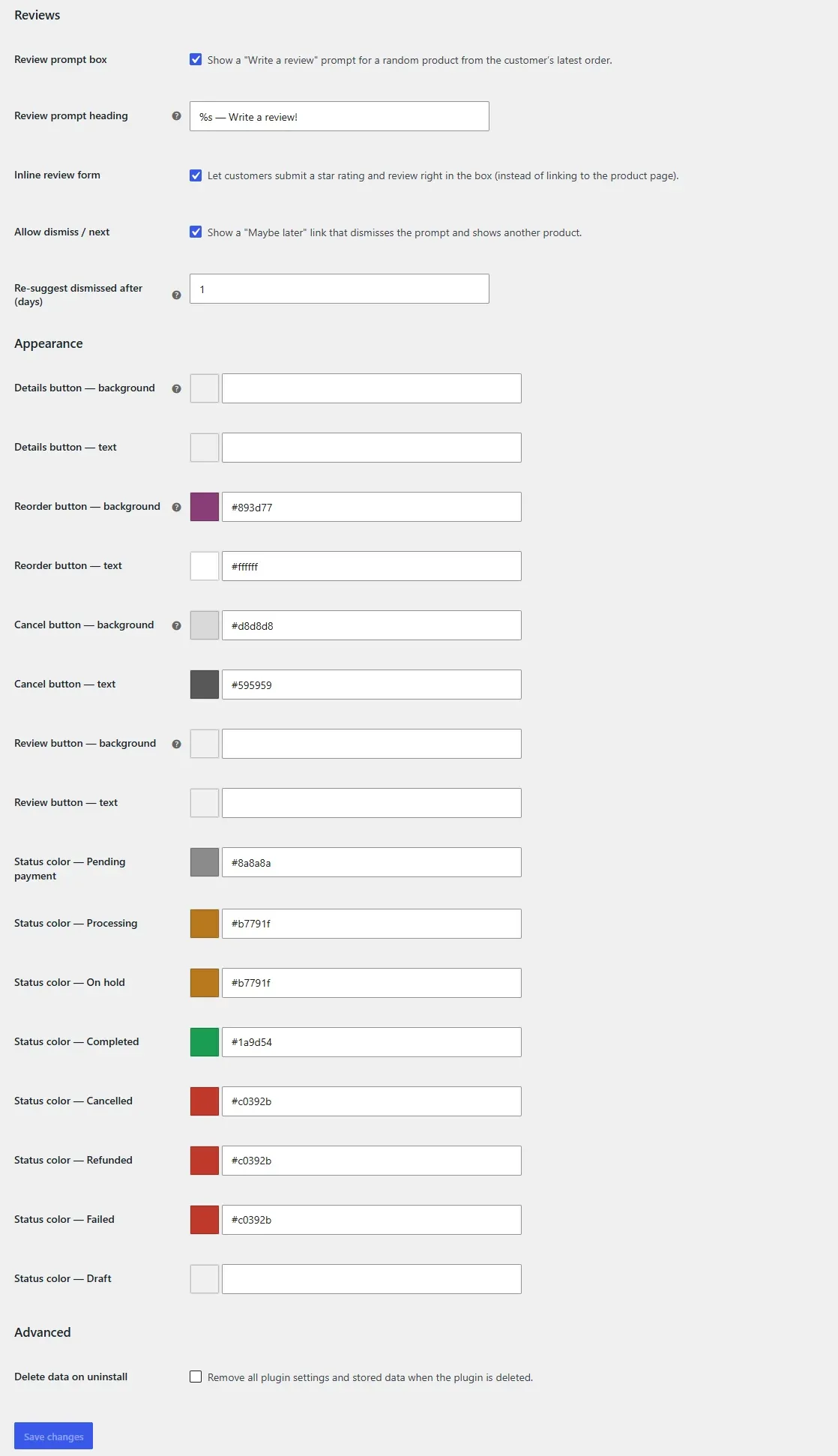
| Appearance | Per-button background & text colours (Details, Reorder, Cancel, Review) and per-status colours |
| Advanced | Delete all plugin data on uninstall |
Colors & styling
By default every button inherits your theme. Under Appearance you can override each one:
| Element | Behaviour |
|---|---|
| Details / Reorder / Review buttons | Optional background & text colour; empty = theme default |
| Cancel button | A muted “ghost” style by default so Pay stands out; override its background & text if you prefer |
| Status colours | Set the colour for Completed, Processing, On hold, Pending, and Cancelled/Failed/Refunded |
Colour overrides are output only where the plugin’s list actually renders (they don’t load on unrelated pages), and use !important so your choices win over the theme.
Custom CSS
Every element has a stable class — .aorwc-order, .aorwc-order__thumbs, .aorwc-status--{status}, .aorwc-btn--details/--reorder/--cancel, .aorwc-buyagain, .aorwc-review — so a theme’s stylesheet can fine-tune anything.
Blocks & shortcodes
The orders list is applied to My Account automatically. To place either list on any other page, use a Gutenberg block or a shortcode. Find the blocks in the inserter by searching “Amazing” or under the WooCommerce category.
| Block | Shortcode | Shows |
|---|---|---|
aorwc/orders | [aorwc_orders] | The current customer’s orders list |
aorwc/buy-again | [aorwc_buy_again] | The customer’s most-purchased products |
[aorwc_orders limit="10"]
[aorwc_buy_again limit="12"]
WooCommerce has no My Account blockThe My Account page itself is still the [woocommerce_my_account] shortcode — WooCommerce does not provide a My Account Gutenberg block. That’s why the orders list is applied through the template loader rather than a block on the account page.
Developer hooks
Extend the plugin without touching core. All extension points use the aorwc_ prefix.
Filters
| Hook | Purpose |
|---|---|
aorwc_settings | Add or change settings fields |
aorwc_orders_query_args | Adjust the wc_get_orders() args for the list |
aorwc_search_query_args / aorwc_order_search_match | Adjust the AJAX search query / extend what counts as a match |
aorwc_order_thumbnail_size | Image size used for order-row thumbnails |
aorwc_order_row_html | Modify the HTML of a single order row |
aorwc_reorder_item_data | Cart line data when an item is re-added |
aorwc_search_limit / aorwc_date_filter_max | How many orders search scans (no-date / date range) |
aorwc_review_order_statuses / aorwc_review_snooze_days | Statuses eligible for the review prompt / snooze window |
aorwc_buy_again_products / aorwc_buy_again_statuses / aorwc_buy_again_order_scan | The Buy-it-again list, its statuses and scan depth |
aorwc_tracking_items | Supply or override shipment-tracking items |
Actions
aorwc_before_orders_list aorwc_after_orders_list aorwc_after_order_meta aorwc_order_row_actions aorwc_reordered aorwc_review_submitted aorwc_before_buy_again aorwc_after_buy_again
Add a button to every order row
add_action( 'aorwc_order_row_actions', function ( $order ) {
	printf(
		'<a class="button" href="%s">%s</a>',
		esc_url( $order->get_view_order_url() ),
		esc_html__( 'Invoice', 'your-textdomain' )
	);
} );
React when a customer reorders
add_action( 'aorwc_reordered', function ( $added, $skipped ) {
	// e.g. log or fire an analytics event.
}, 10, 2 );
Override the template
Copy templates/myaccount/orders.php from the plugin into yourtheme/woocommerce/myaccount/orders.php to customise the markup directly.
Troubleshooting
The orders list still looks like the default WooCommerce table
Confirm your license is active (WooCommerce → Orders & Reorder License) — without it the default list is used. Also check that Enable visual orders list is on. If your theme provides its own myaccount/orders.php override, turn on Force plugin layout in the General settings to take precedence over it.
My color or layout change didn’t appear
Assets are versioned and cached. Hard-refresh the page (Ctrl/Cmd + Shift + R), and clear any page/CDN cache if you use one.
The “Buy again” tab is missing
Re-save Settings → Permalinks once to register the My Account endpoint, then reload the account page.
The review prompt isn’t showing
It only appears when product reviews are enabled in WooCommerce, the customer has a completed/processing order with a reviewable product they haven’t reviewed, and that product hasn’t been dismissed within the snooze window.
Reorder skips items
Items are skipped when the product is no longer purchasable or is out of stock. The confirmation message reports how many were skipped.
Frequently asked questions
Does it work with High-Performance Order Storage (HPOS)?
Yes. All order reads go through WooCommerce CRUD (
wc_get_orders
/
wc_get_order
), so it works with custom order tables or the legacy posts storage.
Will it break my theme’s styling?
No. Buttons use the standard WooCommerce/WordPress button classes so they inherit your theme. Colours are opt-in overrides, and a theme
orders.php
override always takes precedence.
Can customers reorder only some items?
Yes — set
Reorder modeto “Choose items (popup)” and they can pick items and quantities before adding to the cart.
Does it handle variable products on reorder?
Yes. Variation attributes are reconstructed from the original order. Products with add-ons or unusual custom fields can be handled with the
aorwc_reorder_item_data
filter.
Are inline reviews protected from spam?
Yes. They require a verified purchase, run through WordPress moderation and a comment-flood check, and are screened by Akismet when it’s active.
Can I place the lists on a normal page?
Yes — use the
aorwc/orders
and
aorwc/buy-again
blocks (search “Amazing” in the inserter) or the
[aorwc_orders]
and
[aorwc_buy_again]
shortcodes.
What happens if my license expires?
The features turn off and WooCommerce’s default orders list returns. Your settings are kept — reactivating the license restores everything.
Does uninstalling remove my data?
Only if you enable
Delete data on uninstallunder Advanced. Otherwise settings are preserved across reinstalls.
Changelog
Current version: 1.0.1. See readme.txt in the plugin package for the complete history.
1.0.1 Layout control, order-details reorder & high-intent “Buy it again”
- New “Force plugin layout” option to override a theme’s My Account orders template.
- Reorder button on the single order (View order) page (optional).
- “Buy it again” strips on the order-received page and the My Account dashboard (optional).
- Per-status color settings for every declared order status, including custom ones.
- Numbered pagination (Previous 1 2 3 … N Next) on the orders list.
- Cancel button color settings, with a muted default style.
- “Buy it again” caching (configurable hours) with automatic refresh on order status change.
- “Buy it again” dashboard product count, compact layout (dashboard/tab/both) and a fixed column count (default 4).
- Cached “Buy it again” lists clear automatically when you save the settings; the account tab endpoint re-registers automatically on license activation.
- Settings link on the Plugins screen, next to License.
- Preserves WooCommerce’s native order actions (Pay, Cancel, View) in the list; reorder now caps quantities to available stock.
- Color-override CSS loads only where the plugin’s lists render.
1.0.0 Initial release
- Visual My Account orders list — product thumbnails with a “+N” reveal, date, number, total and colour-coded status.
- Preserves WooCommerce’s contextual order actions (View/Details, Pay, Cancel) and adds a Reorder button.
- Live AJAX search (order number, product name, SKU), a status filter and a From/To date range filter.
- One-click reorder — whole order or a choose-items popup; redirect to cart or stay with a toast.
- “Buy it again” My Account tab, block and shortcode of most-purchased products.
- Inline star-rating review prompt (verified purchase, Akismet + flood protection) with a configurable “Maybe later” snooze.
- Shipment tracking display from WooCommerce Shipment Tracking / Advanced Shipment Tracking.
- Per-button and per-status colour settings; a settings tab to show/hide every element.
- Gutenberg blocks (
aorwc/orders,aorwc/buy-again) and shortcodes; HPOS compatible; EDD licensing with automatic updates.
Get Amazing Orders & Reorder for WooCommerce
Turn a plain WooCommerce order history into a visual repeat-sales experience with fast search, flexible filters, one-click reorder, Buy it again, tracking, and inline review prompts.