












Official plugin guide
Faster WordPress images, with control over every step.
Configure resizing and compression, replace new or existing images with smaller WebP/AVIF files, and process large libraries through native WP-Cron or WP-CLI.
Compatibility & preflight
Open Media → Image Optimizer → Preflight before production bulk work. The report runs entirely on the WordPress server and does not send environment or image data to Amazing WP Plugins or an optimization service.
Runtime and encoders
Checks supported WordPress and PHP versions, GD and Imagick availability and versions, plus WebP and AVIF encoding support for each editor.
Filesystem and resources
Checks upload-directory permissions, available disk space, PHP memory, and execution time. Bulk AVIF work needs more CPU and temporary storage than JPEG or WebP.
Background reliability
Checks the Job Center schedule, disabled WP-Cron, current or stale worker collision locks, and recommends a server cron where traffic-driven scheduling is not predictable.
Site scale and scope
Reports Media Library size, approximate postmeta scale, persistent object caching, and multisite site scope so batches and reference indexing can be planned realistically.
Backup boundary
The plugin can retain originals, validate image sets, snapshot conversion changes, and roll back an individual failed operation. It does not create a complete database/uploads archive. Create and verify that backup before destructive bulk conversion, restoration, or cleanup.
Backup-plugin integration
A backup plugin can satisfy the safety gate after it has verified a current, restorable database and uploads backup:
add_filter( 'aiofw_backup_status', function ( $status, $context ) {
    if ( my_backup_plugin_has_verified_current_backup() ) {
        $status['confirmed'] = true;
        $status['label'] = 'Verified backup available';
        $status['message'] = 'Database and uploads backup verified by My Backup Plugin.';
    }
    return $status;
}, 10, 2 );
The aiofw_backup_requirement_satisfied action runs after manual acknowledgement or an integration satisfies the gate. The plugin intentionally includes no offload, cloud optimization, telemetry, or remote image-processing feature.
Installation and quick start
- Upload the plugin folder to
wp-content/plugins/, or install its ZIP through Plugins → Add New → Upload Plugin. - Activate Amazing Image Optimizer for WordPress.
- Open Media → Image Optimizer → License and activate the license key from your purchase.
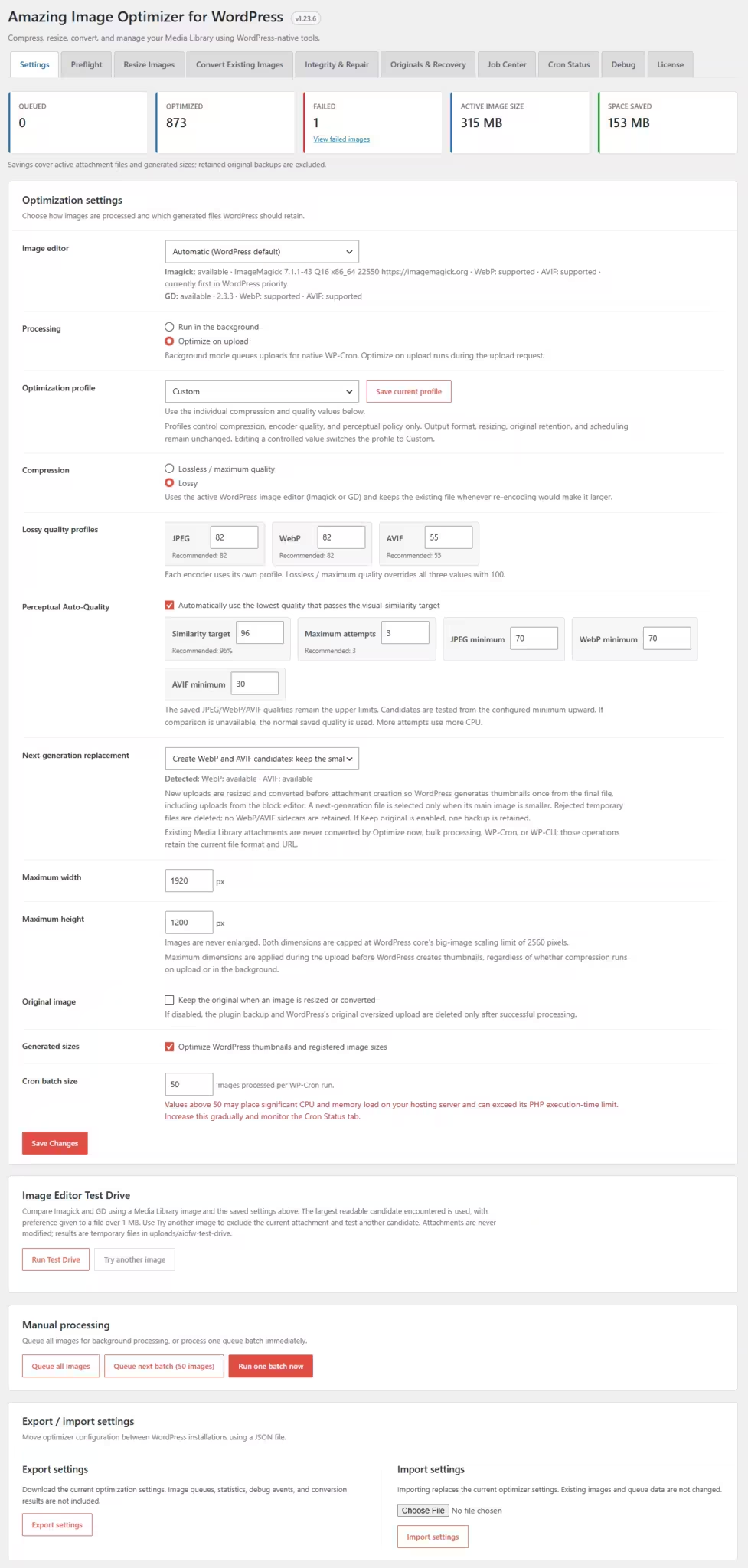
- Choose an image editor, processing mode, compression level, dimensions, and optional WebP/AVIF replacement.
- Save settings and run Image Editor Test Drive before enabling a large conversion job.
Safe starting point
Use background processing, lossy quality 82, maximum width and height 2560px, keep originals, optimize generated sizes, and a cron batch size of 20. Choose WebP if AVIF is not supported; otherwise use “smallest” after checking the Test Drive.
License activation and updates
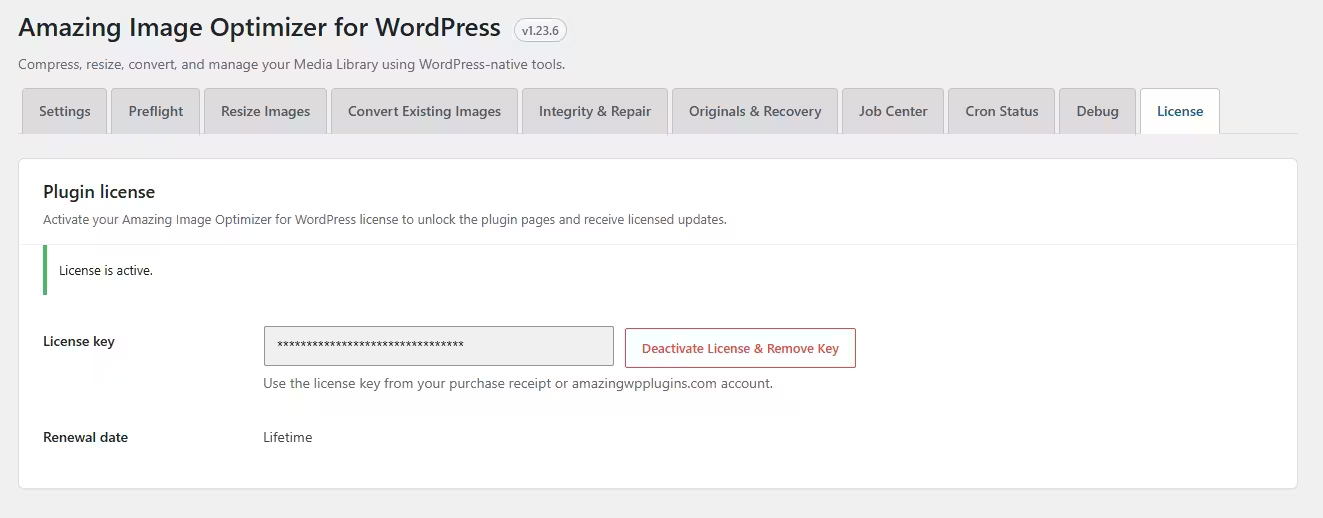
The License tab is the final tab under Media → Image Optimizer. Enter the license key from the purchase receipt or your amazingwpplugins.com account, then select Activate License.
- A valid license unlocks every plugin settings, reporting, and maintenance tab and enables licensed plugin updates.
- Without a valid license, those tab contents are replaced by an activation prompt. Media Library Optimize, Re-optimize, Convert, Repair references, and selected-image controls remain available.
- The active key is masked in wp-admin. The License tab shows its renewal date or Lifetime status and provides deactivation with local key removal.
- WordPress revalidates the key daily through native WP-Cron.
Licensing privacy
Activation, validation, deactivation, and update checks communicate with https://amazingwpplugins.com using Easy Digital Downloads Software Licensing. Requests include the license key, site URL, plugin identity, and update metadata. Images and image metadata are never sent.
Settings reference
| Setting | What it controls | Guidance |
|---|---|---|
| Image editor | Uses WordPress automatic priority or places Imagick/GD first. | Use Test Drive to compare output and format support. |
| Processing | Run in the background queues compression for WP-Cron. Optimize on upload completes compression during the upload request. | Background mode is safer on shared hosting. Upload-stage resize and format selection still occur before thumbnails are created. |
| Compression | Lossless/maximum-quality or lossy encoding. | Lossy provides the largest savings for photographs. |
| Optimization profile | Custom, Photography, WooCommerce, Graphics and text, Maximum savings, or a user-created saved profile. | Use Save current profile to name and reuse the current compression, encoder-quality, and perceptual policy. Saved profiles are included in settings exports and imports. Profiles never silently change conversion format, dimensions, original retention, or scheduling. |
| JPEG / WebP / AVIF quality | Independent lossy quality values from 1–100. | Defaults are JPEG 82, WebP 82, and AVIF 55. Editing a profile-controlled value switches the selector to Custom. |
| Perceptual Auto-Quality | Tests a bounded low-to-high quality sequence and keeps the first candidate meeting the luminance SSIM target. | Off by default. Start with a 96% target and three attempts. The format quality remains the upper limit; each minimum controls how low the search may go. |
| Next-generation replacement | Disabled, WebP, AVIF, or the smaller of WebP and AVIF. Unavailable encoders are disabled automatically. | If only one encoder exists, smallest-of-both safely uses that format. With neither encoder, conversion remains unavailable and JPEG/PNG processing continues. |
| Maximum width / height | Resizes only when either source dimension exceeds its limit. Images are never enlarged. | Both fields are capped at WordPress core’s 2560px big-image limit. |
| Keep original | Retains one original backup when resize or conversion replaces an upload. | Keep enabled until you have confirmed output and backups. |
| Generated sizes | Optimizes registered WordPress thumbnails and custom image sizes. | Recommended. It captures theme, WooCommerce, and builder sizes registered with WordPress. |
| Cron batch size | Images processed per background worker run. | Default 20. Values above 50 may stress CPU, memory, and PHP execution time; maximum 500. |
Export and import
The Export / import settings panel downloads or restores configuration as JSON. Queue records, statistics, conversion results, and debug events are not included. Importing replaces the current optimizer settings but does not alter images.
New upload workflow
Media Library, Gutenberg drag-and-drop, and other uploads that use WordPress’s standard attachment workflow receive the same processing.
1
Upload received
2
Resize if dimensions exceed limits
3
Keep the smaller WebP/AVIF candidate
4
Generate WordPress image sizes once
5
Optimize now or queue
- The dimension check happens before WordPress generates thumbnails.
- If the image is already within both limits, it is not resized.
- Because the plugin caps dimensions at 2560px, it normally prevents WordPress from needing a second
-scaledcopy. - If WordPress still creates
-scaledas a fallback, that active file is respected and heavy conversion is deferred to keep the upload response reliable. - The Media Library displays a live activity panel for upload, resize checks, conversion, image-size generation, optimization, or queueing.
No larger replacements
Compression and next-generation candidates are rejected when they are equal to or larger than the current file. A requested dimension reduction is still committed because its purpose is to enforce dimensions, not only byte savings.
Media Library tools
List view
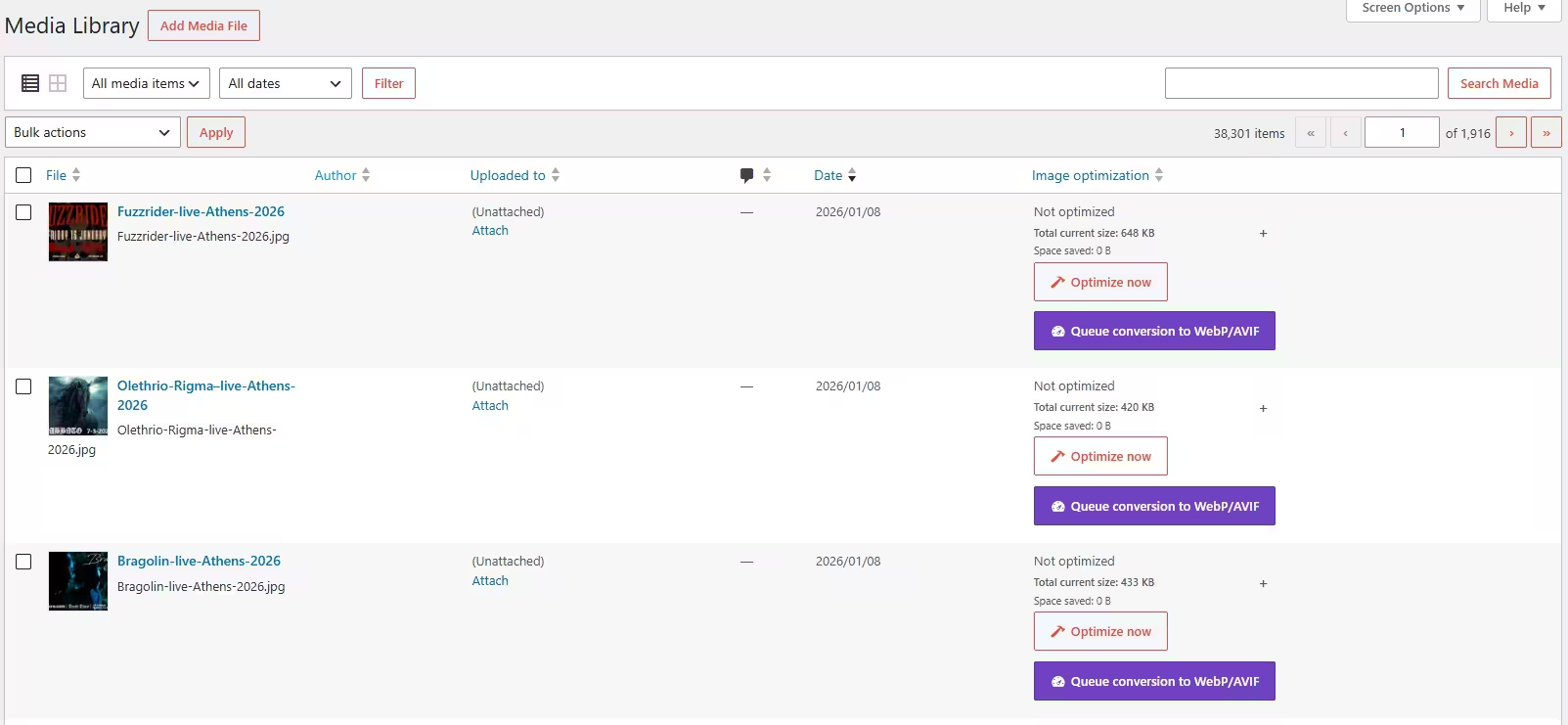
- Image optimization shows combined current size. Select the + control to reveal main-image and variant sizes.
- Optimize now runs through AJAX; after completion it becomes Re-optimize.
- Queue conversion to WebP/AVIF adds an existing JPEG/PNG to the persistent native WP-Cron worker. In the background it converts the attachment, regenerates sizes, and migrates stored database references. Converted WebP/AVIF attachments also provide Repair references for any remaining JPEG/PNG URLs.
- While conversion is queued or running, the conversion control and its conflicting Optimize/Re-optimize action remain disabled. The Media Library checks progress every five seconds and updates the row automatically when processing finishes—no page refresh is required.
- If neither WebP nor AVIF produces a smaller complete image set, the plugin keeps the original attachment. The row returns to its normal ready state and displays the recorded reason instead of remaining incorrectly marked as queued.
- Use filters for optimized, unoptimized, or failed images and sort by total image size.
- Use Optimize selected or Queue selected for WebP/AVIF for checked images. Selected conversions continue after the browser closes.
- The Uploaded to column includes the parent, a View/Preview link, and the post type.
Grid view and attachment popup
The grid toolbar includes optimization filters, size ordering, and selected-image actions. Opening an image’s attachment details displays its status and per-image Optimize/Convert controls.
Optimize is not Convert.
Optimize/Re-optimize retains the existing file format and URL. Use a Convert action when you intentionally want to change an existing attachment to WebP or AVIF and migrate references.
Resize existing images
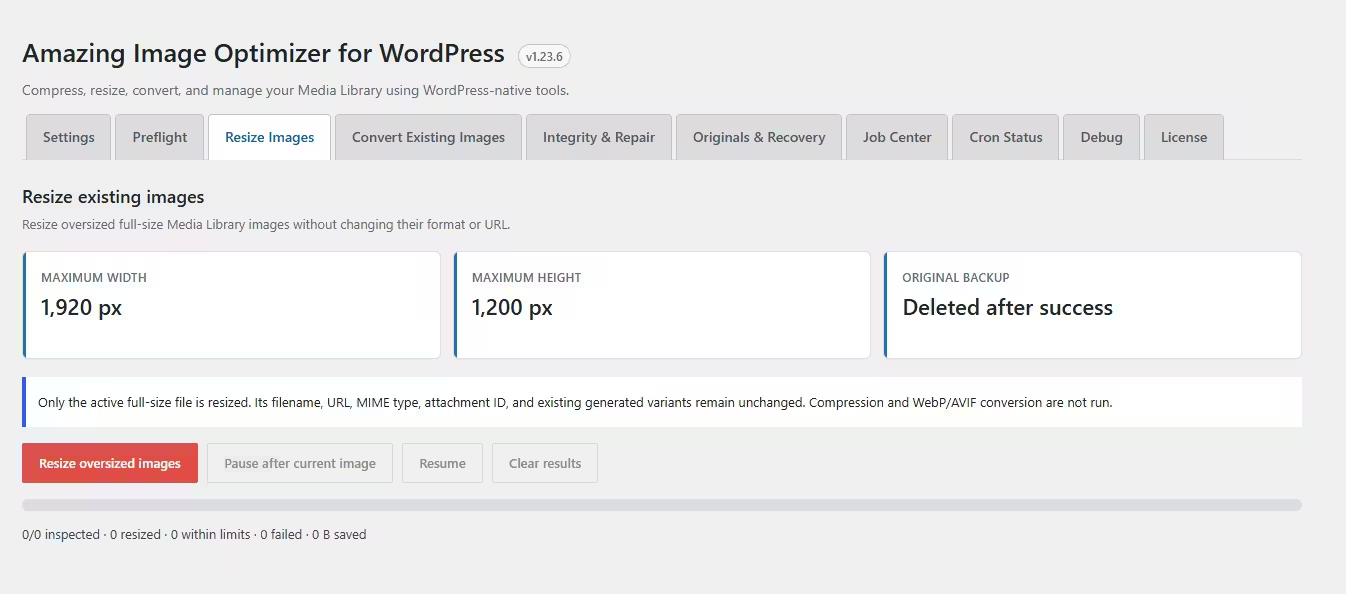
The dedicated Resize Images tab processes existing JPEG, PNG, WebP, and AVIF attachments whose active full-size file exceeds the maximum width or height saved under Settings.
- Only the active full-size image is resized; optimization and WebP/AVIF conversion do not run.
- The attachment ID, filename, URL, MIME type, and existing generated variants remain unchanged.
- The main width, height, filesize, current total size, and resize savings are updated.
- When Keep original is enabled, the first available plugin backup is retained. Otherwise, the temporary rollback copy is deleted only after metadata is safely saved.
- The resumable AJAX batch inspects the library in small chunks, resizes at most one oversized image per cycle, and supports pause, resume, and clear.
Generated variants are preserved
The resize-only workflow intentionally avoids regenerating thumbnail filenames, so existing content and builder references continue to work without database URL migration.
Image sizes
The dedicated Image Sizes tab lists every intermediate size registered by WordPress core, the active theme, and plugins. Each row shows its dimensions, crop policy, and registration source.
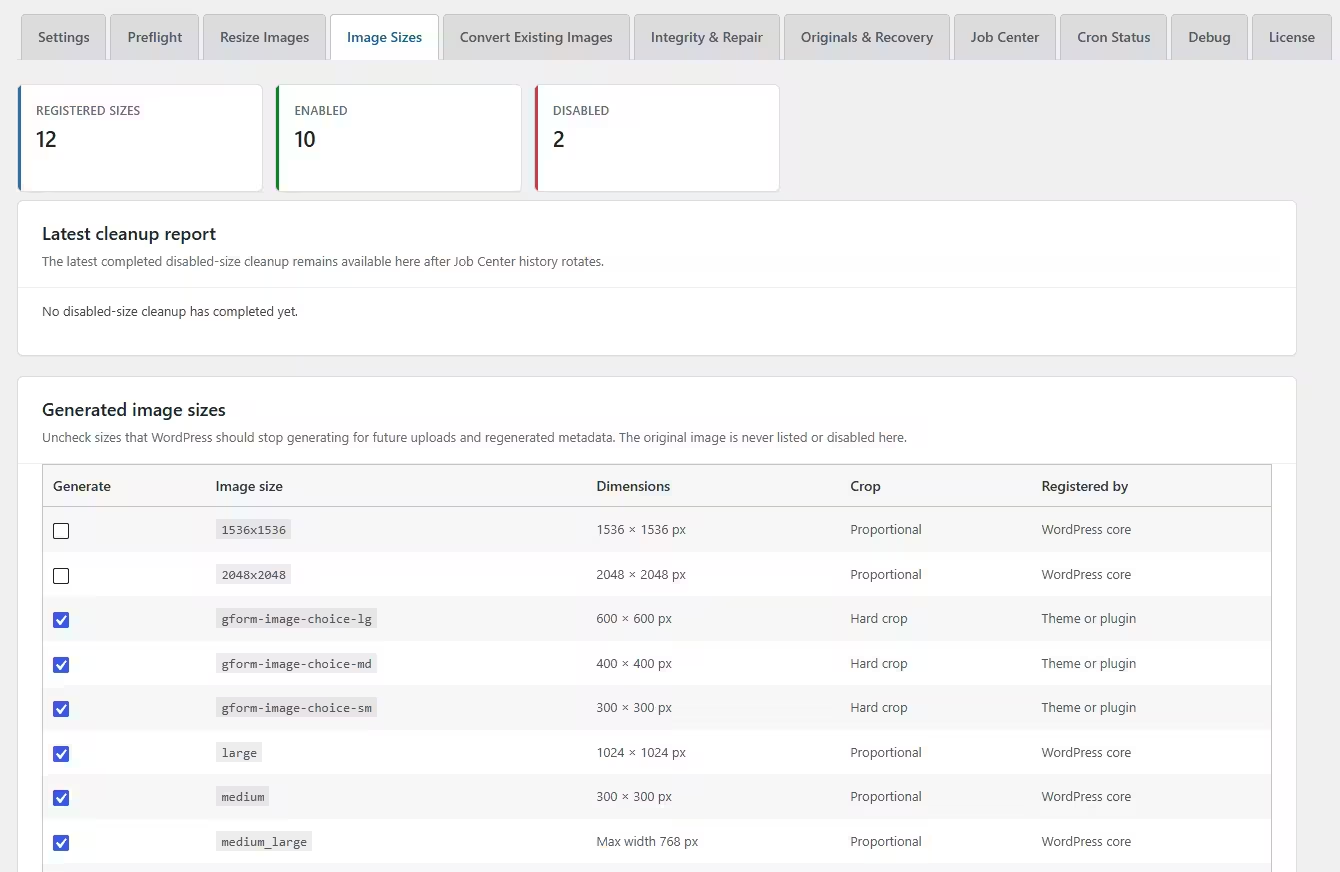
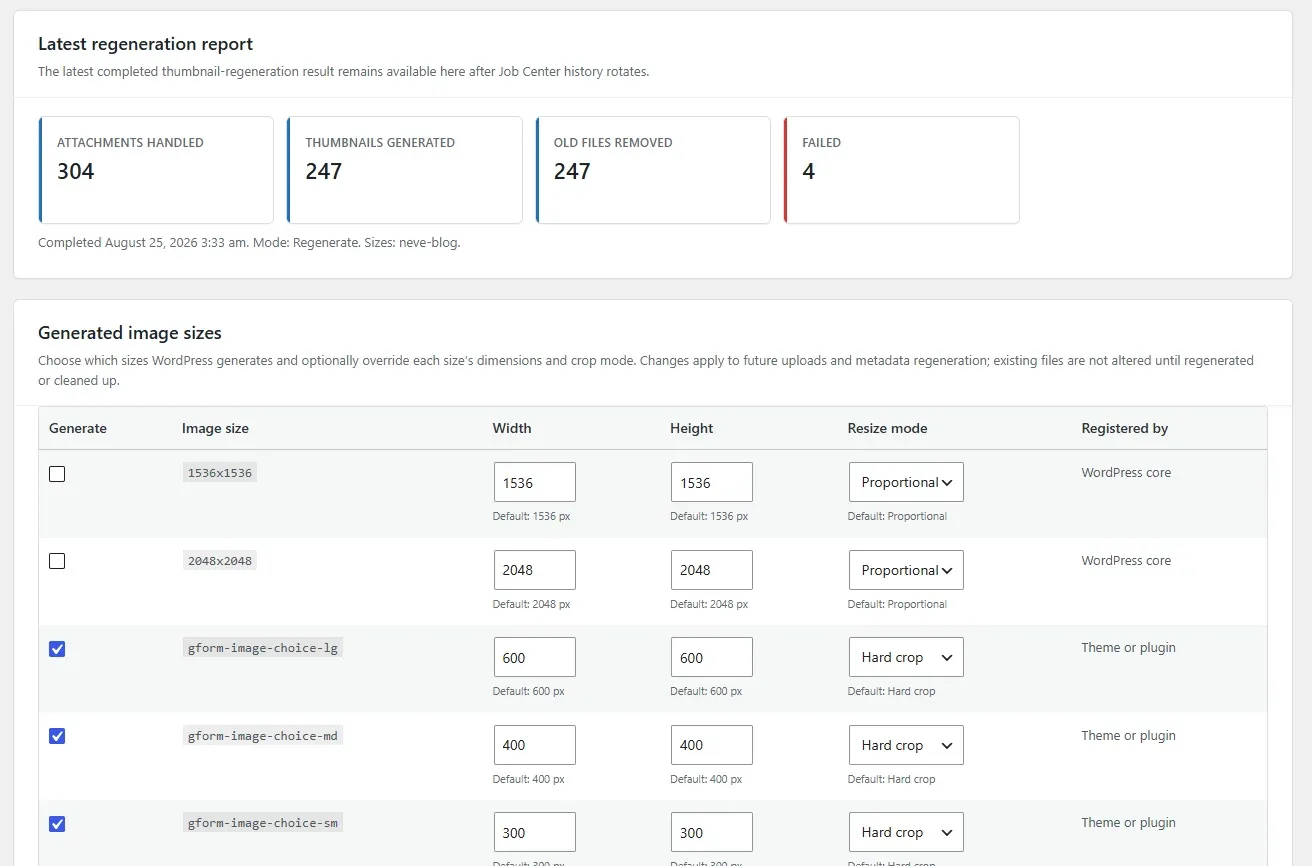
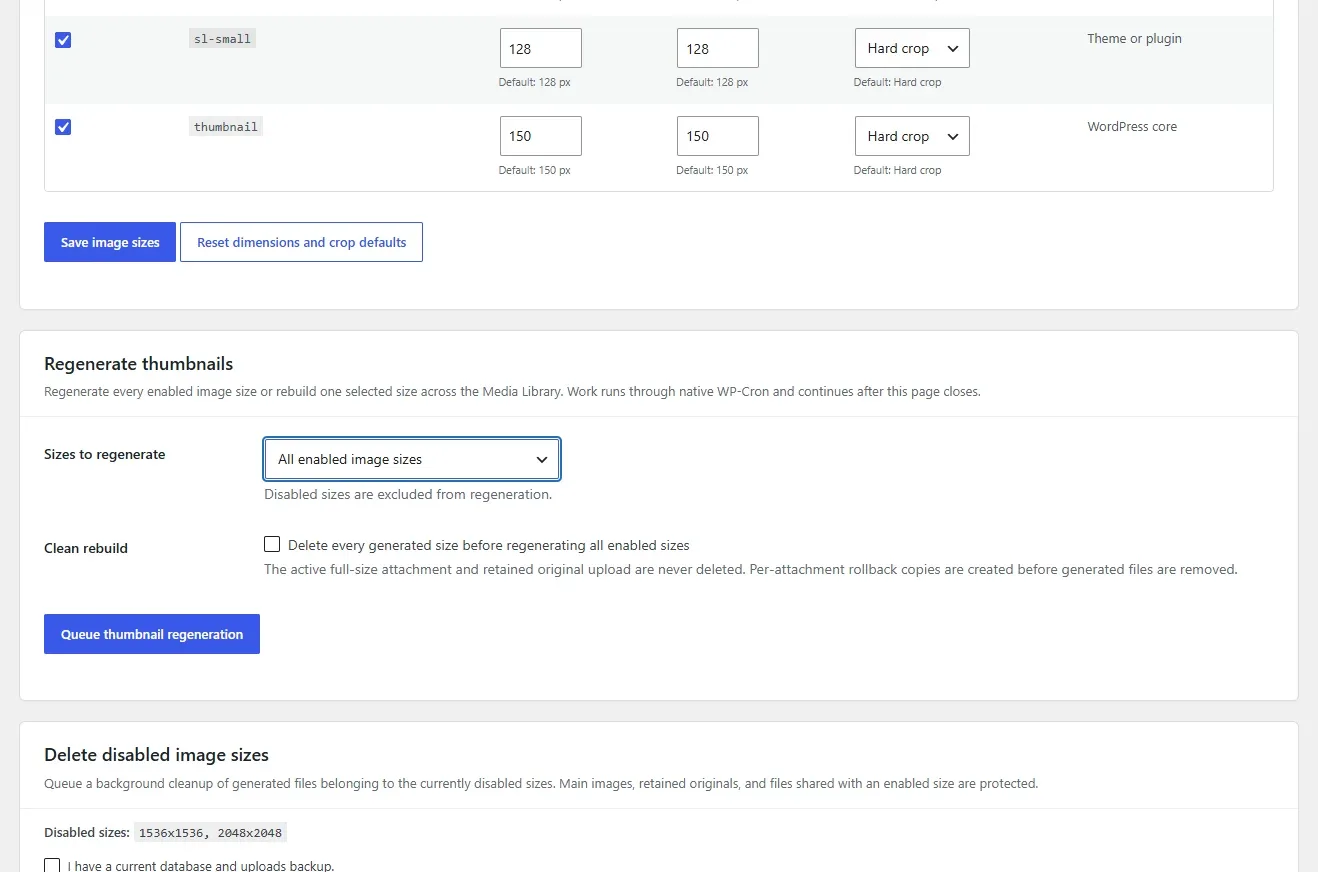
- Uncheck a size and save to stop WordPress from generating it for future uploads and regenerated attachment metadata.
- Edit width and height for any registered size. A zero value leaves that dimension unconstrained; at least one dimension must be greater than zero.
- Choose Proportional to fit within the dimensions without cropping, or Hard crop to produce the exact target dimensions when the source is large enough.
- The registered default remains visible beneath every control. Reset dimensions and crop defaults removes all plugin overrides and returns control to current WordPress, theme, and plugin registrations.
- Regenerate thumbnails can rebuild every enabled registered size or only one selected size across the Media Library. The persistent job continues through native WP-Cron after the tab closes and appears in the Background Job Center.
- When regenerating all sizes, Delete every generated size before regenerating performs a clean rebuild. It removes only generated files recorded in attachment metadata; the active full-size upload and WordPress/plugin-retained original are protected.
- A clean rebuild requires backup confirmation. Before deletion, the plugin creates per-attachment rollback copies and restores both files and metadata if deletion, generation, image validation, or metadata verification fails.
- The Image Sizes tab shows live regeneration progress and keeps the latest report with attachments handled, thumbnails generated, old generated files removed, and failures.
- Disabling a size does not immediately remove files that already exist, so the policy change is reversible and safe to review first.
- Delete disabled image sizes queues existing-file cleanup through native WP-Cron and the collision-protected Background Job Center.
- Destructive cleanup requires confirmation that a current database and uploads backup exists.
- The worker deletes only exact filenames recorded under the disabled metadata keys. Main attachments, retained originals, paths outside uploads, and files shared with an enabled size are protected.
- Attachment metadata is changed only after the matching file is deleted or confirmed missing. A deletion or database failure is recorded as a failed job item for review.
- The tab reports live totals while cleanup runs and retains the latest completed report with attachments handled, failed items, files deleted, metadata entries removed, and reclaimed disk space.
Check theme requirements first.
WooCommerce, galleries, responsive layouts, and builders may rely on custom registered sizes. Disable only sizes that the site no longer uses, then verify representative pages before deleting their existing files.
Convert existing images
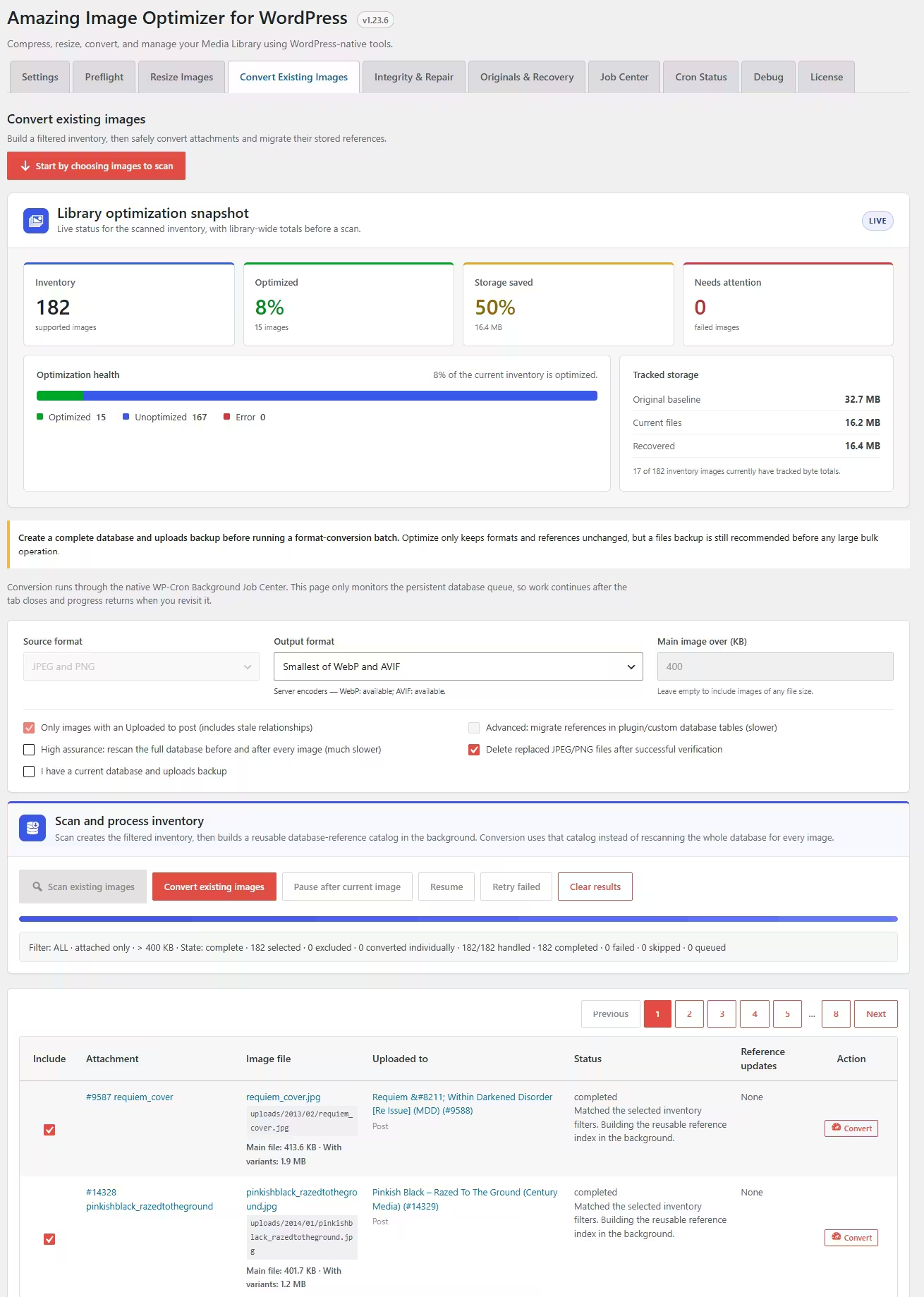
The overview uses a WordPress-style metric-card and segmented-health layout. Before scanning it summarizes all supported Media Library images; after scanning it follows the current inventory. Optimization status updates after every processed image, while heavier storage aggregates refresh periodically and once more at completion. Older untouched images may not have byte tracking yet, so unavailable savings show as untracked rather than a misleading 0%.
Back up first
Create a current database and uploads backup. Existing-image conversion can change filenames, generated sizes, serialized values, post content, options, and compatible custom-table references.
Recommended workflow
- Choose JPEG, PNG, or both as the source filter.
- Choose Optimize only to retain the current format and URLs, or choose WebP, AVIF, or the smaller of both conversion outputs.
- Optionally include only images with an Uploaded to parent.
- Enable custom-table scanning only if required; it is broader and slower.
- Choose whether successfully replaced JPEG/PNG files should be deleted.
- Confirm the backup and click Scan existing images.
- Review the paginated inventory. Images are selected by default; uncheck exclusions. Selections persist across pages.
- Convert individual rows or start the resumable batch. The batch displays a live ETA after its first timed image; pause, resume, or retry failures when needed.
The scan first builds the filtered attachment inventory, then the Background Job Center catalogs database rows containing JPEG/PNG references one configured column at a time. This catalog continues building after the tab closes and is reused by every conversion in that inventory.
Verification modes
Normal mode rereads and verifies only the exact database rows changed by an image. Enable High assurance: rescan the full database before and after every image when exhaustive discovery and post-change verification are required; this can be dramatically slower on large metadata or options tables.
Optimize only
This mode applies the saved compression, quality, maximum-dimension, and generated-size settings. It does not invoke WebP/AVIF conversion or database reference migration. It shares the global optimization lock with WP-CLI, WP-Cron, and Media Library optimization.
What is migrated?
The converter preserves attachment IDs and updates plain, URL-encoded, JSON-escaped, and serialized URL/path references in posts, post metadata, options, and supported database locations. The attachment parent is handled explicitly, including linked-image href, img src, and srcset references. It regenerates current registered sizes and converts legacy WIDTHxHEIGHT variants it discovers.
Each conversion is verified. On failure, the image is marked failed and the conversion attempts to roll back its files and data changes.
Originals & recovery
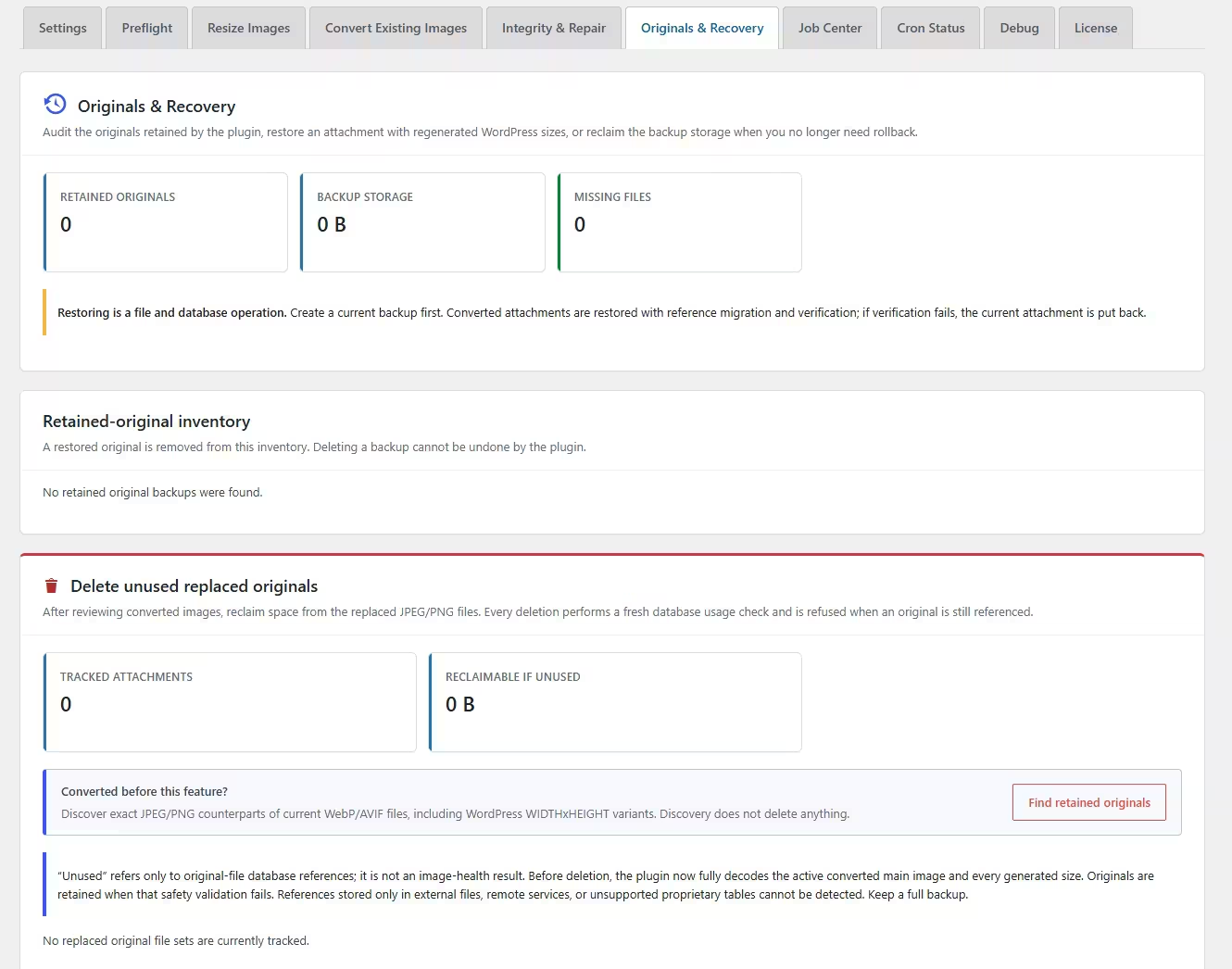
The Originals & Recovery tab inventories every original retained by the plugin. It reports backup count, disk usage, missing files, and provides paginated per-image and bulk actions.
- Restore puts the retained full-size image back and regenerates WordPress image sizes.
- If conversion changed the extension, the restore migrates stored paths and URLs back to the original format, then verifies that old converted references are gone.
- The current image set, attachment data, metadata, and reference rows are snapshotted first. A failed verification restores that snapshot.
- Delete backup reclaims backup storage without changing the active attachment. This cannot be undone by the plugin.
Delete unused replaced originals
Existing-image conversions that retain their replaced JPEG/PNG files track the complete source set. Use Validate current set to audit the active main image and every registered variant without deleting anything. After reviewing healthy WebP/AVIF results, use Validate and delete if unused individually or in bulk. Before deletion, the plugin repeats the full decode and performs a fresh reference check. It refuses deletion when the replacement is unhealthy or when an original is active, outside uploads, registered to another attachment, or still referenced.
Find retained originals discovers exact JPEG/PNG counterparts of WebP/AVIF attachments converted by earlier releases, including WordPress-style WIDTHxHEIGHT variants. Discovery only builds the inventory; it never deletes files.
Meaning of unused
Unused describes database references to the old originals; it does not mean that the converted replacement is healthy. Replacement health is displayed separately. Older conversions remain “Not independently verified” until a full safety check runs. The reference check cannot detect usage that exists only in external CSS/files, remote services, or unsupported proprietary storage. Keep a full backup.
Back up before restoring.
Restoration can update attachment files, generated variants, post content, metadata, and options. Test important migrations on staging.
Image Integrity & Repair
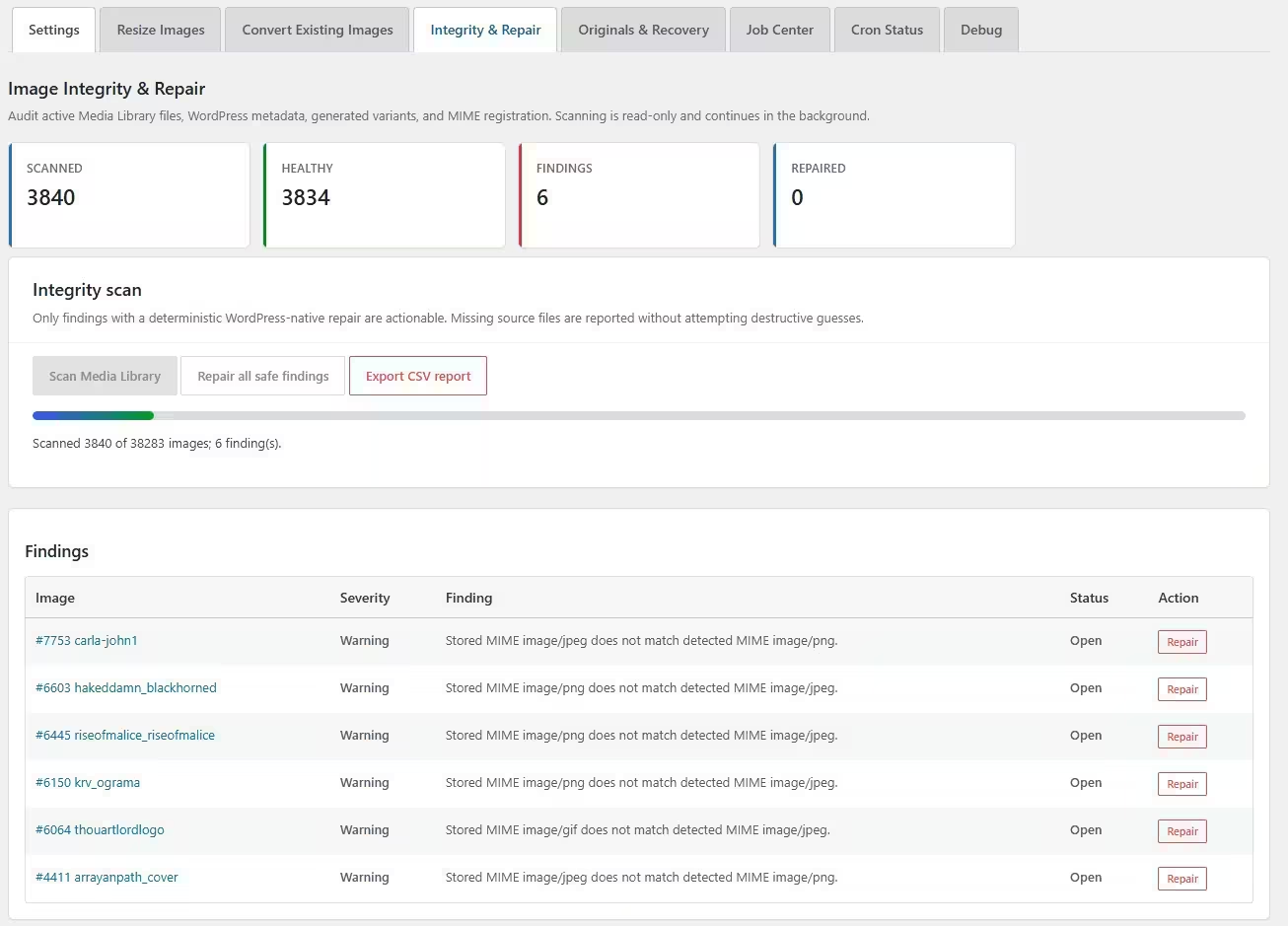
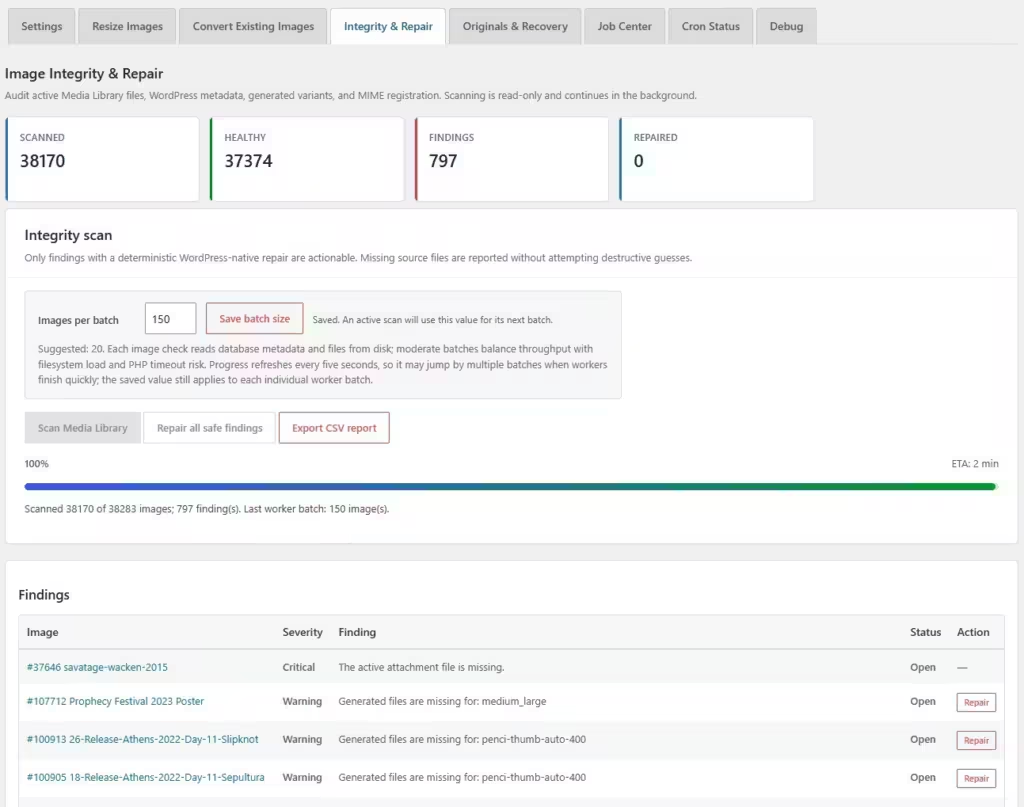
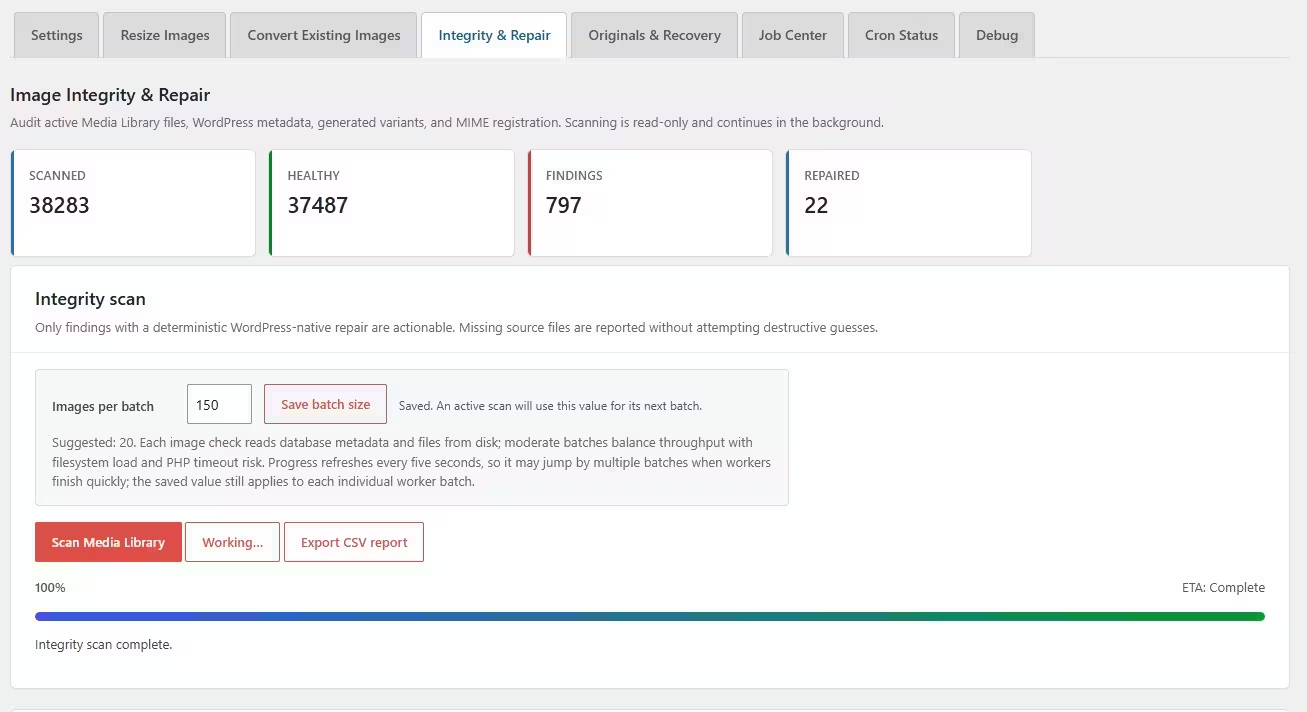
The Integrity & Repair tab performs a persistent, read-only audit of active Media Library images. It continues through the Background Job Center after the browser closes and restores live progress, completion percentage, and an ETA based only on active worker time when the tab is revisited. The Images per batch control has no upper cap and defaults to the suggested value of 20. Each audit reads both database metadata and files from disk, so increase it carefully to avoid I/O spikes and PHP timeouts. Use Save batch size at any time; a running or paused scan adopts the saved value on its next worker batch. The status reports the last individual worker-batch size. Because the browser refreshes progress every five seconds, the visible total can jump by two or more completed batches. Individual and bulk repairs display immediate spinner feedback; bulk work also reports handled/total counts, percentage, and a live progress bar, followed by a completed or error state.
- Detects missing or unreadable active files, files outside uploads, MIME mismatches, incomplete conversion markers, missing or incorrect metadata, missing registered image sizes, missing generated files, orphan dimension variants, and GUID filename differences.
- Repair is offered only when WordPress can deterministically rebuild the result from an existing, decodable main file.
- Repair all safe findings processes repairs in bounded AJAX groups to reduce timeout risk.
- Missing source files and ambiguous/orphaned files are report-only; the plugin does not guess or delete them.
- Export CSV report downloads the latest full findings list.
Repair scope
Metadata regeneration may recreate registered thumbnails. Keep a current backup and review critical/report-only findings manually.
Unified Background Job Center
The Job Center provides one live dashboard for image optimization, existing-image conversion, resize-only batches, integrity audits, retained-original discovery, restoration, and verified cleanup. Persistent jobs continue through native WP-Cron after the browser closes.
Resource-bounded steps
Each Job Center tick advances one expensive image operation, reducing timeout and memory pressure on shared hosting.
Collision protection
Browser, native cron, and WP-CLI workers use shared operation and attachment locks so the same work is not advanced concurrently.
Persistent progress
Current state survives page navigation and includes the pipeline, status, handled count, current image, failures, and a bounded completion history.
Controls
Run the next step manually, refresh live status, or pause, resume, and cancel queued recovery/discovery maintenance.
WP-Cron and background processing
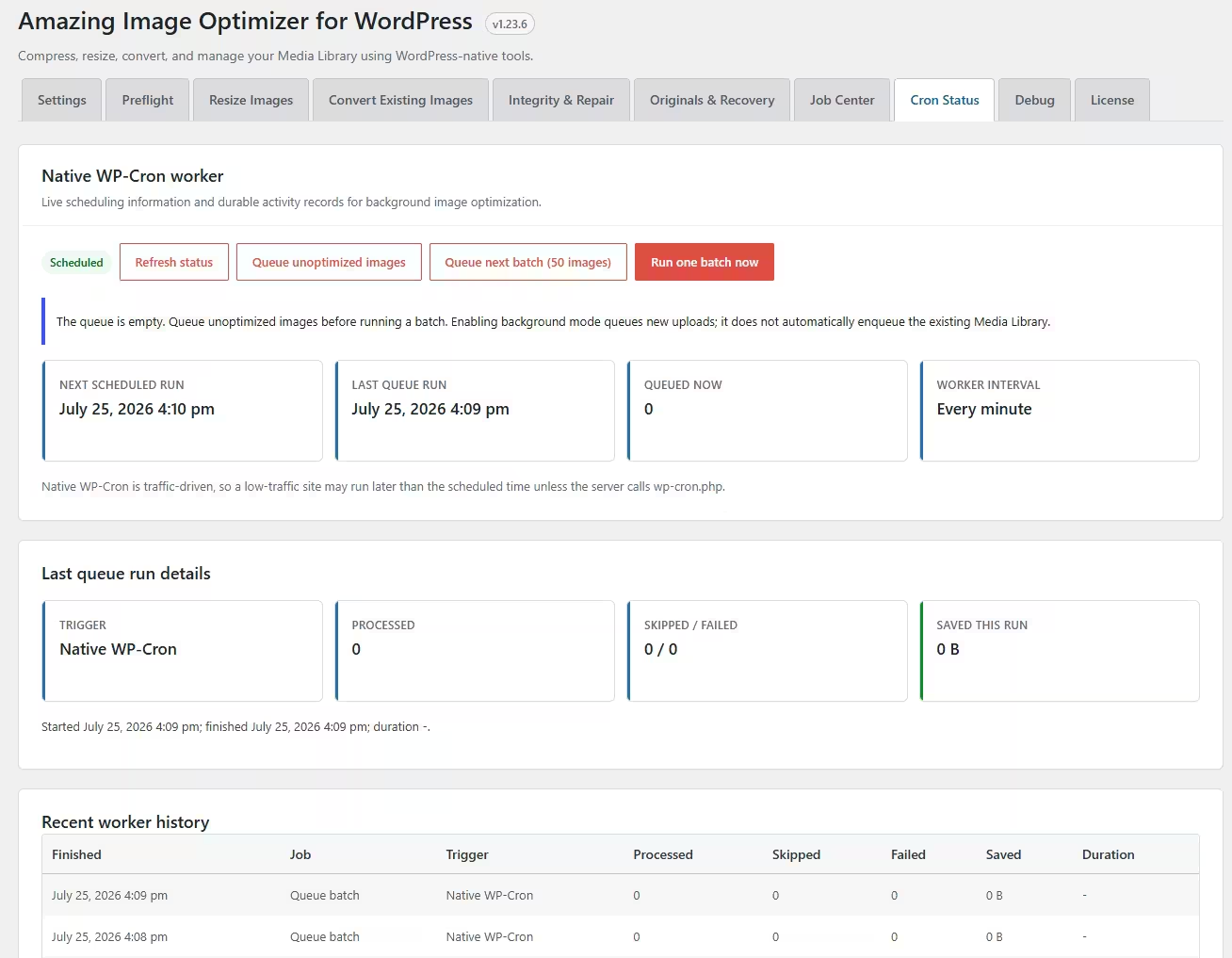
The plugin schedules a native WordPress event every minute. WP-Cron is traffic-driven, so the scheduled time is not a guarantee on low-traffic sites.
Queue unoptimized images
Adds eligible existing images that are not already optimized. Background mode automatically queues new uploads, but does not automatically enqueue the whole existing library.
Queue next batch
Adds up to the saved Cron batch size while skipping optimized, queued, and processing items.
Run one batch now
Processes the current queue immediately. If it reports zero images, the queue was empty; queue images first.
Cron Status
Shows scheduler state, next/last run, current attachment, outcomes, bytes saved, failures, duration, and the 20 most recent worker runs.
Shared worker lock
WP-CLI, native WP-Cron, manual queue runs, and Media Library AJAX optimization share one owner-aware lock. A second optimizer is refused until the active operation finishes.
Reliable server cron
For predictable processing, invoke WordPress from the server’s cron scheduler. One common WP-CLI pattern is:
*/5 * * * * cd /path/to/wordpress && wp amazing-image run --batch=20 --quietAdjust the path, PHP/WP-CLI command, interval, and batch size for the hosting environment. If DISABLE_WP_CRON is enabled, ensure the server invokes either wp-cron.php or WP-CLI. While a worker is active, plugin and Media Library screens display a live progress bar with its source, current image, and handled count.
WP-CLI reference
| Command | Purpose |
|---|---|
wp amazing-image optimize 123 | Optimize attachment ID 123. |
wp amazing-image optimize --all --force | Queue and process every image, including already optimized attachments. |
wp amazing-image queue | Queue eligible images for WP-Cron. |
wp amazing-image queue --force | Queue images even when already marked optimized. |
wp amazing-image run --batch=20 | Process one queue batch. Without --batch, the saved Cron batch size is used. |
wp amazing-image status | Display scheduling, worker, queue, space-saving, editor, WebP, and AVIF status. |
wp amazing-image convert-existing --attached-only --delete-old --format=smallest --yes | Convert JPEG/PNG attachments with a nonzero Uploaded to relationship, choose the smaller WebP/AVIF result, migrate and verify stored references, then delete replaced source files. |
wp amazing-image convert-existing-stop | Request a graceful bulk stop after the active attachment finishes verification. |
wp amazing-image convert-image 123 --format=smallest --delete-old --yes | Convert and verify one attachment by ID, optionally deleting replaced source files. |
wp amazing-image originals | List retained originals, sizes, paths, and health. Use --format=json for automation. |
wp amazing-image restore-original 123 --yes | Restore one retained original with regenerated sizes and verified reference migration. |
wp amazing-image delete-original 123 --yes | Permanently remove one retained backup without changing the active attachment. |
wp amazing-image cleanup-originals 123 --yes | Delete one tracked replaced-original set only after its database usage check is clear. |
wp amazing-image cleanup-originals --all --custom-tables --yes | Check and clean every tracked set, including compatible custom database tables. |
wp amazing-image jobs | List every Job Center pipeline, its state, progress, failures, and next scheduled run. |
wp amazing-image jobs-run [--all] | Run one resource-bounded step, or continue until active queues are drained. |
wp amazing-image jobs-control pause|resume|cancel | Control the current persistent recovery/discovery maintenance job. |
convert-existing requires --yes to confirm a current database/uploads backup, unless a trusted backup-plugin integration confirms one through aiofw_backup_status. It shows progress and an ETA. Omit --attached-only to process unattached images too; omit --delete-old to retain replaced source files. Output may be webp, avif, or smallest. Add --custom-tables only when broader plugin/custom-table scanning is needed.
Why does run process zero images?
run consumes the queue; it does not discover images itself. Use wp amazing-image queue, optimize --all, or an admin queue button first.
Builders, ACF, and WooCommerce
Conversions keep the same attachment ID. This is the safest path for WordPress features and plugins that store an image ID rather than a literal URL.
- Gutenberg: attachment IDs remain intact; URL references in block markup are migrated.
- Elementor and builders: URL references in JSON/serialized settings are migrated. Detected Elementor, Beaver Builder, and Divi generated caches are invalidated through their available APIs.
- ACF: image and gallery fields storing IDs continue to work; URL/array storage is included in recursive reference replacement.
- WooCommerce: featured and gallery image attachment IDs continue to resolve to the converted attachment and regenerated sizes.
Cached HTML and proprietary tables
A builder or cache plugin may store generated output outside standard WordPress data. Clear page/server/CDN caches after a migration. Enable advanced custom-table migration only when necessary and test on staging first.
Image Editor Test Drive
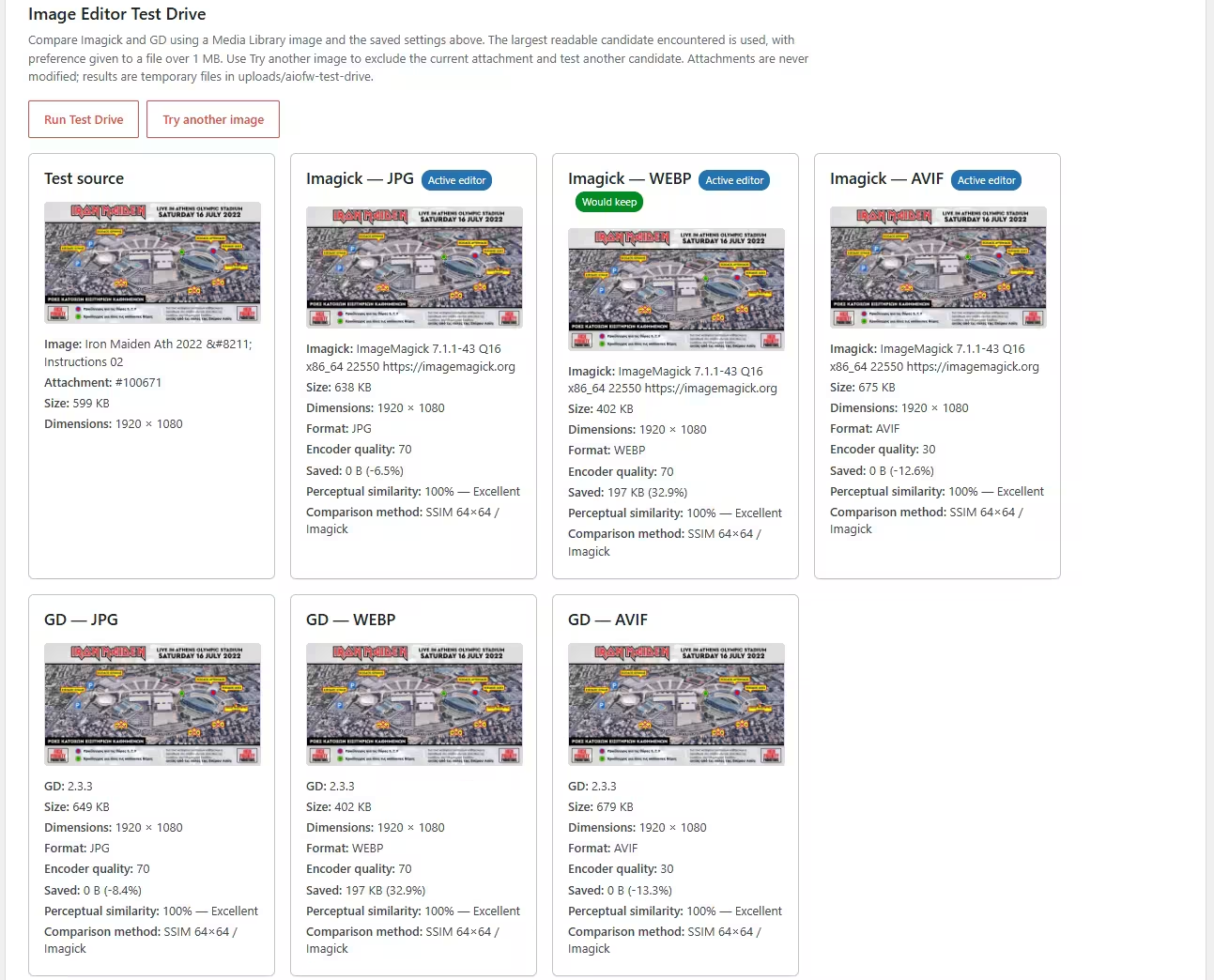
The Test Drive compares Imagick and GD with the saved settings, generating separate JPEG, WebP, and AVIF results where supported. It uses a readable Media Library image, prefers one over 1MB, and includes a retained full-resolution original when available. A generated demo is used only when no suitable site image exists.
- When Perceptual Auto-Quality is enabled, each card reports the lowest tested encoder quality that met the saved similarity target.
- Click any source or result image to inspect it at full size in a new tab.
- Use Try another image to exclude the displayed attachment and rerun the comparison with another readable Media Library image.
- Active editor identifies WordPress’s current first-choice editor.
- Would keep appears only on the smallest successful result.
- Each result shows its format-specific encoder quality and a local 64×64 luminance SSIM approximation. Treat it as a consistent comparison aid, not a laboratory perceptual metric.
- An unsupported result includes the editor’s error instead of presenting it as a valid option.
Amazing Image Optimizer for WP Developer hooks
Amazing Image Optimizer uses standard WordPress filters and actions so site-specific integrations can adjust local policy and observe operations without editing plugin files. Hooks run synchronously inside the request or background worker; callbacks should be fast, return the documented type, and must not throw exceptions.
Settings and eligibility
aiofw_default_settings, aiofw_settings, aiofw_sanitized_settings, aiofw_optimization_profiles, aiofw_encoder_quality, aiofw_format_capabilities, aiofw_attachment_settings, aiofw_should_optimize_attachment, aiofw_should_queue_attachment, and aiofw_should_resize_attachment.
Queue and conversion policy
aiofw_enqueue_all_query_args, aiofw_enqueue_batch_query_args, aiofw_existing_conversion_args, aiofw_should_convert_attachment, aiofw_existing_reference_columns, and aiofw_media_conversion_custom_tables.
Safety and integrations
aiofw_preflight_checks, aiofw_backup_status, aiofw_backup_confirmed, aiofw_integrity_findings, and aiofw_builder_cache_invalidation.
Lifecycle actions
Queueing: aiofw_attachment_queued and aiofw_attachments_queued. Optimization: aiofw_before_attachment_optimization, aiofw_attachment_optimization_skipped, aiofw_attachment_optimization_failed, and aiofw_after_attachment_optimization. Conversion: aiofw_before_existing_attachment_conversion, aiofw_existing_attachment_conversion_skipped, aiofw_existing_attachment_conversion_failed, aiofw_after_existing_attachment_conversion, aiofw_attachment_converted, and aiofw_attachment_conversion_rolled_back. Resizing and integrity: aiofw_before_attachment_resize, aiofw_after_attachment_resize, and aiofw_attachment_integrity_inspected. Background work: aiofw_background_job_enqueued, aiofw_before_background_worker, aiofw_after_background_worker, aiofw_background_job_item_processed, and aiofw_background_job_completed.
Examples
// Exclude protected media from queueing.
add_filter( 'aiofw_should_queue_attachment', function ( $allowed, $attachment_id ) {
    return has_term( 'do-not-optimize', 'media_category', $attachment_id ) ? false : $allowed;
}, 10, 2 );

// Use a lower AVIF quality for a particular attachment.
add_filter( 'aiofw_attachment_settings', function ( $settings, $attachment_id ) {
    if ( 123 === $attachment_id ) {
        $settings['avif_quality'] = 45;
    }
    return $settings;
}, 10, 2 );

// Notify a local monitoring integration after a job completes.
add_action( 'aiofw_background_job_completed', function ( $job ) {
    error_log( sprintf( 'AIOFW job %s completed.', $job['id'] ) );
} );
Low-level test hooks
aiofw_allow_file_write, aiofw_generated_metadata_override, aiofw_metadata_update_override, and aiofw_reference_update_override exist for controlled failure testing. Do not use them as routine production policy hooks.
Debugging
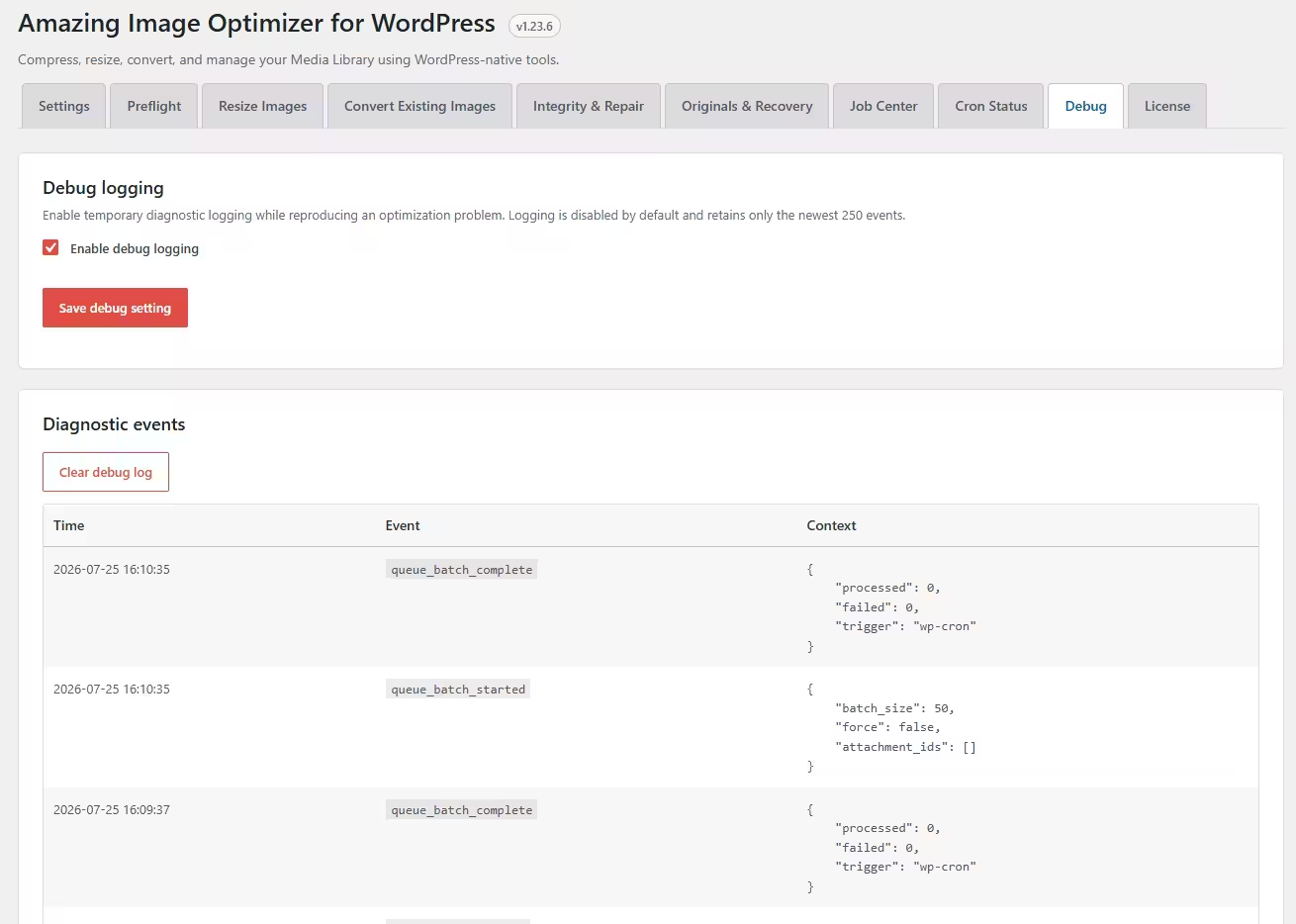
Debug logging is off by default. Enable it temporarily under Media → Image Optimizer → Debug, reproduce the problem once, then review the newest events.
- The log retains only the newest 250 events.
- Events cover resize decisions, active files, editor failures, conversion candidates, queue activity, and rollback outcomes.
- Use Clear debug log after troubleshooting and disable logging when finished.
Troubleshooting
Large upload finishes on disk but Media Library reports an error
Version 1.11.4 and newer avoid duplicate attachment-size generation by converting before attachment creation. Version 1.12.2 also polls conversion status when a proxy times out, so a conversion that continues successfully is recognized instead of shown as a false failure. Confirm the current plugin version, clear opcode/page caches, retry with Debug enabled, and inspect PHP memory/execution limits if the server still cannot decode the source.
AVIF reports “no encode delegate”
This is an image-library/server capability issue. The selected Imagick installation was built without a working AVIF/HEIF encoder. Ask the server administrator to enable AVIF support, or select GD/WebP when supported.
The converted image exists but an old URL remains
Clear WordPress, builder, object, reverse-proxy, and CDN caches. If the URL is stored in a proprietary table, restore from backup, enable advanced custom-table migration, and test again on staging.
WP-Cron is scheduled but nothing runs
Confirm images are actually queued. WP-Cron needs site traffic unless the server invokes it. Check Cron Status for disabled cron, stale work, the next run, and the latest outcome.
A failed image needs attention
Use the failed-image filter in list or grid Media Library view. The status displays the stored error. Enable Debug, reproduce with the per-image action, and review editor/memory/file-permission events.
Amazing Image Optimizer FAQ
Does optimization resize the main image?
Does background mode resize on upload?
Are generated image sizes included?
Will Optimize now convert an existing JPEG?
What happens when a candidate is larger?
What if the server cannot create WebP or AVIF?
How is saved space calculated?
Can I delete the original?
Changelog
Release history for Amazing Image Optimizer for WordPress. The newest release is shown first.
1.25.0 Image-size controls and regeneration
- Replaced stale running-worker text with a completed status when an existing-image batch finishes, and hide the no-longer-applicable background-running note.
- Load WordPress image metadata functions explicitly during WP-Cron existing-image conversion, preventing undefined-function failures before thumbnail generation.
- Recreate missing historical sizes that remain registered and enabled.
- Remove unused obsolete missing-size metadata, or stop safely and report database locations when stored references still use the missing file.
- Edit width, height, and proportional/hard-crop behavior for every registered image size.
- Apply overrides during native WordPress subsize generation without modifying theme, plugin, or WordPress core code.
- Reset all overrides to current registrations and include the policy in settings export/import.
- Regenerate all enabled sizes or one selected size through the persistent Background Job Center, with live progress and a retained completion report.
- Optionally clean-rebuild all generated sizes while protecting the full-size upload and retained original.
- Restore per-attachment files and metadata automatically when regeneration or verification fails.
1.24.1 Disabled-size cleanup reports
- Show live cleanup totals for files deleted, metadata entries removed, failed attachments, and disk space reclaimed.
- Store the latest completed cleanup report independently of rotating Job Center history.
- Add cumulative reclaimed-space totals to the active Job Center pipeline.
1.24.0 Image-size controls and cleanup
- Add a dedicated Image Sizes tab for WordPress core, theme, and plugin registered sizes.
- Stop selected intermediate sizes from being generated on future uploads and metadata regeneration.
- Delete existing disabled-size files through the persistent Job Center with backup confirmation and strict file-safety boundaries.
- Include disabled-size policy in settings exports and imports.
1.23.6 Live Media Library queue results
- Poll queued Media Library conversions every five seconds and refresh the attachment row and action controls without a page reload.
- Persist per-attachment completed, skipped, and failed outcomes so kept originals show the reason and return to a usable state.
- Keep queued conversion and conflicting optimization actions disabled only while the attachment is genuinely pending or running.
1.23.5 Interrupted-worker recovery
- Remove an admin-only title helper that caused WP-Cron status rendering to fail.
- Recover matching orphaned per-image locks after an interrupted Job Center request.
- Reuse completed reference indexes for faster Media Library conversion and reference migration.
1.23.4 Media Library disabled-state fix
- Preserve disabled, queued, capability, title, and accessibility attributes through the list-column HTML allowlist.
- Recognize queued labels when disabling previously cached Media Library controls.
1.23.3 Concurrent queue integrity
- Preserve images appended while a conversion worker is already processing an attachment.
- Show the complete persistent queue total and progress in the floating status panel.
- Keep cached Media Library grid controls disabled when a queued attachment is reopened.
1.23.2 Queued-action protection
- Display already queued conversion controls in an unmistakably disabled state.
- Prevent duplicate per-image queue requests in JavaScript and on the server.
- Exclude already queued attachments from selected-image conversion requests.
1.23.1 Background Media Library conversion
- Queue single and selected Media Library WebP/AVIF conversions as persistent native WP-Cron jobs.
- Show explicit queued labels and disable conflicting per-image optimization actions until conversion finishes.
- Allow compatible images to be appended to the active Media Library conversion job.
1.23.0 EDD licensing
- Add EDD license activation, daily validation, deactivation, and licensed updates through amazingwpplugins.com.
- Add a final License tab with masked-key display, renewal status, and clear activation feedback.
- Lock plugin-page content until a valid license is active while preserving Media Library image actions.
- Document the licensing request data and privacy boundary.
1.22.2 Capability-aware controls
- Disable unsupported WebP/AVIF settings and conversion actions with server capability explanations.
- Downgrade smallest-of-both to the one available encoder and reject unavailable AJAX/WP-CLI requests.
- Skip queueing and re-optimization for existing WebP/AVIF images when their current format cannot be encoded.
1.22.1 Extension hooks
- Add filters for settings, per-image policy, eligibility, queue queries, conversion arguments, and integrity findings.
- Add lifecycle actions for queueing, optimization, conversion, resizing, integrity inspection, and background jobs.
- Document public hook contracts and separate low-level failure-test hooks from production integrations.
1.22.0 Local preflight and release testing
- Add a local-only Compatibility & Preflight tab covering runtime, encoders, storage, PHP resources, WP-Cron, locks, database scale, object cache, multisite scope, backup readiness, and privacy.
- Add backup-plugin integration hooks and require backup acknowledgement for destructive bulk recovery and cleanup.
- Add a formal PHPUnit/CI compatibility matrix, workflow smoke tests, and safe failure-injection filters.
- Document the required release-candidate matrix for WooCommerce, ACF, builders, object caching, large sites, multisite, and failure recovery.
1.21.5 Integrity repair progress
- Add immediate spinner feedback for individual and bulk repairs.
- Show handled/total counts, percentage, progress bar, and completed/error states.
1.21.4 Uncapped Integrity batches
- Remove the upper batch-size cap and change the default and suggested value to 20.
- Report the last individual worker batch so five-second progress polling is not mistaken for a larger configured batch.
1.21.3 Live Integrity batch sizing
- Add an explicit Save batch size action.
- Allow running and paused scans to adopt the saved value on the next worker batch.
1.21.2 Integrity batch controls
- Add a configurable 1–100 image batch size to Integrity scans with a safe default and suggested value of 10.
- Keep an active scan on its chosen batch size and include the preference in settings exports and imports.
1.21.1 Saved custom profiles
- Add a Save current profile action for reusable site-specific compression, quality, and perceptual policies.
- Include saved profiles in settings exports and imports.
1.21.0 Optimization profiles and Integrity ETA
- Add Custom, Photography, WooCommerce, Graphics and text, and Maximum savings profiles.
- Apply named profiles both interactively in wp-admin and authoritatively on the server.
- Add percentage and pause-aware active-worker ETA to Integrity scans.
1.20.0 Perceptual Auto-Quality and Integrity Center
- Add bounded perceptual quality selection with separate JPEG, WebP, and AVIF minimums, a similarity target, and fixed-quality fallback.
- Show the selected quality in Image Editor Test Drive.
- Add a persistent Image Integrity & Repair tab with categorized findings, safe repairs, live background progress, Job Center integration, and CSV export.
1.19.2 Inventory file sizes
- Display the current main-file size and combined main-plus-variants size beneath each image path in the Convert Existing Images table.
1.19.1 Direct reference mapping
- Replace per-image wildcard searches of catalog
LONGTEXTwith an indexed attachment-to-reference mapping. - Map main, generated-size, and WordPress scaled filenames during catalog creation.
- Retain exact current-row replacement and targeted verification as final safety checks.
1.19.0 Batch reference catalog
- Build a reusable database-reference catalog asynchronously during the existing-image scan.
- Walk large tables in bounded primary-key ranges to avoid one long wildcard query.
- Use the compact catalog during conversion instead of repeatedly scanning every configured WordPress table.
- Verify only changed rows by default and provide an optional high-assurance full-database discovery and verification mode.
- Add per-column timing and explicit catalog-query failure diagnostics.
1.18.19 Stable scan-action icon alignment
- Prevent wp-admin styles from overriding the scan-action Dashicon line height.
1.18.18 Refined scan actions
- Use exact 10px top spacing for the introductory action.
- Give the enabled Scan existing images action a dark admin-charcoal background with high-contrast white text.
1.18.17 Clearer existing-image scan start
- Add an introductory action that scrolls directly to the inventory filters.
- Give the Scan existing images button stronger visual priority while keeping the wp-admin design language.
1.18.16 Live primary job actions
- Refresh the upper recovery/discovery action row with the Job Center heartbeat.
- Remove the row automatically after completion or cancellation.
- Change Pause to Resume in place when a job is paused.
1.18.15 Pipeline progress controls
- Add compact Pause and Cancel icons beside active pipeline progress bars.
- Show a Play/Resume icon when a controllable pipeline is paused.
- Safely stop existing-image conversion after its active image completes while preserving completed results.
1.18.14 Batched retained-original discovery
- Process retained-original discovery and recovery queues in multi-image, resource-bounded worker runs.
- Use Cron batch size as the ceiling and a 20-second execution budget to reduce timeout risk.
- Immediately chain remaining work and let the five-second admin heartbeat dispatch it from plugin or Media Library screens.
- Keep all work protected by the shared collision lock.
1.18.13 Aligned existing-image controls
- Reorganize the filters into a consistent three-column row.
- Place conversion options in a balanced two-column checkbox grid.
- Normalize control dimensions and add responsive layouts for narrower admin screens.
1.18.12 Conversion activity and percentage
- Add a spinning activity icon to the inventory panel while conversion is running.
- Show a live completion percentage in the panel header.
- Retain decimal precision at low percentages for large inventories and use precise progress-bar widths.
1.18.11 Reduced progress polling
- Poll the admin-wide bulk progress endpoint every five seconds instead of every two seconds.
- Keep the first request immediate while reducing AJAX traffic during long conversions.
1.18.10 Bulk progress completion ETA
- Add a live estimated completion date and time beside the bulk progress heading.
- Calculate the estimate from persisted start time and current throughput.
- Show a calculating state until the first image completes and refresh the estimate with every progress poll.
1.18.9 Existing-image size filter
- Add an optional minimum main-image size in KB to the existing-image scan controls.
- Include only images strictly larger than the entered value; blank or zero disables the size rule.
- Preserve the filter through review, pagination, and conversion.
1.18.8 Immediate admin heartbeat dispatch
- Use the admin-wide live progress heartbeat to launch the next existing-image batch as soon as the previous worker releases its lock.
- Avoid waiting for the recurring cron interval while an optimizer or Media Library admin screen remains open.
- Keep all dispatches protected by the shared Job Center lock.
1.18.7 Background-processing guidance
- Add a clear note beneath the existing-image ETA that the tab may be safely closed.
- Explain that optimization continues in the background and progress is restored when the user returns.
1.18.6 Bulk progress review link
- Add a Review link to the live bulk progress panel for existing-image jobs.
- Open Convert Existing Images directly so the active queue and per-image results can be inspected.
1.18.5 Background worker watchdog
- Add a PHP-FPM post-response worker when WordPress cron loopbacks are blocked or delayed by the host.
- Allow the live status monitor to kick a stalled queue without processing conversion inside the browser request.
- Keep all fallback work under the same collision lock and log dispatch activity in the Debug tab.
1.18.4 Fully background existing-image conversion
- Run Convert Existing Images exclusively through the native WP-Cron Background Job Center.
- Start an immediate background worker and safely chain resource-bounded cron requests while work remains.
- Process a bounded group using the configured Cron batch size and an execution-time budget.
- Turn the admin tab into a live status monitor that restores progress when revisited and never owns conversion work.
- Retain pause, resume, retry, ETA, and persistent progress controls after the browser closes.
1.18.3 Background completion and recovery safety
- Finish batches immediately when no queued/running rows remain and automatically resume an unfinished web batch when its page is reopened.
- Let claimed requests finish after tab closure and recover abandoned rows only when no per-image lock remains.
- Reject AVIF output above 10-bit for broader browser compatibility.
- Separate original-reference usage from replacement health and decode the complete active image set before deleting originals.
- Add a validation-only audit action and mark unhealthy replacements failed while preserving retained source files.
1.18.2 Alternate Test Drive images
- Add a Try another image action that excludes the currently displayed attachment.
- Report when no other readable Media Library source is available.
1.18.1 Corrupt encoder-output protection
- Validate encoded headers, MIME type, dimensions, decoded pixels, and every generated WordPress size.
- Use GD as an independent decoder when available to detect broken Imagick AVIF delegates.
- Delete invalid Test Drive candidates and stop conversions before attachment or database changes.
1.18.0 Unified jobs and perceptual profiles
- Add independent JPEG, WebP, and AVIF lossy profiles with legacy migration.
- Show JPEG/WebP/AVIF results and luminance SSIM perceptual similarity in Test Drive.
- Add a persistent Unified Background Job Center for optimization, conversion, resize, discovery, restoration, and cleanup.
- Move bulk recovery maintenance to native WP-Cron with live status, history, collision guards, manual stepping, and pause/resume/cancel controls.
- Add WP-CLI Job Center status, run, and control commands.
1.17.1 Settings footer styling
- Use a white background behind the Save Changes button.
1.17.0 Verified original-file cleanup
- Track source sets retained after existing-image conversion.
- Add legacy discovery, disk totals, pagination, and individual or bulk cleanup.
- Re-check WordPress references and attachment identity before every deletion, with optional compatible custom-table inspection.
- Refuse unsafe or still-used files and share the global worker lock.
- Add verified WP-CLI cleanup for one or all tracked attachments.
1.16.1 Processing panel polish
- Move scan controls, batch actions, progress, ETA, and live status into a dedicated styled panel.
- Correct the Optimization health caption so its percentage sign appears once.
1.16.0 Originals and verified recovery
- Add a retained-original inventory with disk usage, missing-file health, pagination, and per-image or bulk actions.
- Restore originals with regenerated WordPress sizes and reference-aware migration after format conversion.
- Snapshot and roll back files, attachment data, metadata, and reference rows if verification fails.
- Add safe backup cleanup and WP-CLI list, restore, and delete commands.
1.15.0 Existing-image overview and optimize-only mode
- Add inventory, tracked-size, savings, and optimized/unoptimized/error overview metrics.
- Add in-place optimization using the saved settings without changing format, main URL, attachment ID, or stored references.
- Share worker locking and throttle aggregate refreshes for large inventories.
- Add a library-wide pre-scan fallback and live per-image status percentages.
- Use an original metric-card and segmented-health design; unavailable byte savings display as untracked instead of 0%.
1.14.0 Shared bulk worker coordination
- Add an atomic, owner-aware optimization lock shared by WP-CLI, WP-Cron, manual admin runs, and Media Library AJAX operations.
- Keep the lock for the complete multi-batch
optimize --allcommand. - Show live cross-request progress throughout the plugin and Media Library.
1.13.0 Resize-only workflow
- Clarify that Keep original applies when an image is resized or converted.
- Add a resumable Resize Images tab for existing oversized JPEG, PNG, WebP, and AVIF attachments without format or URL changes.
- Preserve generated variants while updating main dimensions and tracked resize savings.
1.12.12 Metadata-safe candidate generation
- Snapshot and restore
_wp_attachment_metadataafter generating conversion candidates so rejected sets cannot leak candidate sub-size references. - Restore exact unfiltered metadata during rollback and clean partial candidate files when generation throws.
1.12.11 Database schema safety
- Remove the invalid
users.user_descriptionreference definition; biographies are stored in user meta. - Validate configured reference tables and columns before querying them.
1.12.10 WP-CLI confirmation flag
- Correct the WP-CLI synopsis for the
--yesboolean flag while retaining mandatory runtime backup confirmation.
1.12.9 Hyphenated WP-CLI commands
- Map PHP methods to the documented
convert-existing,convert-existing-stop, andconvert-imagesubcommands.
1.12.8 CLI stop and single-image conversion
- Add a graceful bulk-conversion stop command.
- Add verified conversion of one JPEG/PNG attachment by ID.
1.12.7 Existing-image WP-CLI conversion
- Add bulk existing-image conversion with attached-only filtering, verified old-file deletion, WebP/AVIF/smallest output, optional custom-table scanning, progress, ETA, and backup confirmation.
1.12.6 Conversion ETA
- Add a rolling live ETA with calculating, paused, and completed states to Convert Existing Images.
1.12.5 Media action locking
- Disable Optimize/Re-optimize while an attachment converts or repairs references, and disable Convert/Repair while it optimizes.
- Apply the lock to bulk Media Library actions.
1.12.4 Timeout and cache recovery
- Wait for conversion locks and rollback jobs before reporting timed-out work complete.
- Invalidate affected post, meta, and option caches.
- Add Repair references for converted attachments.
1.12.3 Parent-content migration
- Migrate attachment parent content with rollback protection.
- Expand coverage for absolute, encoded, scaled, generated-size, legacy,
href,src, andsrcsetreferences.
1.12.2 Gateway-timeout recovery
- Poll attachment state after gateway timeouts and recognize conversions that finish later.
- Keep custom-table scanning opt-in for individual Media Library conversions.
- Add conversion timing diagnostics.
1.12.1 Attachment edit controls
- Load size details and AJAX controls on the standalone attachment edit screen.
1.12.0 Upload activity
- Add live upload activity for upload, resize, conversion, thumbnail generation, optimization, and queueing.
- Display it in grid uploads and Add New Media.
1.11.4 Large-upload reliability
- Prevent duplicate attachment-size generation and convert before attachment creation.
- Preserve original and resize statistics, fail open on exceptions, and defer conversion for core-scaled uploads.
1.11.3 Settings layout
- Move Export/import settings after Manual processing.
1.11.2 Dimension limits
- Clamp maximum dimensions and stored values to WordPress core’s 2560px big-image limit.
1.11.1 Core scaled images
- Respect
-scaledattachments as active images and avoid unnecessary deferred conversion work.
1.11.0 Upload resizing
- Apply maximum dimensions before WordPress generates sizes, including background mode.
- Preserve originals according to settings and include resize savings.
1.10.1 Cron Status reliability
- Isolate Cron Status rendering from Settings-only editor and statistics loading.
1.10.0 Settings portability and failures
- Add JSON settings export/import and failed-image Media Library filters.
- Set default cron batch size to 20 and allow up to 500 with a load warning.
1.9.3 Re-optimize label
- Show Re-optimize for images already marked optimized.
1.9.2 Parent post type
- Display the parent post type beneath Uploaded to links.
1.9.1 Individual inventory conversion
- Add AJAX conversion for one image in the inventory using selected format and migration settings.
1.9.0 Persistent selections
- Add checked-by-default inventory selection, preserve exclusions across pages, and skip unchecked images.
1.8.6 Tab naming
- Rename Existing Images to Convert Existing Images.
1.8.5 Manual queueing
- Add Queue next batch to Manual processing.
1.8.4 Duration display
- Fix zero-second durations displaying as decades and show a dash for empty runs.
1.8.3 Cron-sized queue action
- Add an action that queues only the next configured batch while skipping ineligible images.
1.8.2 Empty queue guidance
- Explain empty runs, add queue-unoptimized action, and disable manual runs when nothing is queued.
1.8.1 Admin version
- Show the loaded plugin version beside the wp-admin heading.
1.8.0 Cron monitoring
- Add scheduler state, next/last run, live progress, stale detection, outcome history, and extended CLI status.
1.7.2 Valid conversion responses
- Isolate builder cache output and exceptions so conversion AJAX remains valid JSON.
1.7.1 Expanded Test Drive
- Show separate WebP/AVIF results for Imagick and GD, retaining successful files and marking only the smallest.
1.7.0 Builder and ACF compatibility
- Add Gutenberg, Elementor, page-builder, and ACF image/gallery compatibility plus builder cache invalidation hooks.
1.6.0 Media bulk tools
- Add size sorting plus Optimize selected and Convert selected controls in list and grid views.
1.5.2 Action styling
- Add Dashicons and distinct conversion-action colors.
1.5.1 Scan-first workflow
- Require a reviewed inventory before conversion and add state-aware controls.
1.5.0 Admin redesign
- Refresh Settings, Existing Images, and Debug with responsive wp-admin-native design.
1.4.2 Numbered pagination
- Add synchronized pagination above and below the Existing Images table.
1.4.1 Media Library conversion
- Add per-image format conversion with size regeneration, reference migration, verification, and rollback.
1.4.0 Existing-image table
- Add server pagination, linked filenames, relative paths, and Uploaded to links.
1.3.5 Media stylesheet
- Restore the Media Library stylesheet as a regular plugin asset.
1.3.4 Clear inventory
- Add a confirmed Clear results action.
1.3.3 Stylesheet fallback
- Inline Media Library styling to avoid missing-file or MIME-type responses.
1.3.2 Size details
- Collapse main and variant sizes behind the total-size row.
1.3.1 Uploaded to links
- Replace footer JavaScript with server-rendered View/Preview links while retaining Attach/Detach controls.
1.3.0 Fast filtered inventory
- Use one inventory query, add JPEG/PNG and attached-only filters, retain output choices, and make custom-table scanning opt-in.
1.2.5 MariaDB schema fix
- Replace a reserved queue-table column name.
1.2.4 Optimization column
- Move Optimize now into Image optimization and show main, variant, and total sizes.
1.2.3 View post
- Add a View post link beneath Uploaded to in Media Library list view.
1.2.2 Attachment discovery
- Discover by stored filename and MIME regardless of status, recreate missing queue tables, and distinguish database errors from empty results.
1.2.1 Site-image Test Drive
- Prefer a readable Media Library image over 1MB, include retained originals, and use generated imagery only as fallback.
1.2.0 Persistent conversion workflow
- Add resumable scan/conversion, registered and legacy size handling, serialized/plain reference migration, verification, and rollback.
1.1.1 Synchronous scaled conversion
- Complete conversion after core scaling and return final URLs immediately to Media Library and block-editor uploads.
1.1.0 Debugging
- Add an off-by-default bounded Debug tab covering resize, queue, editor, conversion, size, and failure events.
1.0.7 Deferred conversion
- Dispatch oversized-upload conversion through native WP-Cron and display pending state.
1.0.6 Scaled rollback
- Fix deferred conversion rollback after core scaling and verify complete size regeneration.
1.0.5 Complete image sets
- Regenerate all registered sizes and roll back when generation fails or the converted set is not smaller.
1.0.4 Media filters
- Add optimized and unoptimized filters to list and grid Media Library views.
1.0.3 Grid optimization
- Add AJAX optimization to attachment details and improve large-upload memory handling and Test Drive results.
1.0.0 Initial release
- Initial release.
Get Amazing Image Optimizer for WordPress
Built to handle image libraries of any size, Amazing Image Optimizer works automatically in the background.
Have clients uploading images that are several megabytes each?
Amazing Image Optimizer takes care of them before they can slow down the website.