












Installation
This wordpress plugin can be installed as any other wordpress plugin. Installation is simple.
- Extract the zip file you have downloaded.
- Login to your administration panel (ex. http://www.yourdomain.com/wp-admin).
- Go to Plugins → Add New.
- At the top of the page click the “Upload Plugin” link
- Click choose file (or what your browser uses to navigate to your files)
- From the extracted files of step one (1) navigate to and select woo-products-list-pro.zip and click “Install Now“
- You may be asked to confirm your wish to install the Plugin.
- If this is the first time you’ve installed a WordPress Plugin, you may need to enter the FTP login credential information. If you’ve installed a Plugin before, it will still have the login information. This information is available through your web server host.
- Click Proceed to continue with the installation. The resulting installation screen will list the installation as successful or note any problems during the install.
- If successful, please click Activate Plugin to activate it.
Upgrade
– Deactivate and delete the plugin.
– Install the new version and activate it.
or overwrite via FTP
Features
- User friendly and self-explanatory administration panel.
- Displays all the needed data for your products according to your settings.
- Easy to add a list anywhere on your WordPress via shortcode.
- Easy to add a list anywhere on your WordPress via PHP function.
- Comes with Gutenberg block, Elementor widget or simply use the shortcode.
- Merge any columns to one “product” column.
- You can create unlimited product lists by filtering per product category, product tag, product publishing date etc.
- “Add Selected to Cart” with select all checkbox for mass / bulk adding products to cart
- Extensible / developer friendly. You can alter the plugin without hacking it, but via WordPress filters and actions.
- Make your products stand out with your custom sticker/icon. You can enable/disable or override it per product.
- Supports Amazing Wishlist for WooCommerce
- Supports YITH WooCommerce Quick View
- Supports WooCommerce Product Gift Wrap
- AJAX can be enabled / disabled from the settings page
- Sorting of table columns in the frontend by clicking at each column header
- List pagination
- On the fly categories, tags, brands and any Woo taxonomy filters
- Responsive Layout / Mobile Ready
- Easily translatable via .po / .mo files.
Requirements
- WordPress 5.0+
- Woocommerce 7.0+
- PHP 7.4+
Usage
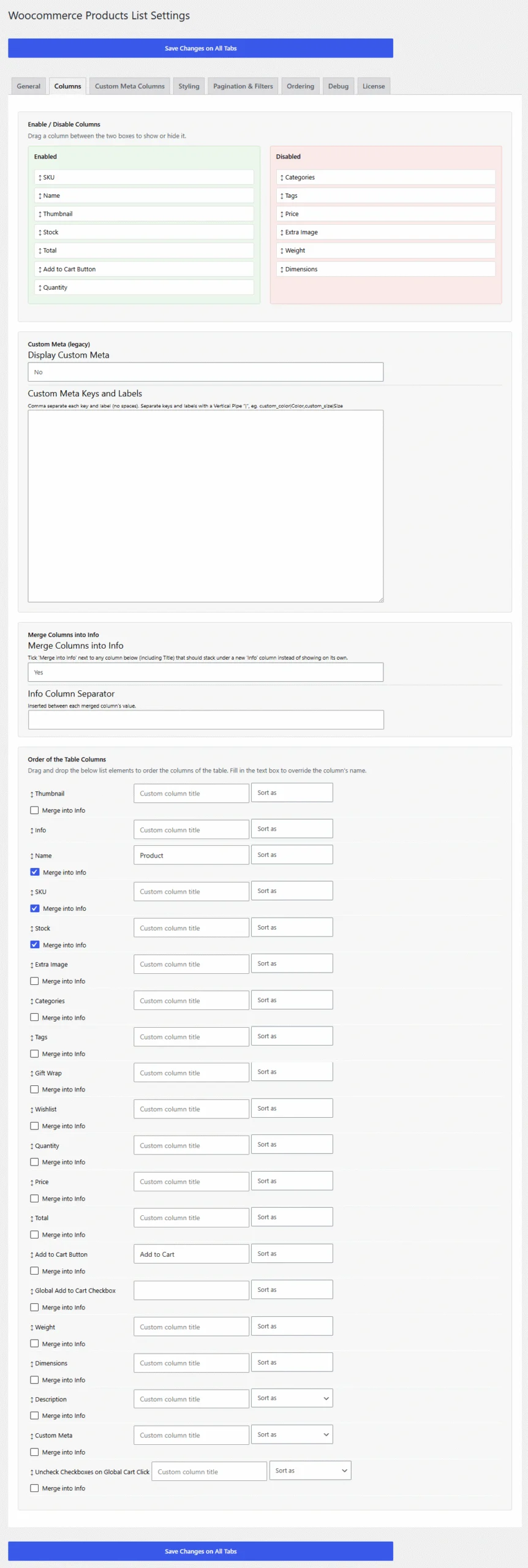
In order to use the Woocommerce Products List PRO plugin, please navigate from your WordPress administration panel to “Woocommerce → Products List PRO“
Options
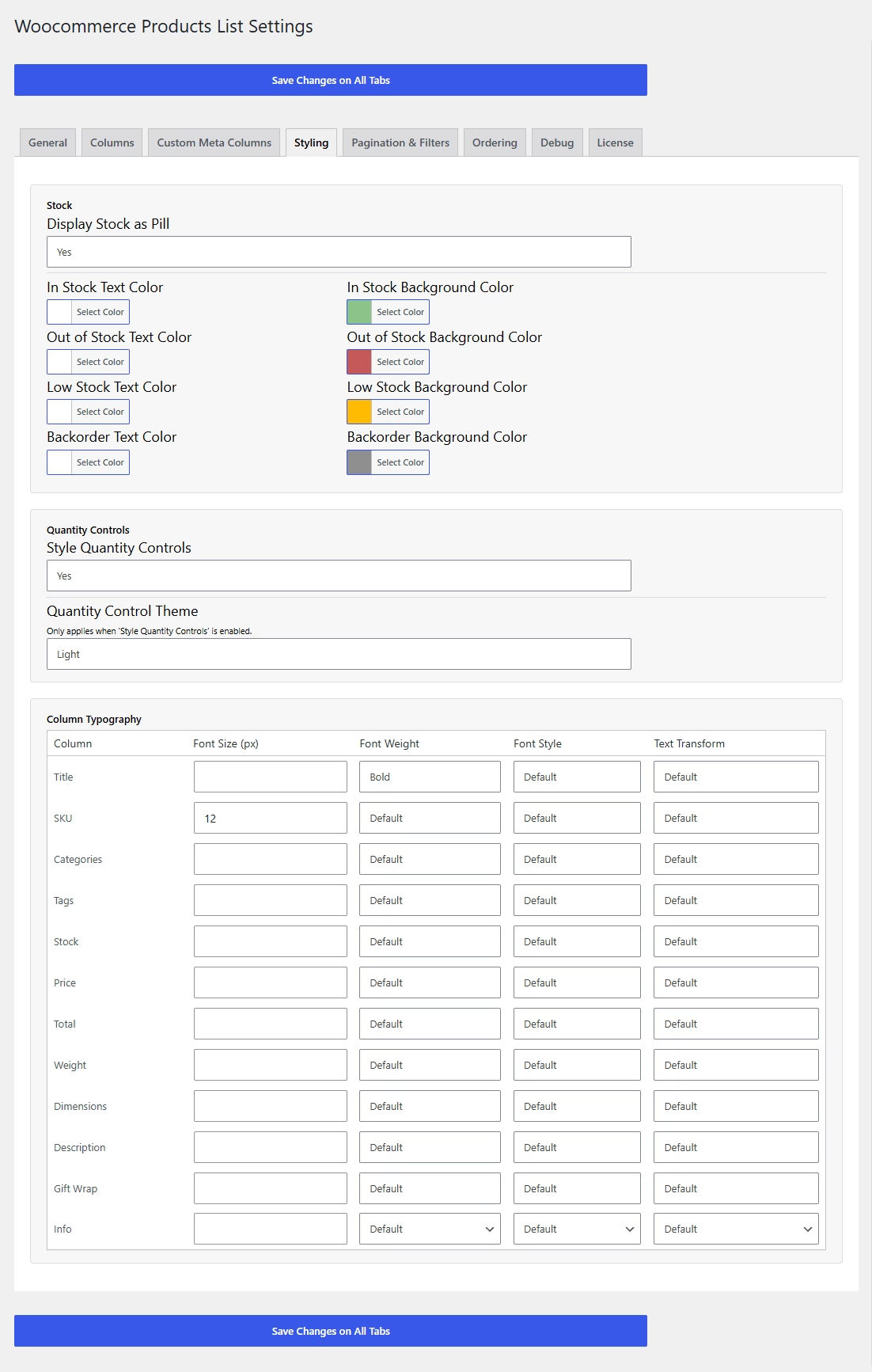
- Display Product Title: Select “yes” to display the product title column or “no” to hide it.
- Display SKU: Select “yes” to display the product SKU column or “no” to hide it.
- Display Thumbnail: Select “yes” to display the thumbnail column or “no” to hide it.
- Thumbnail Width in Pixels: You may define the with of the thumbnail in pixels in this field
- Display Categories: Select “yes” to display a column with the categories that are assigned to the product or “no” to hide it.
- Display Tags: Select “yes” to display a column with the tags that are assigned to the product or “no” to hide it.
- Display Stock: Select “yes” to display the stock condition column or “no” to hide it.
- Hide Zero Priced Products: Select “yes” to skip empty or zero priced products or “no” to include them on the list.
- Hide Out of Stock Products: Select “yes” to skip out of stock products or “no” to include them on the list.
- Treat zero quantity Products as Out of Stock: Select “yes” to skip products that do not have a quantity set or “no” to include them on the list.
- Display Price: Select “yes” to display the price column or “no” to hide it.
- Display Total: Select “yes” to display the total per row column or “no” to hide it.
- Display Quantity Field: Select “yes” to display the quantity input field of the products to be added to cart column or “no” to hide it.
- Display Quantity Controls: Select “yes” to display -/+ buttons for the quantity field or no to hide them.
- Default Quantity Value: Enter any number to set as default quantity, default is 1.
- Display Weight: Select “yes” to display the weight of the products or “no” to hide it.
- Display Dimensions: Select “yes” to display the dimensions of the products or “no” to hide it.
- Display Add To Cart: Select “yes” to display the add to cart button column or “no” to hide it.
- Display Global Add To Cart: Select “yes” to display the global add to cart button or “no” to hide it.
- Global Add To Cart Button Position: Here you can choose where to place the global add to cart button.
- Global Add To Cart Button Default Status: You may set it to checked or un-checked when the list loads.
- Display Wishlist: Select “yes” to display the wishlist icon column or “no” to hide it.
- Display Gift Wrap Option: Select “yes” to display the gift wrap checkbox column or “no” to hide it, if you have the gift wrap plugin.
- Display Image: Select “yes” to display an extra image/sticker/icon column or “no” to hide it.
- Add Image: Upload the extra image/sticker/icon by clicking on the Open Media Manager button. The image will obey the thumb width settings.
- Display Excerpt: Select “yes” to display a excerpt of the product.
- Excerpt max length in characters: Enter the max number (eg. 50) of characters in order to limit it. Leave blank for WP default.
- Display Excerpt Inline: Select where you would like to place the description.
- Display Table Head: Select “yes” to display table head or no to hide it. Hiding it will also remove the frontend sorting functionality.
- Enable Sorting: Select “yes” to enable sorting by clicking the table header on the frontend
- Enable Ajax: Select “yes” to enable AJAX for the “add to cart” button
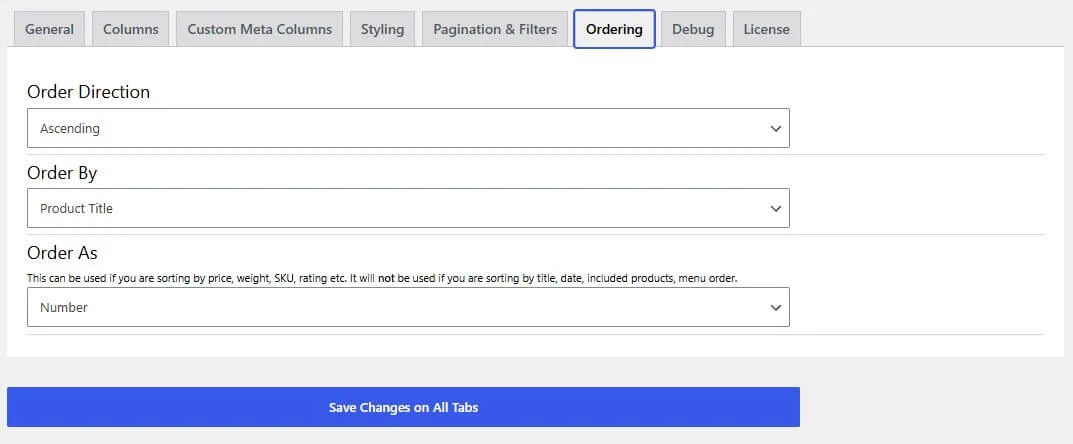
- Order Direction: Select “ascending” or “descending” to set the default order direction for the list.
- Order By: Select the desired value to set the default element to order the products list.
- Order Columns: You may order the columns by drag-n-dropping the list elements.
- You are ready to go! *** Save Changes ***


Gutenberg Block
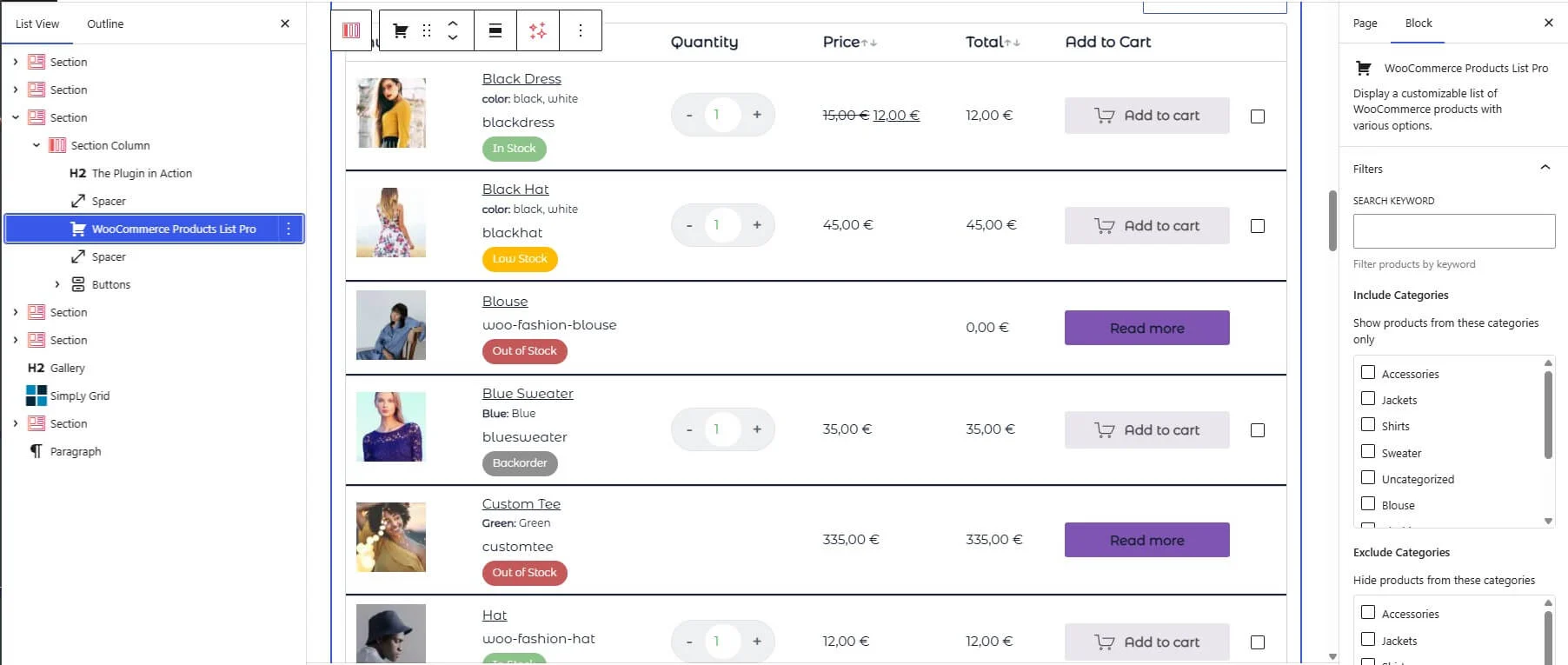
Just drag and drop the WooCommerce Products List Pro block at the desired position. All the pluin options are available to be overriden.
Elementor Widget
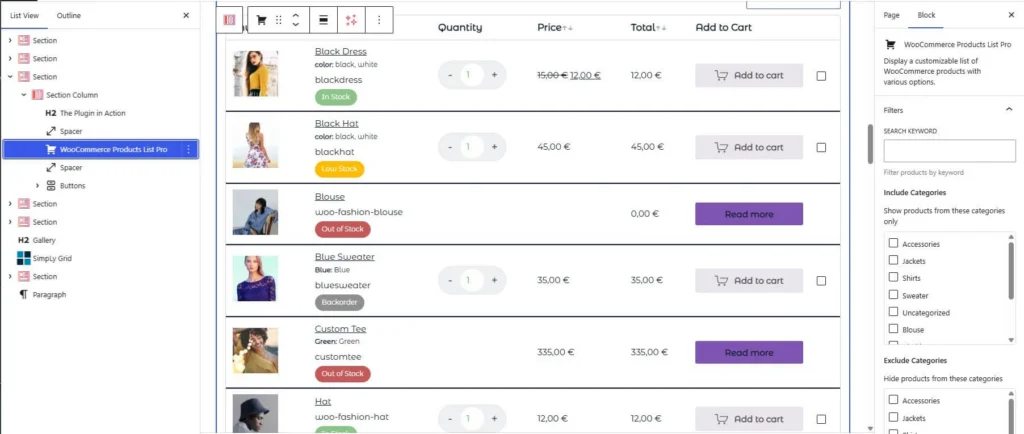
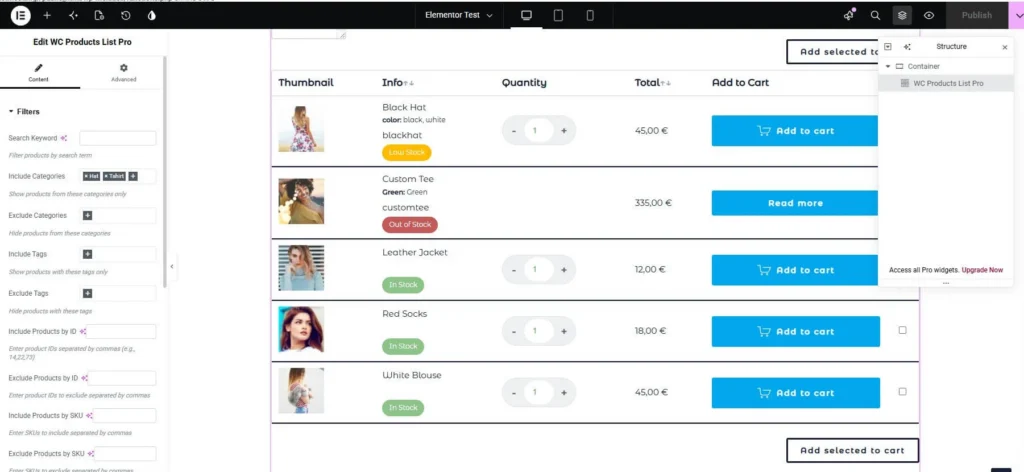
Just drag and drop the WooCommerce Products List Pro Elementor Widget at the desired position. All the pluin options are available to be overriden.
Shortcode
On your product page or anywhere were shortcodes are executed (eg. posts and pages), you may use the shortcode [wcplpro] . If you just put the shortcode then it will read the default settings of the plugin that you have just set via the admin settings panel.
In order to customize the shortcode, it is strongly recommended to use the “WOO List” icon that is now available on the WP Editor.
However, you may also enter the shortcode manually by using any of the following attributes (respectively to the above options):
- keyword
- categories_exc
- categories_inc
- tag_exc
- tag_inc
- posts_inc
- posts_exc
- categories
- tags
- sku
- title
- thumb
- thumb_size
- stock
- hide_zero
- hide_outofstock
- zero_to_out
- price
- total
- offer
- image
- qty
- default_qty
- qty_control
- cart
- globalcart
- globalposition
- global_status
- wishlist
- gift
- ajax
- desc
- weight
- dimensions
- desc_inline
- head
- sorting
- order
- orderby
- order_direction
- order_as
- date
- wcplid
- quickview
- pagination
- posts_per_page
- filter_cat
- filter_tag
- filters_position
On all attributes, setting it to “1” equals to “yes” and “0” equals to “no”, when yes or no apply as a possible options. Here is an example:
[wcplpro wcplid="57f2f7e862f22" keyword="woo ninja" thumb=1 thumb_size=150 stock=1 offer=0 qty=1 default_qty=4 ajax=0]
As you may notice we have not set the cart, wishlist etc. attributes, hence the shortcode will do as we have set via the plugin’s settings panel
After version 1.0.4, every shortcode needs the wcplid attribute in order for the on the fly filters to function
Guide to some special shortocde attributes
keyword: This is a free text attribute. The shortcode will do a search for the term you entered.
categories_exc: Comma separated categories IDs that you want its products’ to be excluded form the list.
categories_inc: Comma separated categories IDs that you want products from these categories only to be excluded to the list.
tag_exc: Same as categories but for excluding product tags
tag_inc: Same as categories but for restricting to specific product tags only
posts_inc: Enter comma separated products IDs (no spaces), to only include those products in the list
posts_exc: Enter comma separated products IDs (no spaces), to exclude those products from the list
thumb_size: This will take a number only and will be used as pixels
image: It has to be a full URL to the image
globalposition: Available values are “bottom”, “top” and “both”
desc: This will display the excerpt or not. Again 0 and 1 are the available options
order_direction: Available values are “asc” for ascending and “desc” for descending
orderby: Available values are “date”, “title”, “_price”, “_sale_price”, “_regular_price”, “_sku”, “_weight”, “_length”, “_width”, “_stock”, “total_sales”, “_stock_status”, “_wc_average_rating”
order_as: Available values are “meta_value” the will order as plain text and “meta_value_num” that will order as number. Default is as plain text
date: You can use this to display products only from specific year, month or day, eg. 2016 will display only products that were added in 2016 and 2016/09 will display products added on September of 2016 etc.
quickview: This will take as options: no, simple, variable, all
pagination: This will take as options: no, before, after, both
posts_per_page: This should be a number
filter_cat: This will take as options: yes, no
filter_tag: This will take as options: yes, no
filters_position: This will take as options: no, before, after, both
For Developers
Many hooks are in place. Please search the code for a full list. Below are some of them with examples.
Filters
You can add alter the css class of the link to the full image for each variation with the filter “wcplpro_thumb_class_filter”, eg.
add_filter( 'wcplpro_thumb_class_filter', 'my_wcplpro_custom_img_class');
function my_wcplpro_custom_img_class($class) {
  $class = $class.' myclass anotherclass';
  return ($class);
}
The Woocommerce “single_add_to_cart_text” filter is in place. Please refer to Woocommerce documentation.
Actions
You may add your own css class for the table with “wcplpro_table_class”, eg.
add_action( 'wcplpro_table_class', 'my_wcplpro_table_class');
function my_wcplpro_table_class($class) {
  $class = ' table-hover table-striped ';
  return ($class);
}
You can add text before and after the table with, “wcplpro_before_table” and “wcplpro_after_table”, eg.
add_action( 'wcplpro_before_table', 'my_wcplpro_before_table');
function my_wcplpro_before_table($text) {
  $text = 'This text ';
  $text .= 'will go before the table';
  echo $text;
}
add_action( 'wcplpro_after_table', 'my_wcplpro_after_table');
function my_wcplpro_after_table($text) {
  $text = 'This text ';
  $text .= 'will go after the table';
  echo $text;
}
Bulk “Add to Cart” Hooks (new in 2.0.0)
The AJAX add-to-cart handler now processes every item in a multi-item request in one call and exposes its own filters/actions:
wcplpro_bulk_add_to_cart_items– filter the raw list of product IDs before any of them are added to the cart.wcplpro_bulk_item_added_to_cart– action, fires after each individual item is successfully added. Receives$product_id, $quantity.wcplpro_bulk_item_add_failed– action, fires after each individual item fails to be added. Receives$product_id, $reason.wcplpro_bulk_add_to_cart_message– filter the final summary message text.wcplpro_bulk_add_to_cart_response– filter the entire JSON response (added count, failed list, message) sent back to the browser.
add_action( 'wcplpro_bulk_item_add_failed', 'my_log_bulk_add_failures', 10, 2 );
function my_log_bulk_add_failures( $product_id, $reason ) {
  error_log( "Bulk add-to-cart failed for product $product_id" );
}
Elementor / Gutenberg Attribute Hooks (new in 2.0.0)
Both the Elementor widget and the Gutenberg block resolve their own settings into the same shortcode attributes the [wcplpro] shortcode uses. You can filter that resolution with:
wcplpro_elementor_widget_atts– filter the shortcode attributes array the Elementor widget built from its controls. Receives$atts, $widget.wcplpro_block_atts– filter the shortcode attributes array the Gutenberg block built from its attributes. Receives$attributes, $block_attributes.
Frequently Asked Questions
- Can I list all Woocommerce products filtered by category?
Yes, you can via “categories_inc” shortcode attribute. - Can I list all Woocommerce products filtered by tag?
Yes, you can via “tag_inc” shortcode attribute. - I have hundreds of products. Is there a pagiantion option?
Yes, it was added in version 1.0.4. - Can I put this anywhere in my site?
Yes, you can via the shortcode, if the field where you put it is able to execute shortcodes. - Can I exclude products from the list?
Yes, you can via the product edit screen. Please select “Yes” at the option “Remove this product from Woocomerce Products List” under the product’s general settings tab. - Are variable products supported?
Variable products will be listed, however the “add to cart” button will not be available for them. Instead there will be a “read more” button that will link to the product single page.
Changelog
2.3.0 16 Jul 2026
- Feature: New “Custom Taxonomies” section on the Custom Meta Columns tab – add any other public taxonomy registered on products (one added by another plugin, or a global WooCommerce attribute such as pa_color) as its own table column, with an optional custom column label
- Feature: Custom taxonomy columns can be dragged into position on the Columns tab’s “Order of the Table Columns” list, toggled on/off, and merged into the Info column, exactly like any built-in column
- Change: New
wcplpro_available_custom_taxonomiesfilter (which taxonomies are offered in the picker),wcplpro_custom_taxonomy_valuefilter (one taxonomy’s rendered value for one product), andwcplpro_column_custom_taxonomyfilter (a custom taxonomy column’s full cell output) - Change: New
wcplpro_column_brandfilter for the Brand column’s full cell output, andwcplpro_merge_info_contentfilter for the Info column’s final merged content, matching the extensibility already available on the other columns
2.2.1 14 Jul 2026
- Change: In “Brand Image and Name” display mode, the Brand column now stacks the image above the name (10px apart) instead of showing them side by side
2.2.0 13 Jul 2026
- Feature: Added support for WooCommerce’s native Brand taxonomy (product_brand) – a new Brand column (name, image, or both) and a Brand dropdown filter, both working automatically if the site has WooCommerce’s Brands feature active
2.1.3 12 Jul 2026
- Fix: The Elementor widget’s live editor preview no longer triggers a “script enqueued with dependencies that are not registered: selectWoo” PHP notice – the frontend stylesheet/script are now only tied to WooCommerce’s selectWoo dependency when it’s actually available in the current context
- Fix: The Gutenberg block’s live editor preview now loads the plugin’s actual frontend stylesheet (table, filters, pagination, Styling-tab typography/colors), instead of a generic placeholder style that didn’t match the real frontend output
- Fix: On the settings page, the second “Save Changes on All Tabs” button now appears below the License tab’s content instead of above it
- Change: Sidebar’s “We are here to help!” link now points to the Amazing WP Plugins support page, and a new “Documentation” button links to the plugin’s online documentation, both opening in a new tab
2.1.2 10 Jul 2026
- Change: Redesigned the pagination links – deliberately neutral colors (no brand blue/green) so it blends into any theme, with hover/active states and every color exposed as an overridable CSS custom property
2.1.1 6 Jul 2026
- Fix: “Product Title” was missing from the Styling tab’s Column Typography table – it can now have its own font size/weight/style/transform like every other column
- Fix: The Stock column now always shows an explicit label (“In Stock”, “Out of Stock”, “Low Stock” or “Backorder”) – it previously relied on WooCommerce’s own availability text, which is blank for a plain in-stock product with no backorder/low-stock notice configured
- Fix: A product explicitly set to “On backorder” (independently of its stock quantity) no longer displays as “In Stock” – the stock status classification now matches WooCommerce’s own backorder detection exactly
- Fix: When columns are merged into the Info column, each one now stacks on its own line instead of running together inline with no separation
- Fix: The Stock column’s colored “pill” styling is no longer lost when the Stock column is merged into the Info column
- Fix: The plugin’s stylesheet is now served with a proper version string tied to the plugin version, so browsers/CDNs reliably fetch the updated CSS after a plugin update instead of a stale cached copy
2.1.0 5 Jul 2026
- Feature: New “Styling” tab – per-column font size, font weight, font style and text-transform for SKU, Categories, Tags, Stock, Price, Total, Weight, Dimensions, Description, Gift Wrap and the new Info column
- Feature: Option to display Stock as a colored “pill” instead of plain text, with a custom color per stock status (In Stock, Out of Stock, Low Stock, Backorder)
- Feature: Option to merge any column – including Title – into a new “Info” column, in the order set on the Columns tab. A merged column no longer displays on its own
- Feature: Quantity controls can now be displayed as a rounded “pill” (new “Style Quantity Controls” option), with a Light or Dark theme
- Feature: The Enable/Disable Columns picker is now two drag-and-drop boxes (colored green/red) instead of one Yes/No dropdown per column, at the top of the redesigned “Columns” tab – existing saved settings are unaffected
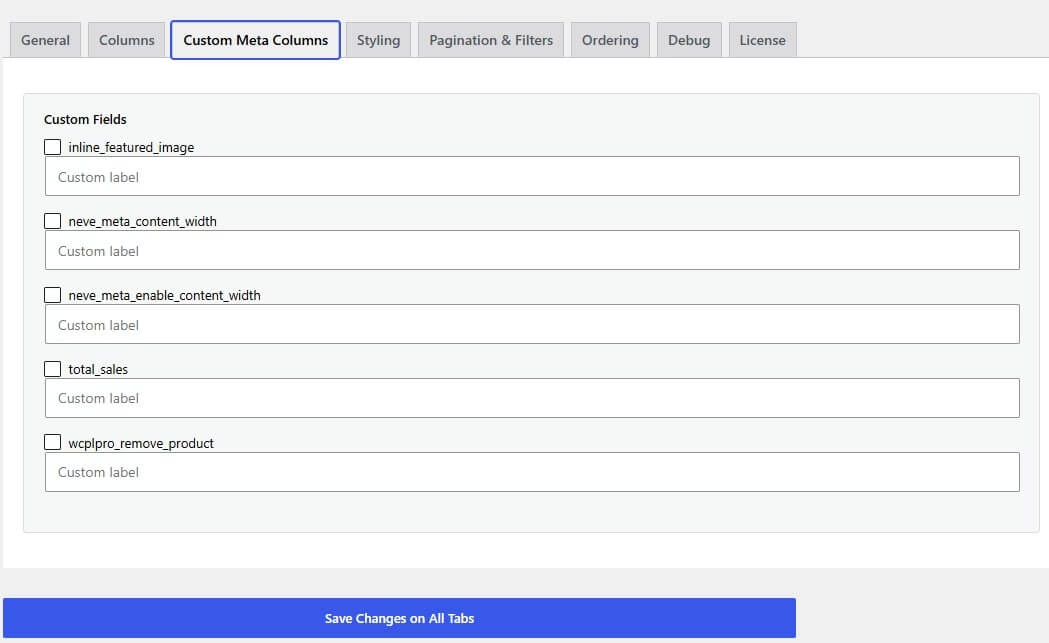
- Feature: New “Custom Meta Columns” tab – add any custom field, and/or any ACF field assigned to the Product post type, as its own table column. ACF Image/Gallery fields render as actual thumbnails, not attachment IDs; ACF Repeater fields render each row’s Text and Image sub-fields
- Feature: New EDD license tab – the Styling, Pagination & Filters, Ordering and Debug tabs require a valid license to edit (already-saved values in those tabs keep working on the frontend regardless of license status), and the plugin can now auto-update itself once licensed
- Feature: Added compatibility with Amazing Wishlist for WooCommerce as an alternative to YITH WooCommerce Wishlist for the “Wishlist” column – whichever is active is used automatically (Amazing Wishlist takes priority if both are active); the Wishlist/Gift Wrap items only appear in the Enable/Disable picker when a compatible plugin is actually active
- Feature: The settings page now reopens whichever tab you were on before clicking Save Changes, instead of always returning to the first tab
- Feature: Settings page reorganized into General/Columns/Custom Meta Columns/Styling/Pagination & Filters/Ordering/Debug/License tabs, with fields grouped into titled card sections – purely a presentation change, no setting was renamed, added, removed, or reset
- Change: The global “Add to Cart” button now also carries the
wp-block-button__linkCSS class, so it inherits styling from block themes - Change: Replaced remaining select2 usages with WooCommerce’s own selectWoo
- Change: Removed the “Rate this plugin” nag from the settings page sidebar
- Change: New
wcplpro_dynamic_cssfilter for the Styling tab’s generated inline CSS
2.0.0 1 Jul 2026
- Major: Rewritten from several procedural files into a namespaced, class-based codebase (one class per concern) – same option names, post meta keys, shortcodes, AJAX actions, and hooks/filters, so existing sites, custom code and the bundled Elementor/Gutenberg integrations keep working unchanged
- Security: Added the CSRF nonce that was missing from the “add to cart” AJAX request
- Security: Added a nonce and capability check to the product options save handler, and scoped it to only run for the “product” post type
- Security: Added a nonce and capability check to the “shortcode creator” editor dialog’s AJAX handler, which previously had none
- Security: Escaped output and added sanitization callbacks across the settings page and table rendering, which previously had none
- Feature: Declares compatibility with WooCommerce High-Performance Order Storage (HPOS)
- Feature: Declares WooCommerce as a required plugin dependency, with a fallback admin notice if it’s deactivated later
- Feature: “Add to cart” now processes every item in a multi-item request and shows one summary message (count added, plus which items failed and why, if any) instead of stopping at the first failure
- Feature: Added new filters around the bulk add-to-cart flow and the Elementor/Gutenberg attribute resolution – see “For Developers”
- Fix: The Elementor widget’s live editor preview now actually loads the plugin’s frontend styles (the previous code guarded this on a function name that never existed)
1.3.0 5 Apr 2026
- Feature: Added products table Elementor widget
- Feature: Added products table Gutenberg block
- Tweak: Made add to cart button Ajax rules more generic to add compatibility with more themes
1.2.0 5 Nov 2025
- Feature: Added the option to auto-uncheck the global cart checkboxes after the products have been added in the cart
- Fix: More flexible JS rules for targeting the add to cart buttons
1.1.30 14 Aug 2024
- Feature: Add to cart button icon
- Feature: CSS modernization
1.1.29 13 Feb 2024
- Feature: Additional themes support
- Feature: WooCommerce Product Bundles plugin compatibility
- Feature: Upgraded to select2 v4
- Fix: Filters placeholder
1.1.28 02 Aug 2023
- Feature: WooCommerce Pre-Orders plugin compatibility
- Fix: Various PHP 8.x related fixes
1.1.27 22 Jul 2023
- Feature: Added WP 6.3 compatibility and features
- Fix: Fixed error on the woocommerce_add_to_cart_redirect filter
1.1.26 13 Feb 2023
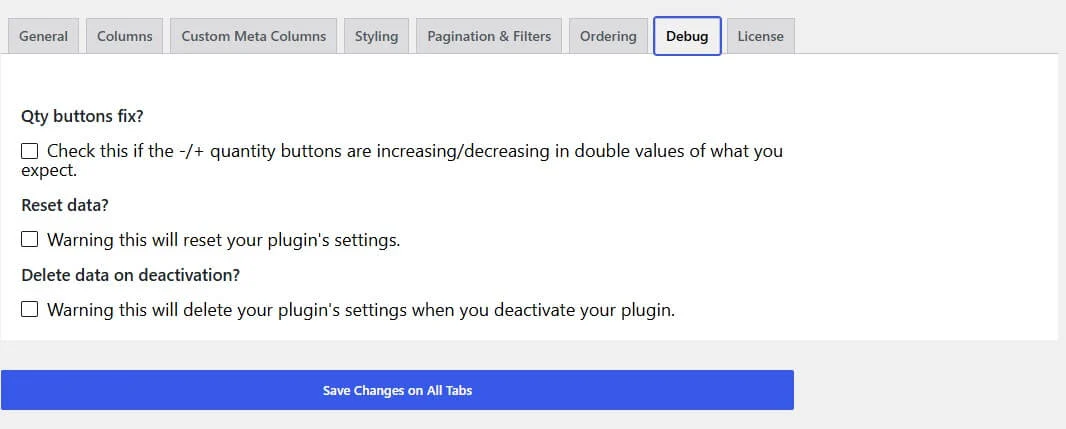
- Feature: The option to enable/disable the plugin functionality of the -/+ quantity buttons if the theme or another plugin provides it.
- Feature: Better Betheme compatibility
1.1.25 01/05/2023
- Feature: Added the option to reset and/or remove all plugin settings
- Fix: Removed some PHP notices
1.1.24 11/24/2021
- Fix: Resolved conflict with Betheme theme
1.1.23 11/19/2021
- Fix: Resolved conflict with Kallyas theme
1.1.22 07/23/2021
- Feature: Added the option to link or not the categories
- Feature: Removed Select2 and utilized SelectWoo
- Fix: Removed phpsessions and implemented cookies solution
- Fix: Removed jQuery migration warnings
1.1.20 05/23/2019
- Fix: WooCommerce version 3.6 compatibility for the quantity input field
1.1.19 04/02/2019
- Feature: Added the option to set the ordering data type per column
- Feature: Added the option to order as number or plain text on the selected orderby value
1.1.18 02/14/2019
- Feature: Categories filter follows “categories_exc” and “categories_inc” shortcode rules
1.1.17 11/14/2018
- Fix: Added a check for the available stock of the max value on the quantity input field
1.1.16 08/03/2018
- Feature: Added the option to enable or disable the responsiveness of the table
- Fix: Minor CSS changes
1.1.15 01/26/2018
- Fix: Next / previous pagination
1.1.14 11/15/2017
- Feature: Add menu_order shorting option
- Feature: Added “woocommerce_product_add_to_cart_text” filter for the “add to cart” button text
- Feature: Added fancybox for image zooming
- Fix: CSS changes
1.1.13 09/08/2017
- Feature: More WP Filters added
- Fix: data sort value and type for a few columns
1.1.12 09/01/2017
- Feature: Added support for Search by SKU for Woocommerce
- Fix: Direct Checkout plugin compatibility updated
- Fix: Minor CSS changes
- Fix: Filters were hidden after a search that would not return any products
- Fix: Hiding the add to cart column was causing sorting to break
1.1.11 08/17/2017
- Feature: Added the option to not link the title to the product page
- Feature: Display global cart total amount
- Fix: Quantity was creating an extra empty columns when -/+ buttons were not present
1.1.10 07/31/2017
- Feature: Search field addition
- Feature: Speed optimization
1.1.9 06/24/2017
- Fix: Product categories were not displaying
1.1.8 06/20/2017
- Feature: Woocommerce min/max quantities plugin support
- Fix: Quantity initial selection
1.1.7 05/08/2017
- Fix: Added checks to resolve select2 conflict
1.1.6 05/04/2017
- Feature: Up/down arrows next to the sortable headers
- Fix: Woocommerce Memberships JS conflict
- Fix: Filters are going away when there were no results
1.1.5 04/11/2017
- Feature: Woocommerce ver 3.0 compatibility
- Fix: Display price range of variable products
- Feature: Include / exclude products by SKU
- Feature: Added image link, target options, to full image, product and product in new tab
1.1.4 01/30/2017
- Fix: Tag filter had a typo
- Fix: Filters displaying was not functioning correctly
1.1.3 01/11/2017
- Feature: Added option to sort by included posts
- Feature: Column titles can be set via the options
- Feature: Added the option to display excerpt or full content, including shortcodes and embeds
- Feature: Added support for WooCommerce Direct Checkout
1.1.2 12/01/2016
- Fix: Renamed select2 CSS class and added check that select2 is loaded
1.1.1 10/27/2016
- Fix: Table headers are now translatable
- Fix: Fixed Woocommerce conflict CSS for mobile labels
1.1.0 10/25/2016
- Feature: Added the option to name the new meta key columns
- Fix: YITH Quickview optimization
- Fix: Spanish translation file compilation fix
1.0.9 10/24/2016
- Fix: Fixed conflict of select2 with other select drop downs
- Fix: Filters not resetting with the reset button
- Fix: Some HTML validation fixes
1.0.8 10/18/2016
- Feature: Added support for array post meta data
- Fix: Fixed compatibility with PHP prior version 5.5
1.0.7 10/16/2016
- Feature: Added the option to display product attributes
- Feature: Custom meta can be set to be displayed in columns
- Feature: New tabbed settings page
- Fix: Pagination and filters were not working when the shortcode was used on the front page
1.0.6 10/13/2016
- Fix: Fixed custom order when pagination is active
1.0.5 10/06/2016
- Feature: Updated Italian and Spanish translations
- Fix: Added a missing check for YITH quickview plugin
1.0.4 10/05/2016
- Feature: Categories filters on the list
- Feature: Tags filters on the list
- Feature: Pagination
- Feature: Added YITH Quick View support
- Feature: Added support for YITH wishlist custom icon
- Fix: Out of stock conditions were not returning the right value under specific circumstances
- Fix: Allow zero priced products to be added to the cart
- Fix: Sorting via the plugin’s settings was ignored
- Fix: Default quantity would not allow 0 as value
- Fix: Some textdomain was wrong
1.0.3 09/21/2016
- Feature: Hugely improved “global add to cart” button execution time
- Feature: Shortcode can now include specific products only
- Feature: Shortcode can now exclude some products from the list
- Feature: Add the option to limit the excerpt characters
- Bug: Yith wishlist view link was not clickable
1.0.2 09/20/2016
- Feature: Added better (native) support for YITH wishlist
1.0.1 09/18/2016
- Feature: Better AJAX request handling
- Feature: Added more hooks
- Feature: Added CSS classes for popular themes
- Feature: Added link to the cart at the sliding notification area
- Feature: Added the option to manually close the “added to cart” notification sliding panel
1.0.0 09/12/2016
- Initial release