












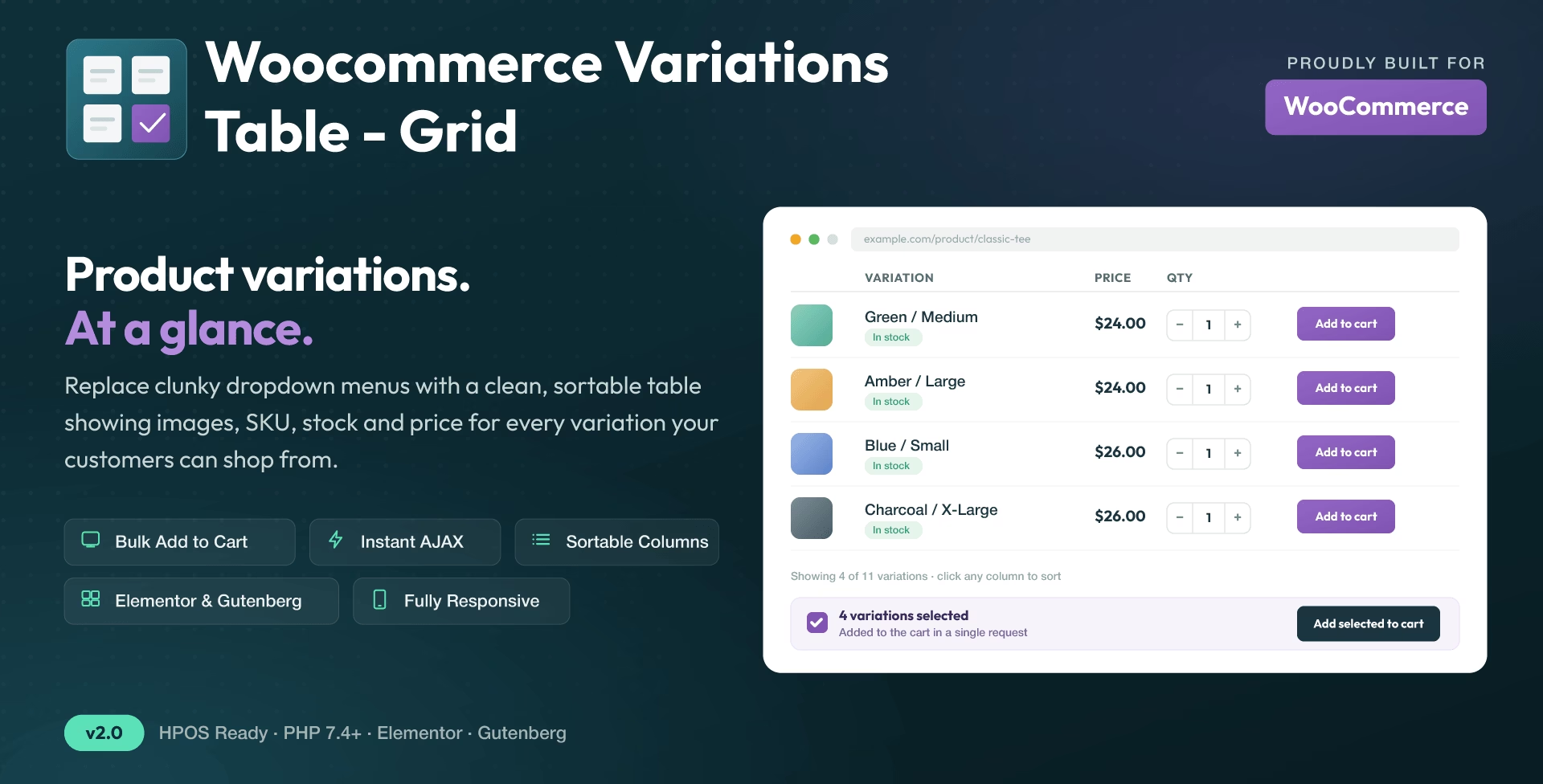
Last Update:
Installation
This wordpress plugin can be installed as any other wordpress plugin. Installation is simple.
- Extract the zip file you have downloaded.
- Login to your administration panel (ex. http://www.yourdomain.com/wp-admin).
- Go to Plugins → Add New.
- At the top of the page click the “Upload Plugin” link
- Click choose file (or what your browser uses to navigate to your files)
- From the extracted files of step one (1) navigate to and select woo-variations-table.zip and click “Install Now“
- You may be asked to confirm your wish to install the Plugin.
- If this is the first time you’ve installed a WordPress Plugin, you may need to enter the FTP login credential information. If you’ve installed a Plugin before, it will still have the login information. This information is available through your web server host.
- Click Proceed to continue with the installation. The resulting installation screen will list the installation as successful or note any problems during the install.
- If successful, please click Activate Plugin to activate it.
Features
- User friendly and self-explanatory administration panel.
- Displays all the needed data for your variable products with options to disable them.
- Supports “any” when you set your product variations
- Supports “custom attributes” that you may add to the products on the fly
- “Add Selected to Cart” with select all checkbox for mass adding variations to cart – added in one request, with a single summary message showing how many were added and, if any failed, which ones and why
- Elementor widgets for the single-product table, the all-products table, and a “Select Products” table with an AJAX product/category/tag/brand picker, with the same options as the shortcodes
- Gutenberg blocks for the single-product table, the all-products table, and a “Select Products” table (PHP-only registration for the first two, no build step required)
- [vartableselect] shortcode (new in 2.1.0): hand-pick specific products by ID, and/or narrow the listing by product category, tag and/or brand – with a live AJAX search picker in both the Elementor widget and Gutenberg block
- Declares compatibility with WooCommerce High-Performance Order Storage (HPOS)
- Styling tab (new in 2.0.1): per-column font size, font weight, font style and text-transform, plus a “pill” layout option for the Stock column and custom colors for each stock status
- Option to merge attributes/columns into one stacked “Title” column, in the order you choose
- Quantity controls can be displayed as a rounded “pill” control, with a light or dark theme
- Option to disable or enable the table/grid per product.
- In Stock, Out of Stock and Low Stock (with threshold) custom messages
- Easy to use shortcode with full documentation to help you put the table where ever you need and shortcodes are executed.
- Easy to use global shortcode that will display all variations of all variable products on any page.
- Extensible / developer friendly. You can alter the plugin without hacking it, but via WordPress filters and actions.
- Make variations stand out with your custom sticker/icon. You can enable/disable or override it per variation.
- Supports YITH WooCommerce Wishlist and Amazing Wishlist for WooCommerce (new in 2.4.0) – whichever one is active powers the “Wishlist” column
- Supports YITH WooCommerce Quick View
- Supports WooCommerce Product Gift Wrap
- AJAX can be enabled from settings
- Sorting of table columns in the frontend
- Option to enable Responsive layout via the Footable jQuery plugin
- Default table header (auto generated), generic custom table header and per product custom table header can be set
- Custom Meta Columns (new in 2.4.0): add any custom field or ACF field (assigned to the Product or Product Variation post type) as its own table column, including meaningful rendering for ACF image, gallery and repeater (text/image sub-fields) fields – not just raw IDs
- Easily translatable via .po / .mo files.
- Available translations: English, Greek, Français, Italiano.
Requirements
- WordPress 6.5+ (needed for the plugin dependency check on activation; the plugin itself still runs on older WordPress, just without that check)
- Woocommerce 7.1+ (required; the plugin will not load its features without WooCommerce active)
- PHP 7.4+
As of version 2.0.0 this plugin declares compatibility with WooCommerce’s High-Performance Order Storage (HPOS / Custom Order Tables). It only ever reads/writes product and variation data, never order data, so it works the same whether HPOS is enabled or not.
The optional Gutenberg blocks’ auto-generated editor UI (see “Gutenberg Blocks” under Usage) requires the very new PHP-only block registration feature in WordPress core. On older WordPress versions the blocks are still registered but won’t appear in the block inserter – use the [vartable] / [vartableall] shortcodes or the Elementor widgets instead.
Advanced Custom Fields is entirely optional – only needed if you want to use the “Custom Meta Columns” tab’s ACF section (new in 2.4.0). Plain custom fields on that same tab work with or without ACF installed.
Usage
In order to use the Woocommerce Variations to Table – Grid plugin, please navigate from your WordPress administration panel to “Woocommerce → Variations Table“
Options
- Exclude Categories: You may select whole categories to exclude the plugin in order to display the variations with the default select menus
- Enable / Disable Columns: Drag a column between the “Enabled” and “Disabled” boxes to show or hide it – see below.
- Thumbnail Width in Pixels: You may define the with of the thumbnail in pixels in this field
- In Stock Text: If the stock is displayed, you may set the text to display when the variation is in stock
- Out of Stock Text: If the stock is displayed, you may set the text to display when the variation is out of stock
- Low Stock Text: If the stock is displayed, you may set the text to display when the variation stock is low
- Low Stock Threshold: Enter the quantity of the variation that will trigger the low stock status
- Add Image: Upload the extra image/sticker/icon by clicking on the Open Media Manager button.
- Display Table Header: Select “yes” to display table header.
- Custom Table Header: You may write your own custom HTML code for all table headers here.
- Enable Sorting: Select “yes” to enable sorting via the table header on the frontend
- Enable Ajax: Select “yes” to enable AJAX for “add to cart” and “wishlist”
- Enable Responsive Table: Select “yes” to make the table mobile friendly
- Order Columns: On the “Columns” tab (formerly “Column Order”), you may order the columns by drag-n-dropping the list elements
- You are ready to go! *** Save Changes ***
Enable / Disable Columns (redesigned in 2.4.0)
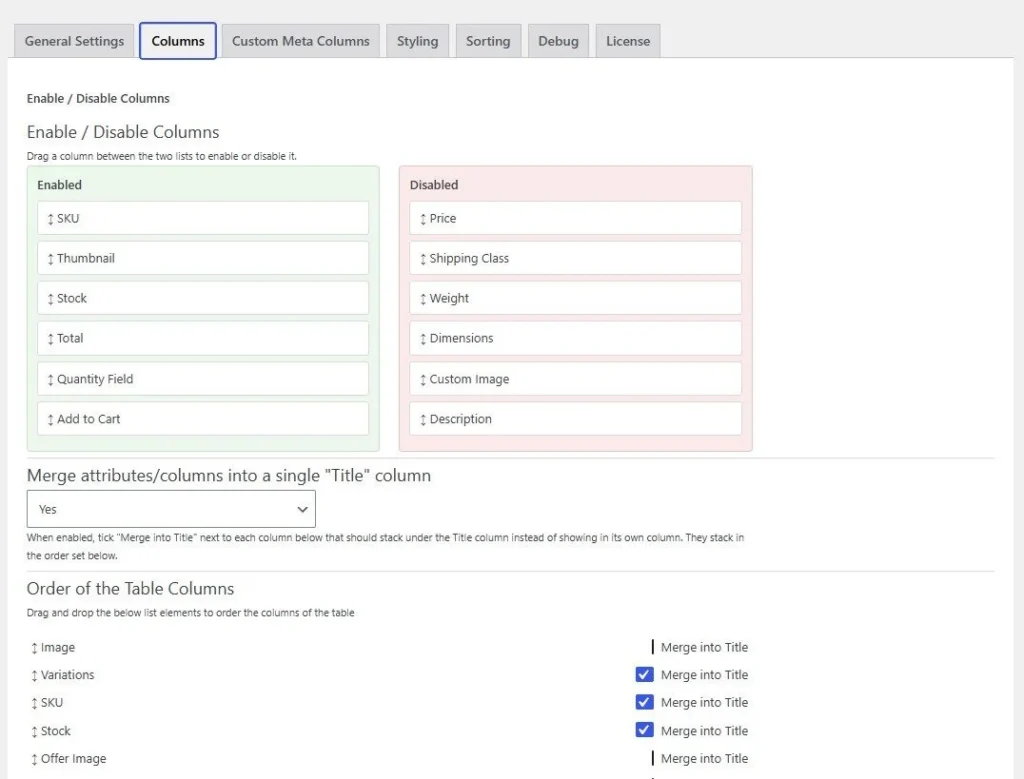
At the top of the “Columns” tab, every optional table column – SKU, Thumbnail, Stock, Price, Total, Shipping Class, Quantity Field, Weight, Dimensions, Add to Cart, Wishlist, Custom Image and Description – is shown as a draggable item in one of two boxes: “Enabled” and “Disabled“. Drag a column from one box to the other to turn it on or off, then Save Changes. This section used to live on the General Settings tab as one Yes/No dropdown per column; as of 2.4.0 it’s these two boxes, moved to the top of the Columns tab alongside the other column-related settings. The underlying saved setting for each column is unchanged by the redesign, so upgrading doesn’t reset anything you already configured. Since it now lives on the Columns tab, it requires an active license the same way the rest of that tab does (see the License tab) – any values already saved keep working even without one.
“Wishlist” only appears if Amazing Wishlist for WooCommerce or YITH WooCommerce Wishlist is active (Amazing Wishlist takes priority if both are). “Gift Wrap” only appears if WooCommerce Product Gift Wrap is active. With none of those plugins active, the corresponding item simply isn’t shown in either box.
Custom Meta Columns Tab (new in 2.4.0)
The “Custom Meta Columns” tab lets you add any plain custom field, and/or any Advanced Custom Fields (ACF) field assigned to the Product post type, as its own table column – tick the ones you want, Save Changes, and they appear on every table.
- Custom Fields: every non-internal post meta key found on your products/variations (keys starting with an underscore, and anything ACF already manages, are left out of this list since they’re not meant to be edited/displayed directly).
- ACF fields: listed under their own field group, only shown if ACF is active and has at least one field group assigned to the Product or Product Variation post type (Product Variation support new in 2.4.0 – see below). Layout-only field types (Tab, Message, Accordion, Clone, Flexible Content, Group) aren’t offered, since there’s no single meaningful value to show in a cell for those.
Next to each ticked item is a text field for a custom header name – leave it blank to use the field’s own name/label, or type something else (eg a plain custom field named warranty_years could get the header “Warranty”). Once ticked, a column can also be dragged into position on the Columns tab’s “Order of the Table Columns” list, the same as any standard column; until you do, it’s added at the end of the table.
Values are read from the variation first, falling back to the parent product if the variation itself has nothing set – most custom/ACF fields on a variable product are only ever set once, on the parent, and apply to every variation.
ACF fields are rendered according to their type rather than as a raw stored value:
- Image: shows the actual thumbnail, not the attachment ID.
- Gallery: shows every image in the gallery as a small thumbnail.
- Repeater: shows every row, with each row’s Text/Text Area/Number/Email/URL and Image sub-fields rendered (text as text, images as thumbnails); other sub-field types inside a repeater aren’t shown, to keep the cell readable. Requires ACF PRO, as Repeater itself does.
- True/False: shows Yes/No.
- Every other field type (Text, Text Area, Select, Checkbox, Date Picker, etc.) shows its value as plain text.
ACF fields on individual variations (beta) (new in 2.4.0): this plugin makes “Product Variation” a selectable location in ACF’s own field group Location Rules (“Post Type is equal to Product Variation”), since ACF hides that post type from the location-rule dropdown by default. Create a field group there the normal way, and its fields appear right inside each variation’s own row on the product edit screen’s Variations panel – fill them in and click “Save changes” (or “Update” the product) same as any other variation setting. Once a variation has values saved this way, this plugin’s Custom Meta Columns tab lists and displays them the same as any Product-level ACF field.
Columns Tab: Merging into a “Title” Column (new in 2.0.1)
On the “Columns” tab, set “Merge attributes/columns into a single ‘Title’ column” to “Yes”, then tick “Merge into Title” next to each column you want stacked under the Title column instead of shown in its own column. Each merged column becomes its own line, stacked in the order you’ve set on that same tab.
Styling Tab (new in 2.0.1)
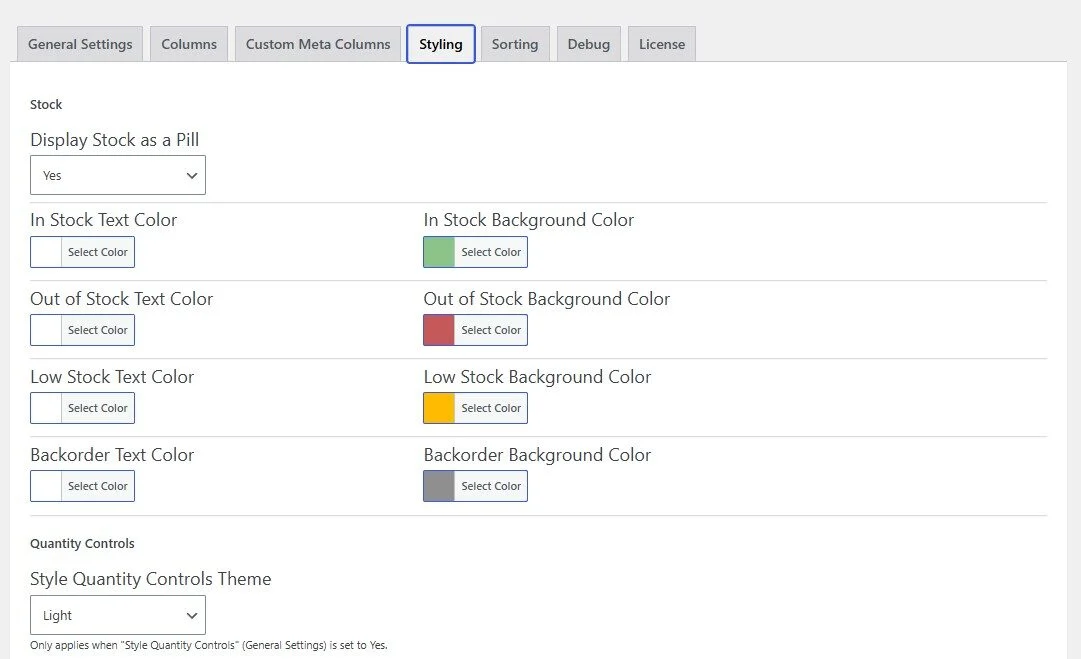
The “Styling” tab lets you fine-tune the table’s appearance without custom CSS:
- Display Stock as a Pill: shows the stock status as a rounded, colored pill instead of plain text.
- Text Color per stock status (In Stock, Out of Stock, Low Stock, Backorder): always applied, whether the pill layout is on or off.
- Background Color per stock status: only shown and applied when “Display Stock as a Pill” is set to “Yes”.
- Style Quantity Controls Theme: choose “Light” or “Dark” for the rounded quantity control pill. Only applies when “Style Quantity Controls” (General Settings tab) is set to “Yes”.
- Column Typography: a table with Font Size, Font Weight, Font Style and Text Transform for each text-based column (SKU, Stock, Variations/Attributes, Price, Total, Shipping Class, Weight, Dimensions, Description, Gift Wrap, and the merged Title column). Leave a field blank to keep the default styling for that column.
Sorting Tab
On the sorting tab you can set the sorting type of your attributes.
Debug Tab
On this tab you may:
- Reset the plugin’s settings data
- Choose to delete the plugin’s settings data when you deactivate the plugin
- Clean the postmeta DB table from orphan post meta
License Tab
You should enter you license key in order to activate and unlock all the plugin’s settings and features.
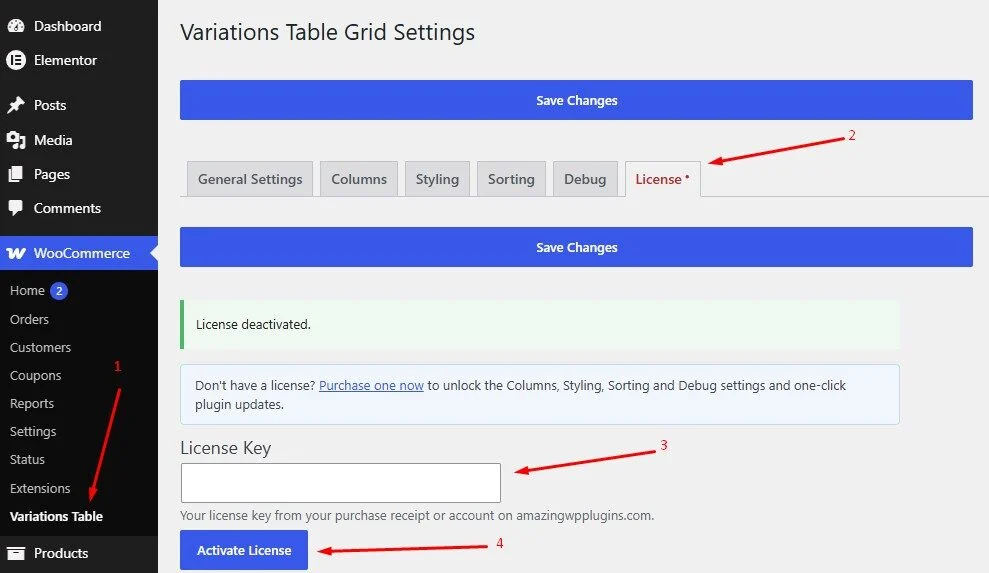
Like the Columns, Sorting and Debug tabs, the Styling tab requires an active license (see the License tab). Any values already saved keep working even without a license – only the editing UI is locked.
Shortcode
On your product page or anywhere were shortcodes are executed (eg. posts and pages), you may use the shortcode [vartable] . If you just put the shortcode then it will read the options of the plugin that you have set via the admin settings panel.
In order to customize the shortcode you may use the following attributes (respectively to the above options):
- id
- sku
- thumb
- thumb_size
- stock
- in_stock_text
- out_stock_text
- low_stock_text
- low_stock_thresh
- price
- offer
- image
- qty
- cart
- wishlist
- gift
- ajax
- desc
- head
- responsive
- sorting
- vartable_stock_pill (new in 2.0.1 – display stock as a pill)
- vartable_merge_title (new in 2.0.1 – merge selected columns into the Title column)
- vartable_qty_control_theme (new in 2.0.1 – “light” or “dark”)
On all attributes, setting it to “1” equals to “yes” and “0” equals to “no”, when yes or no apply as a possible options. Here is an example:
[vartable thumb=1 thumb_size=150 stock=1 in_stock_text="We have plenty" out_stock_text="Everything is gone" offer=0 qty=1 ajax=0]
As you may notice we have not set the cart, wishlist etc. attributes, hence the shortcode will do as we have set via the plugin’s settings panel
If you use the shortcode outsite the product page, then the “id” attribute of the shortcode is mandatory!!!
All Variable Products All variations Shortcode
You may display all variable products variations with the shortcode [vartableall]. The same arguments as above can be used AND title = 1 for displaying the title of the product before each table AND categories
categories can be set with category id and comma separated, eg [vartableall categories=10,14] to include products from these two categories only.
Do not use the id option on this shortcode.
Select Products Shortcode (new in 2.1.0)
The [vartableselect] shortcode displays every matching variable product’s table, the same way [vartableall] does, but lets you narrow down exactly which products are listed instead of showing your whole catalog. All the same display attributes as [vartableall] are supported, plus these four selection attributes (comma-separated IDs, same convention as the existing categories attribute):
- products: comma-separated product IDs to hand-pick specific products, eg
[vartableselect products=123,456,789] - categories: comma-separated product category IDs
- tags: comma-separated product tag IDs
- brand: comma-separated brand term IDs (only applies if a brand taxonomy is registered on your site – see the
vartable_brand_taxonomyfilter under “For Developers”)
You can combine any of the four – eg [vartableselect categories=10 tags=5] lists products that are in category 10 and tagged 5. At least one of the four attributes must be set, otherwise administrators/editors will see a reminder message and other visitors will see nothing.
The Elementor widget and Gutenberg block versions of this (see “Elementor Widgets” and “Gutenberg Blocks” below) expose the same four fields as searchable pickers instead of raw ID text fields – type a product/category/tag/brand name and matching results are fetched live via AJAX, so you never need to look up an ID by hand.
Bulk “Add Selected to Cart”
When the global “Add selected to cart” checkbox button is used, every checked variation is now added to the cart in one request instead of one request per row. You’ll see a single notification with the total number of products added, and if any of them could not be added (e.g. out of stock, quantity limits) it will list which ones and why, right in that same message.
The “Add selected to cart” button itself (new in 2.1.0) also shows a live running total as you check/uncheck rows or change quantities – eg “Add selected to cart (2) – $60.99” – so you know exactly what you’re about to add before clicking, no AJAX request needed for this part since it’s calculated from the data already on the page
Elementor Widgets
If Elementor is active, three widgets are available under the “Variations Table” category in the Elementor panel:
- Variations Table – equivalent to the
[vartable]shortcode. Set a “Product ID”, or leave it at 0 to use the current product (e.g. inside a Single Product template). - Variations Table – All Products – equivalent to the
[vartableall]shortcode, with a category picker. - Variations Table – Select Products (new in 2.1.0) – equivalent to the
[vartableselect]shortcode. Its “Products” field is a live AJAX search – type part of a product name and matching variable products are fetched from the server as you type. “Categories”, “Tags” and (if your site has a brand taxonomy) “Brand” are searchable multi-select dropdowns populated from your existing terms. At least one of the four must be set.
All three widgets expose the same “Default (plugin settings) / Yes / No” choice per option that the shortcode attributes support, so leaving an option on “Default” falls back to your settings page configuration. This includes “Display Stock as a Pill” and “Merge Columns into Title” (new in 2.0.1), plus a “Style Quantity Controls Theme” select (Default / Light / Dark).
Gutenberg Blocks
Three blocks – “Variations Table“, “Variations Table – All Products” and “Variations Table – Select Products” – are available in the block inserter (search for “Variations Table”), mirroring the Elementor widgets and shortcodes above. The first two are registered PHP-only, with no JavaScript build step, using WordPress’s PHP-only block registration feature. This is a very new WordPress core feature – see the note in the Requirements section above about older WordPress versions. As of 2.0.1, both of these blocks also expose “Display Stock as a Pill”, “Merge Columns into Title” (inherit / yes / no) and “Style Quantity Controls Theme” (inherit / light / dark). The “All Products” block does not show a live table preview inside the editor (or while the editor page itself is loading) – instead you’ll see a short message stating how many products currently match your filters. Rendering even a couple of real products’ full tables was found to produce enough HTML that the editor’s own preview panel (a browser-side component, unrelated to your server) could fail to display it, with nothing useful showing up in any server log when that happened. The live front-end page is unaffected by this and always renders every matching product in full.
The “Select Products” block (new in 2.1.0) works the same way as the shortcode, with the same four selection fields (Products, Categories, Tags, Brand) as searchable AJAX pickers – type a name and matching results appear as you type, with a small loading spinner shown next to the field while a search is in progress, the same UI style as the Elementor widget’s picker. This is the one block in the plugin with a small amount of hand-written editor JavaScript (still no build step/compiler), needed for the live search dropdown. Like the “All Products” block, it shows only a short count message in the editor rather than a live table preview, for the same reason.
For Developers
Many hooks are in place. Please search the code for a full list. Below are some of them with examples.
Filters
You can add alter the css class of the link to the full image for each variation with the filter “vartable_thumb_class_filter”, eg.
add_filter( 'vartable_thumb_class_filter', 'my_vartable_custom__img_class');function my_vartable_custom__img_class($class) { $class = $class.' myclass anotherclass'; return ($class);}
The Woocommerce “single_add_to_cart_text” filter is in place. Please refer to Woocommerce documentation.
Actions
You may add your own css class for the table wit “vartable_table_class”, eg.
add_action( 'vartable_table_class', 'my_vartable_table_class');function my_vartable_table_class($class) { $class = ' table-hover table-striped '; return ($class);}
You can add text before and after the table with, “vartable_before_table” and “vartable_before_table”, eg.
add_action( 'vartable_before_table', 'my_vartable_before_table');function my_vartable_before_table($text) { $text = 'This text '; $text .= 'will go before the table'; echo $text;}
add_action( 'vartable_after_table', 'my_vartable_after_table');function my_vartable_after_table($text) { $text = 'This text '; $text .= 'will go after the table'; echo $text;}
Bulk “Add Selected to Cart” Hooks (new in 2.0.0)
The single-request bulk add-to-cart handler exposes its own filters and actions, separate from the single-item “add to cart” ones:
vartable_bulk_add_to_cart_items– filter the raw list of items (product_id, variation_id, quantity, variations, gift_wrap) before any of them are added to the cart.vartable_bulk_item_added_to_cart– action, fires after each individual item is successfully added. Receives$product_id, $variation_id, $quantity.vartable_bulk_item_add_failed– action, fires after each individual item fails to be added. Receives$product_id, $variation_id, $reason.vartable_bulk_add_to_cart_message– filter the final combined summary message text.vartable_bulk_add_to_cart_response– filter the entire JSON response (added count, failed list, message, cart fragments) sent back to the browser.
add_action( 'vartable_bulk_item_add_failed', 'my_log_bulk_add_failures', 10, 3 );function my_log_bulk_add_failures( $product_id, $variation_id, $reason ) { error_log( "Bulk add-to-cart failed for variation $variation_id: $reason" );}
Elementor / Gutenberg Attribute Hooks (new in 2.0.0)
Both the Elementor widgets and the Gutenberg blocks resolve their own settings into the same shortcode attributes the [vartable]/[vartableall] shortcodes use. You can filter that resolution with:
vartable_elementor_widget_atts– filter the shortcode attributes array an Elementor widget built from its controls. Receives$atts, $widget.vartable_block_atts– filter the shortcode attributes array a Gutenberg block built from its attributes. Receives$atts, $block_attributes.
Styling Hooks (new in 2.0.1)
The Styling tab’s per-column typography, stock pill colors and quantity control theme are rendered as one inline stylesheet. You can filter the generated CSS with:
add_filter( 'vartable_dynamic_css', 'my_vartable_dynamic_css' );function my_vartable_dynamic_css( $css ) { $css .= 'table.vartable .pricecol{letter-spacing:0.5px;}'; return $css;}
The global add to cart button now also carries the wp-block-button__link CSS class alongside its existing classes, so it inherits styling from block themes that style that class. This is included in the existing vartable_global_button_classes filter.
Large Variation Counts (new in 2.0.1)
WooCommerce builds full price/availability/image data for every variation of a product up front, which can exhaust PHP’s memory limit on products with a very large number of variations (for example, several attributes set to “any”). To protect the site, the table (and the plugin’s own fallback to WooCommerce’s default dropdowns) is skipped for any product whose variation count exceeds a limit – 300 by default. Administrators/editors see a message explaining why; other visitors simply won’t see a variation selector for that product. Adjust the limit with:
add_filter( 'vartable_max_variations', 'my_vartable_max_variations' );function my_vartable_max_variations( $limit ) { return 500; // raise it if your server can handle more}
This per-product limit applies everywhere a table can be rendered – the [vartable] shortcode, the Elementor widget and the Gutenberg block – including every product listed by [vartableall]/”All Products”.
Select Products ([vartableselect]) Hooks (new in 2.1.0)
WooCommerce has no built-in “brand” taxonomy, so the brand attribute/field (shortcode, Elementor widget and Gutenberg block) is driven by a filterable taxonomy name, defaulting to product_brand (the slug used by several popular brand plugins). If the given taxonomy isn’t registered on your site, the brand field/attribute is silently skipped everywhere.
add_filter( 'vartable_brand_taxonomy', 'my_vartable_brand_taxonomy' );function my_vartable_brand_taxonomy( $taxonomy ) { return 'pwb-brand'; // eg. Perfect WooCommerce Brands}
The Elementor widget’s product picker and both editors’ category/tag/brand pickers are backed by two AJAX actions, vartable_search_products and vartable_search_terms, registered for logged-in users only (edit_posts capability required) – not intended to be called directly, but listed here in case you need to know the action names for a compatibility check.
Enable / Disable Columns Picker Hooks (new in 2.4.0)
The items available in the Settings page’s Enable/Disable Columns boxes (see “Enable / Disable Columns” under Usage) can be filtered – to add your own, or to remove one a custom integration doesn’t need:
add_filter( 'vartable_column_toggle_items', 'my_vartable_column_toggle_items' );
function my_vartable_column_toggle_items( $items ) {
  unset( $items['vartable_shp_class'] ); // eg. hide Shipping Class from the picker
  return $items;
}
Whichever wishlist plugin is active is chosen through VarTable\Support\Wishlist (Amazing Wishlist for WooCommerce first, then YITH WooCommerce Wishlist). There’s no filter for the choice itself – deactivate whichever plugin you don’t want this plugin to use.
Custom Meta Columns (new in 2.4.0)
Everything lives in VarTable\Support\CustomColumns. Selected columns are stored in the vartable_custom_columns option as an array of "meta:{key}" / "acf:{field_key}" strings; an optional custom header name per column is stored separately in vartable_custom_column_labels, keyed the same way (sanitized with a new ‘labeled_map’ type in Settings::sanitize() – it can’t reuse the existing ‘order’ type since that runs the array key through sanitize_key(), which would strip the colon out of an identifier like "meta:my_field"). Values/labels are resolved fresh on every page load (nothing is cached in the option itself beyond the identifier and any header-name override), so renaming an ACF field’s own label is picked up automatically unless you’ve set a custom header name; deleting the underlying field or custom meta key just makes that column stop appearing.
CustomColumns::register() hooks vartable_sortable_filter (the same hook the YITH Waitlist integration uses to add its own column) so every selected custom column is injected into Settings::sortable_fields() – and from there into the Columns tab’s “Order of the Table Columns” list and the vartable_order option – using CustomColumns::column_key() (a short id derived from the identifier, eg vartable_customcol_a1b2c3d4e5f6) as the key. TableRenderer positions each custom column’s <th>/<td> according to vartable_order like any standard column, falling back to appending it at the end of the row only if it isn’t in the saved order yet (eg just selected, before the admin has visited the Columns tab to position it).
ACF on Product Variations (beta) (new in 2.4.0)
Everything lives in VarTable\Compat\Acf. acf/location/rule_values/post_type is filtered to add the “Product Variation” choice to ACF’s Location Rules UI. Rendering hooks WooCommerce’s woocommerce_product_after_variable_attributes (fires once per variation row) and calls acf_get_field_groups( array( 'post_id' => $variation_id ) ) / acf_get_fields( $group ) / acf_render_field_wrap() – deliberately not ACF’s get_field_objects(), since that function only returns fields that already have a value saved in postmeta for that post (it’s a value reader, not a location-rule resolver), which is never true for a variation the first time one of these fields is used. Each field’s current value is fetched separately via get_field( $field['key'], $variation_id, false ) before rendering. Saving hooks woocommerce_save_product_variation and calls acf_update_value(), ACF’s own write path, so each field type’s own value handling (eg an image field storing just the attachment id) is respected.
Each field’s rendered name is prefixed with "vartable_variation_acf_{$loop}" (the variation’s loop index in the panel) rather than ACF’s own default "acf[{$field_key}]" prefix – WooCommerce serializes the entire Variations panel into one AJAX request when you save, and without a per-variation prefix, every variation’s copy of the same field would share one input name and overwrite each other in that request.
ACF’s own admin CSS/JS isn’t loaded on the product edit screen by default, since it isn’t a native ACF screen – Acf::maybe_enqueue_acf_assets() calls ACF’s own acf_enqueue_scripts() to fix that, and enqueues assets/js/acf-variations.js (declared dependent on ACF’s own acf-input script handle, so it can never run before ACF’s JS has defined the global acf object). That script listens for WooCommerce’s woocommerce_variations_loaded jQuery event – triggered on #woocommerce-product-data (the whole Product Data metabox, confirmed against WooCommerce’s own meta-boxes-product-variation.js – not #variable_product_options itself) every time WooCommerce (re)loads the Variations panel via its own separate AJAX call – and calls ACF’s own acf.doAction( 'append', $el ) to re-initialize select2/image pickers/repeater “Add row”/conditional logic/etc. on the newly-added fields, scoped to #variable_product_options. ACF has no way to know about content injected by an AJAX call it doesn’t control otherwise.
“All Products” ([vartableall]) Behavior (new in 2.0.1)
[vartableall] – and the Elementor widget and Gutenberg block built on it – now only ever queries variable products; simple/grouped/external products are excluded at the database query itself instead of being fetched and then skipped one by one, which is both faster and avoids the “this is not a variable product” admin-only message appearing repeatedly on stores with a large non-variable catalog.
On the live page, [vartableall] lists every matching product with no artificial cap – if your server can’t handle the full result, use the categories attribute/field to scope it down, or lower the per-product variation limit above. The plugin will not silently truncate the live page’s output.
The Gutenberg block’s own preview inside the editor is the one exception: it renders at most 4 real products there (a live preview that re-fires on every keystroke/attribute change can’t afford to render your whole catalog), with a notice such as “Preview limited to 4 of 1191 products. Listing more than 20 products may result in a fatal error on this page – use the categories field to target your listing.” This only ever appears in the editor, never on the live page.
Frequently Asked Questions
- Can I list all variations of all variable products?
Yes, you can via the [vartableall] shortcode or the Gutenberg block or the Elementor widget, although it is not recommended if you have a big number of variable products. - Can I use custom attributes when adding a variation?
Yes, this was added on version 1.0.6. - Can I put this anywhere in my site?
Yes, you can via the shortcode, if the field where you put it shortcodes are executed. You will have to specify the id of the variable product on the shortcode arguments. - Can I disable the grid for just one or any product I want?
Yes, you can via the product edit screen. Please select “Yes” at the option “Disable variations table” under the product’s general settings tab. - Can I disable the grid for any category I want?
Yes, you may do this via the admin panel that is provided under “Woocommerce → Variations Table“. - If I disable the table/grid for a product can I still use the shortcode?
Yes, the shortcode is not getting disabled.
Changelog
2.5.1 16 Aug 2026
- Feature: Added the option to show/hide the total from the global “add to cart” button.
- Feature: Added the option to show/hide the number of selected products from the global “add to cart” button.
- Feature: Added the to make the global “add to cart” button sticky.
- Feature: Added conditions about when the global “add to cart” button should be displayed.
- Feature: Added the option to fully customize the text on the global “add to cart” button.
- Feature: Added the to make the “Select All” checkbox sticky.
- Feature: Restyled the cart updated notification sliding panel.
2.4.0 15 Jul 2026
- Feature: New “Custom Meta Columns” settings tab – add any custom field, and/or any ACF field assigned to the Product or Product Variation post type, as its own table column. Each column can have a custom header name, and can be dragged into position on the Columns tab’s “Order of the Table Columns” list (or merged into the “Title” column) the same as any standard column.
- Feature: ACF fields render according to their type instead of a raw stored value – Image and Gallery fields show actual thumbnails (not attachment IDs), Repeater fields show every row’s Text/Text Area/Number/Email/URL and Image sub-fields (via ACF’s own
have_rows()/the_row()/get_sub_field()loop, so rows resolve correctly regardless of a sub-field’s internal Field Name), True/False shows Yes/No. - Feature: “Product Variation” is now a selectable location in ACF’s own field group Location Rules – fields assigned there actually render and save on each variation’s own row in the product edit screen’s Variations panel, with ACF’s normal admin behavior (select2, image/file pickers, repeater “Add row”, conditional logic, etc.) working correctly after WooCommerce (re)loads that panel.
- Feature: Added support for Amazing Wishlist for WooCommerce as default to YITH WooCommerce Wishlist for the “Wishlist” column – whichever one is active is used automatically (Amazing Wishlist takes priority if both are active).
- Feature: “Enable / Disable Columns” is now two drag-and-drop boxes (Enabled/Disabled, colored light green/light red) instead of one Yes/No dropdown per column, moved to the top of the Columns tab. Saved settings are unaffected by the redesign. Filterable with the new
vartable_column_toggle_itemsfilter. - Feature: The settings page now reopens whichever tab you were on before clicking Save Changes, instead of always returning to General Settings.
- Feature: New
vartable_custom_columns/vartable_custom_column_labelsoptions andVarTable\Support\CustomColumnsclass backing Custom Meta Columns; newVarTable\Compat\Acfclass backing the ACF-on-variations integration. - Change: The Styling tab’s stock text/background color fields are now the same swatch-button color picker used throughout wp-admin (widgets, customizer), shown side by side (Text/Background) per stock status instead of stacked.
- Change: Settings page tab content now has a white background.
- Fix: The License tab’s content and “Save Changes” button now appear in the right order – the license form used to render below the second Save Changes button.
- Fix: A column’s Styling tab font settings (size/weight/style/text-transform) now survive being merged into the “Title” column – previously only the Stock column’s styling did.
- Fix: The tab-content white background no longer disappears on hover – it was losing to a WordPress core admin CSS rule that happened to target the same class name.
- Fix: The Stock column/pill no longer shows empty for in-stock products with no tracked quantity (“Manage Stock” off) – it falls back to WooCommerce’s own availability text, and finally to a plain “In stock” label if that’s also empty by design.
2.1.1 09 Jul 2026
- Fix: The “Add selected to cart” button’s live running total (count and price, new in 2.1.0) could fail to show at all – a script-load-order bug meant it silently errored out whenever the button needed to reflect rows that were already checked when the page loaded, rather than checked afterwards by the visitor
2.1.0 09 Jul 2026
- Feature: New
[vartableselect]shortcode – hand-pick specific products by ID, and/or narrow the listing by product category, tag and/or brand (any combination) - Feature: New “Variations Table – Select Products” Elementor widget, with a live AJAX search picker for products and searchable dropdowns for categories/tags/brand
- Feature: New “Variations Table – Select Products” Gutenberg block, with the same four fields as searchable AJAX pickers (with a loading spinner while a search is in progress) – the first block in this plugin with its own hand-written editor JavaScript (still no build step)
- Feature: New
vartable_brand_taxonomyfilter, so the new “brand” field/attribute works with whichever brand taxonomy your site uses (defaults toproduct_brand) - Feature: New
vartable_search_products/vartable_search_termsAJAX actions backing the new pickers, shared by both editors - Feature: The “Add Selected to Cart” button now shows a live running total (count and price) as you check/uncheck rows or change quantities, calculated on the page with no extra request
2.0.1 08 Jul 2026
- Feature: New “Styling” tab – per-column font size, font weight, font style and text-transform for SKU, Stock, Variations/Attributes, Price, Total, Shipping Class, Weight, Dimensions, Description, Gift Wrap and the Title column
- Feature: Option to display Stock as a colored “pill” instead of plain text, with a custom color per stock status (In Stock, Out of Stock, Low Stock, Backorder)
- Feature: Option to merge attributes/columns into a single stacked “Title” column, in the order set on the Columns tab
- Feature: Quantity controls can now be displayed as a rounded “pill”, with a Light or Dark theme
- Feature: The above three options (stock pill, merge into title, quantity control theme) are also available on the Elementor widgets and Gutenberg blocks, where applicable
- Feature: The global “Add to Cart” button now also carries the
wp-block-button__linkCSS class, so it inherits styling from block themes - Change: Renamed the “Column Order” tab to “Columns”
- Change: Added the
vartable_dynamic_cssfilter for the Styling tab’s generated inline CSS
2.0.0 07 Jul 2026
- Major: Rewritten from a single procedural file into a namespaced, class-based codebase (one class per concern) – same option names, post meta keys, shortcodes, AJAX actions, and hooks/filters, so existing sites, custom code and the bundled integrations keep working unchanged
- Security: Added the CSRF nonce that was missing from the “add to cart” AJAX request
- Security: Added a nonce and capability check to the product options and variation fields save handlers
- Security: Escaped output and added sanitization callbacks across the settings page and table rendering, which previously had none
- Feature: Declares compatibility with WooCommerce High-Performance Order Storage (HPOS)
- Feature: Declares WooCommerce as a required plugin dependency, with a fallback admin notice on older WordPress
- Feature: “Add selected to cart” now adds every selected variation in a single request and shows one summary message (count added, plus which items failed and why, if any)
- Feature: Added Elementor widgets for both the [vartable] and [vartableall] shortcodes
- Feature: Added Gutenberg blocks for both the [vartable] and [vartableall] shortcodes, registered PHP-only (no build step)
- Feature: Added several new filters/actions around the bulk add-to-cart flow and the Elementor/Gutenberg attribute resolution – see “For Developers”
- Fix: The [vartable] shortcode now supports the hide_zero_price / hide_outofstock_price / search attributes that [vartableall] already had
- Fix: Rendering no longer errors when the table is hooked to a WooCommerce action that fires with no arguments
1.5.11 15 Oct 2025
- Fix: Better stock limitation management
1.5.10 09 Oct 2025
- Feature: Added the option to uncheck the global add to cart buttons after the products have been added to the cart
1.5.9 09 Sep 2025
- Feature: Added the option to display “add to cart” button on the image pop up
1.5.8 03 Sep 2024
- Feature: Added the option to display the default WooCommerce availability text
1.5.7 18 Aug 2024
- Feature: Added variations table live search
- Feature: Added the option to hide price, cart button and quantity field if the variation price is not set or is zero
- Feature: Added the option to hide price if the variation is out of stock
1.5.6 05 Aug 2024
- Feature: Added the option to group or to display one by one the table images on the pop up
1.5.5 24 Jun 2024
- Fix: Escaping image caption attribute
- Fix: PHP error on image caption options variable before initial save
1.5.4 23 Jun 2024
- Feature: Added pop up image caption option
1.5.3 26 May 2024
- Fix: PHP error before initial save
1.5.2 26 Oct 2023
- Feature: Compatibility with Min and Max Quantity for WooCommerce plugin
- Fix: Minor PHP notice
1.5.1 26 Jun 2023
- Fix: Added WooCommerce added_to_cart JS hook
1.5.0 01 May 2023
- Feature: Added quantity minus/plus SVG icons
- Feature: Added add to cart icon option
- Feature: Added the option to remove the add to cart text from the add to cart button
1.4.17 27 Apr 2023
- Fix: Removed headers should also remove labels on mobile devices
- Fix: PHP 8.0 compatibility
1.4.15 30 Jan 2023
- Feature: Added post meta table DB clean up option
- Feature: Added plugin reset option
- Feature: Added the option to delete the plugin setting on deactivation
- Fix: Removed PHP notice
- Fix: Fix plugin priority option
1.4.14 18 May 2022
- Feature: Added the option to change the “add to cart” notification timer
- Fix: Extra image column misalignment
- Fix: Unresponsive mobile table scrolling CSS fix
1.4.13 02 May 2022
- Feature: Added the option to enable/disable mobile layout
- Feature: Added the option to hide empty cells on mobile
1.4.12 24 Apr 2022
- Feature: Added better YITH Wishlist Compatibility
- Feature: Added “Additional Variation Images Gallery for WooCommerce” compatibility
1.4.11 21 Apr 2022
- Feature: Added the option to not link the images
- Fix: Removed PHP notices
1.4.10 23 Mar 2022
- Feature: Added shipping class column
- Fix: In some cases the main plugin JS file would not load
1.4.9 20 Jan 2022
- Feature: Added backorder custom text option
- Feature: Added backorder styling option
1.4.8 02 Dec 2021
- Feature: Added WooCommerce error notices on the notification panel.
- Feature: Added sorting arrows on table header
- Feature: Admin panel minor redesign
- Fix: Removed WooCommerce swatches PHP notices if the product had no swatches
- Fix: In some themes/cases the global cart button would not trigger
1.4.7 01 Dec 2021
- Feature: Added sorting options per WooCommerce Attribute
- Feature: upgraded sorting JS
- Fix: Removed WooCommerce swatches PHP notices if the product had no swatches
1.4.6 11/29/2021
- Feature: added more flexible way to position the table in the single product page
- Feature: Added support for WooCommerce Variation Swatches and Photos
- Fix: more themes compatibility
1.4.4 11/24/2021
- Fix: added support for attributes in non-latin charsets
1.4.2 11/12/2021
- Fix: Removed PHP notice when debug was set to on
1.4.1 09/18/2021
- Feature: Added YITH WooCommerce Waiting List support
1.4.0 23/07/2021
- Feature: Migrated from Select2 to WooSelect
- Fix: Removed jQuery migrate warnings
- Fix: Removed PHP Sessions
1.3.11 04/02/2019
- Fix: Removed Woo deprecation warning
1.3.10 01/10/2019
- Fix: Corrected the cart button text filter to include the variable product object as second argument
1.3.9 11/26/2017
- Fix: Show all categories on all languages for WPML enabled sites
1.3.8 11/12/2017
- Feature: Added option to hide the “added to cart” sliding notification
- Feature: Added Fancybox3 for zooming and option to enable/disable via the settings page
- Feature: Added ‘woocommerce_product_add_to_cart_text’ cart text filter
1.3.7 10/26/2017
- Fix: Woocommerce ver 3.2.x compatibility
- Fix: Moved the plugin’s single product options in the advanced tab
1.3.6 04/07/2017
- Fix: Woocommerce ver 3.0 compatibility
1.3.5 02/20/2017
- Feature: Added “woocommerce_add_to_cart_redirect” filter on the cart URL
- Feature: Added a closing button to manually hide the notification slide down paneln
- Fix: Check if users role is array to avoid PHP warning
- Fix: When using the Global Add to Cart button 0 priced items were not added to cart.
1.3.4 10/31/2016
- Feature: Added some more CSS classes for popular themes
- Feature: Per role plugin activation
- Feature: If custom variation description does not exist, it will look for the default woocommerce variable description
- Fix: Check with “is_purchasable” for availability
- Fix: Force prettyPhoto to always load
- Fix: Add to cart button will function without the global checkbox being checked
1.3.3 09/17/2016
- Feature: Added more hooks
- Feature: Greatly improved the js code
- Bug: Fixed cart redirect after single “add to cart” click
1.3.2 09/12/2016
- Bug: Added check before destroying custom session.
- Bug: YITH Wishlist will not work with variable products. Added native product YITH shortcode instead.
1.3.1 09/08/2016
- Feature: Added support for YITH Quick View
- Generic: All columns are set to sort as floats except some predefined ones
1.3.0 09/05/2016
- Feature: Added the option to have the global cart checkboxes, checked as default
- Bug: Removing both quantity and checkboxes from the table would prevent add to cart button from functioning
1.2.9 09/03/2016
- Feature: Added the option to force enable/disable the plugin per product
- Bug: Global add to cart button would not work if the quantity column was not displaying or got changed
1.2.8 08/16/2016
- Bug: Vartableall would not follow the zero_priced setting
- Bug: Quantity would not work when the -/+ buttons were not utilized
- Bug: Variation value would not be displayed if its value was 0 (zero)
1.2.7 08/04/2016
- Feature: added tax suffix “woocommerce_price_display_suffix”
- Bug: Fixed issue on quantity box for normal products
- Bug: remove wp_reset_query in order to fix woocommerce shortcodes issues
- Bug: put price data on the tr instead of the price td
1.2.6 07/26/2016
- Feature: Added totals column
- Feature: Added slide down fixed panel notification on add to cart
- Bug: title would not show if there was a custom header set
1.2.5 06/21/2016
- Feature: Added categories parameter on vartableall shortcode
- Bug: id parameter was not working on varatableall shortcode
1.2.4 06/14/2016
- Feature: Added hook “vartable_global_btn” to override the global cart html
- Feature: Added product title option “title=1” on vartableall shortcode
- Bug: Drop downs will not be moved under the image when the plugin is disabled
- Bug: Removed refresh fragments when ajax is OFF
- Bug: Fixed get_weight() issue when variable product had no variations
1.2.3 05/03/2016
- Feature: Added the option to move the table under the image on the single product page
- Bug: Redirection to cart was not working
1.2.2 05/02/2016
- Feature: Add checks on min and max quantity via JS
- Bug: Offer/extra image would appear both if an override was set
1.2.1 05/01/2016
- Feature: Add option to hide the checkboxes and control what is added in the cart only by quantity
- Feature: Added option to position the description inline on the same row or on a separate row
- Feature: Added option to hide out of stock variations
- Feature: Added global add to cart position setting
- Feature: Added per product default sorting option
- Feature: Global button will now display the total number of products that are about to be added to the cart
- Feature: Added option to set default quantity per varioation
- Feature: Added option to hide a variation from the table
- Feature: Added variation weight and dimensions as table columns
- Bug: The cart will now be updated with AJAX call
- Bug: “Out of stock” and “backorder” bug fix
- Bug: Added some CSS classes to make the global add to cart button to look like a button
1.2.0 12/28/2015
- Feature: Added the attribute slug as a CSS class, so you can have control on it
- Feature: Added – / + buttons option to control the quantity
- Bug: Removed sorting on “Select All” column
- Bug: Fixed mobile label not showing in some cases
- Bug: Fixed do_action hooks. Everything can be echoed now
- Bug: Fixed default quanity to be added to cart was always initialy 1
1.1.9 10/13/2015
- Feature: Added steps fields for each variation for the quanity input field
- Feature: Added several hooks
- Bug: Settings are not reset if you de-activate and re-activate the plugin
- Bug: Out of the stock should display if the quantity of the product is zero and you have checked the stock management
- Bug: If you set quantity to zero and click on add to cart it will not add it any more
1.1.8 09/02/2015
- Feature: Added setting for default quantity value
- Bug: IE should work fine now
- Bug: Fixed sorting when all variations have a sorting value
1.1.7 08/26/2015
- Feature: Added option to disable extra/offer image per product
- Feature: Added action in the add to cart form per row
- Bug: Fixed issue with offer column displaying even if it was not enabled
1.1.6 08/24/2015
- Feature: Removed Footable and added “Stupid jQuery Table Sort”
- Feature: The plugin is now compatible with most “Quick View” plugins
- Feature: The table is now responsive by default
- Bug: Fixed issue with Woocommerce v. 2.4.5 that caused the variations not displaying
1.1.5 07/06/2015
- Bug: Fixed redirection to cart
1.1.4 07/01/2015
- Feature: Now the plugin checks and can work with crappy imported products
- Bug: Fixed possible function conflict
1.1.3 06/19/2015
- Feature: Added option to hide or not zero priced variations
1.1.2 06/17/2015
- Feature: Added sorting option of the table’s columns on the frontend
- Bug: Fixed epmty columns on the table
- Bug: Fixed add to cart column always on on the frontend
- Bug: Fixed columns array overwriting in some variations setups
- Bug: Various bug fixes
1.1.1 03/23/2015
- Feature: Added responsive option via the Footable jQuery Plugin
- Bug: Various fixes and checks for the header
1.1.0 03/20/2015
- Feature: Added table headers
1.0.8 03/17/2015
- Bug: Fixed AJAX issue when multiple products where on the same page
1.0.7 03/07/2015
- Bug: Fixed “global add to cart” not working when “add to cart” column is not displayed
- Bug: Removed checkbox when the variable product can not be purchased
- Feature: Added some loading and complete icons for the global add to cart button
- Feature: Added option to disable the replacement of the default variations drop down globally. In this way, everything will be as default WooCommerce and you can display the table/grid only via the shortcode.
1.0.6 03/06/2015
- Added global shortcode that will display all variations of all variable products.
- Added Global Add To Cart button.
- Added Low Stock functionality.
- Added support for attributes sorting.
- Added support for custom attributes when adding the variation
1.0.5 03/04/2015
- Added product “id” option on the shortcode
1.0.4 02/26/2015
- Added support for WooCommerce Product Gift Wrap
- Added description per variation field and settings
- Added AJAX support on “Add to cart” and “Wishlist” click
- Added Italian translation (thanks to Antonio)
- Fixed notices for “Undefined index”
1.0.3 02/24/2015
- Fixed bug when disabling column
1.0.2 02/22/2015
- Added override of extra image per variation
- Added sorting of columns
- Added SKU option as column
- Added several filters
- Added French translation (thanks to Patrick)
1.0.1 02/21/2015
- Resolved bug that prevented the disabling of the columns
- Added tag (%n) so you may display the number of the products you have in stock in the “In Stock Text”
- Added Greek translation
1.0 02/20/2015
- Initial release