


















Back up your WordPress site to Nextcloud directly from UpdraftPlus.
Keep backups on storage you control, ready when you need to restore.
Nextcloud for UpdraftPlus lets you store your WordPress backups on your own Nextcloud server. It adds Nextcloud to UpdraftPlus’s storage options, keeping your backups on storage you control.
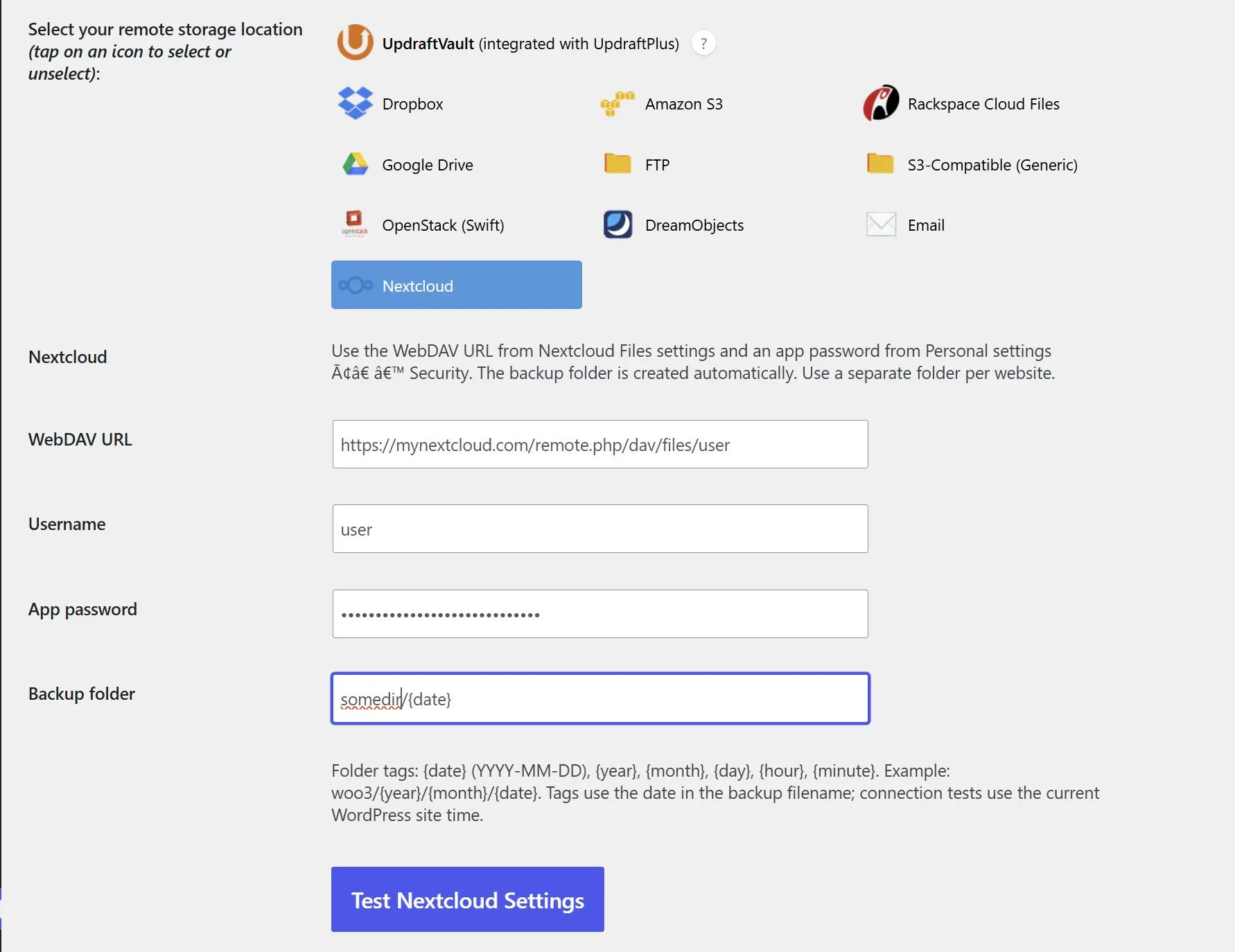
Install and activate both plugins, then select Nextcloud in the UpdraftPlus settings. Enter your WebDAV URL, username, app password, and backup folder, test the connection, and save your settings.
The plugin is free.
Just add it to your cart for free with us to download it. You’ll also need access to a Nextcloud server where your backups will be stored.
Get it Now!
Get Nextcloud for UpdraftPlus… it’s FREE
You will need to create an account with us
OR
Getting started
- Create a free account on amazingwpplugins.com and download the plugin.
- Install and activate UpdraftPlus and Nextcloud for UpdraftPlus in WordPress.
- In Nextcloud, open Files → Settings and copy your WebDAV URL.
- Under Personal settings → Security, create an app password for your WordPress backups.
- In WordPress, open UpdraftPlus → Settings, select Nextcloud, and enter:
- WebDAV URL: the address copied from Nextcloud.
- Username: your Nextcloud username.
- App password: the password you just created.
- Backup folder: a separate folder for your website, such as
Backups/example.com.
- Click Test Nextcloud Settings. If successful, click Save Changes.
- Click Backup Now and enable sending the backup to remote storage. Confirm that it completes successfully.
Optional settings
Use date tags to organise backups automatically—for example, Backups/example.com/{year}/{month}/{date}. Supported tags are {date}, {year}, {month}, {day}, {hour}, and {minute}.
Set automatic backup schedules and retention in UpdraftPlus. When backups are deleted, the plugin also removes empty dated folders while preserving fixed parent folders and folders containing other files.
Before relying on scheduled backups, test restoring a backup on a separate WordPress installation.
FAQ
Is the plugin free?
Yes. You’ll need a free account on amazingwpplugins.com to download it.
Do I need UpdraftPlus Premium?
No. The plugin works with the free version of UpdraftPlus. UpdraftPlus’s restrictions on selecting multiple storage providers still apply.
Do I need a Nextcloud account?
Yes. You need an account on a self-hosted or hosted Nextcloud server, with enough available storage for your backups.
Where do I find my WebDAV URL?
Open Files → Settings in Nextcloud and copy the WebDAV URL. Use the complete address, including your user’s path.
Should I use my normal Nextcloud password?
Use a dedicated app password, created under Personal settings → Security. You can revoke it later without changing your main password.
Can backups be organized into dated folders?
Yes. Use tags such as {date}, {year}, and {month}. For example, Backups/my-site/{year}/{month}/{date} creates a dated folder structure automatically.
What happens when I delete a backup?
When UpdraftPlus deletes the remote backup, the plugin removes its files and any empty dated folders. Fixed parent folders and folders containing other files are preserved.
Can I restore backups from Nextcloud?
Yes. UpdraftPlus can download the stored archives for restoration. Test a restore on a separate WordPress installation before relying on your backups.
Why does an upload fail or keep retrying?
Check your WebDAV URL, app password, available storage, and server upload limits. For large archives, try reducing the archive split size in UpdraftPlus.
Does removing the plugin delete my backups?
No. Deactivating or uninstalling the plugin leaves your remote backups and saved connection settings intact.
Changelog
Version 1.0.4
- Fixed broken characters in the setup guidance.
- Added clear, numbered instructions for creating a Nextcloud app password and completing the connection setup.
Version 1.0.3
- Added free updates through the WordPress Plugins screen, with no login or license key required.
- Added version details and support for WordPress automatic updates. Existing version 1.0.0 installations need this updater-enabled release installed manually once.
Version 1.0.0
- Initial release: Nextcloud storage integration for UpdraftPlus using HTTPS WebDAV.
- Streamed backup uploads, restore downloads, remote scanning and retention cleanup.
- Date-based backup folders, empty dated-folder cleanup and connection testing.
More Amazing WP Plugins

Amazing WordPress Newsletters
Amazing WordPress Newsletters, run newsletters, signup forms, automations, A/B tests, and revenue tracking inside WordPress with no per-subscriber email marketing fees.

Amazing Wishlist for WooCommerce
The most complete and easy-to-use Wishlist plugin for WooCommerce Amazing Wishlist for WooCommerce turns casual browsers into returning customers by letting them save products for later — across multiple lists, before they even create an account. It’s fast, fully customizable, and built to drop straight into any WooCommerce store, regardless of theme or page builder.…
Yandex Disk for UpdraftPlus
Store UpdraftPlus backups in Yandex Disk with date folders and restore downloads. Free plugin; Amazing WP Plugins account required.

Amazing WooCommerce Coupons & Discounts
Amazing Orders & Reorder for WooCommerce plugin turns the My Account orders page into a repeat-sales engine: visual history, one-click reorder & Buy it again.