


















Store your WordPress backups in Koofr directly from UpdraftPlus. Keep a separate cloud copy with organised folders and HTTPS transfers.
Koofr for UpdraftPlus adds Koofr to the familiar UpdraftPlus storage options, keeping a backup copy away from your WordPress server. Upload archives to your own storage account directly from the dashboard, using HTTPS WebDAV.
Install the add-on alongside UpdraftPlus, connect your Koofr account and choose a folder for this site. Run manual or scheduled backups, organise archives with date tags, and retrieve remote files through UpdraftPlus when you need to restore.
The plugin is free to download with an account at amazingwpplugins.com. You also need UpdraftPlus and your own Koofr account. It runs on compatible ordinary WordPress hosting without extra server software, and cleans up empty generated folders after remote deletion.
Get it Now!
Download Koofr for UpdraftPlus for free. Create an amazingwpplugins.com account and connect your remote storage in WordPress.
You will need to create an account with us
Getting started
- Install and activate UpdraftPlus and this add-on.
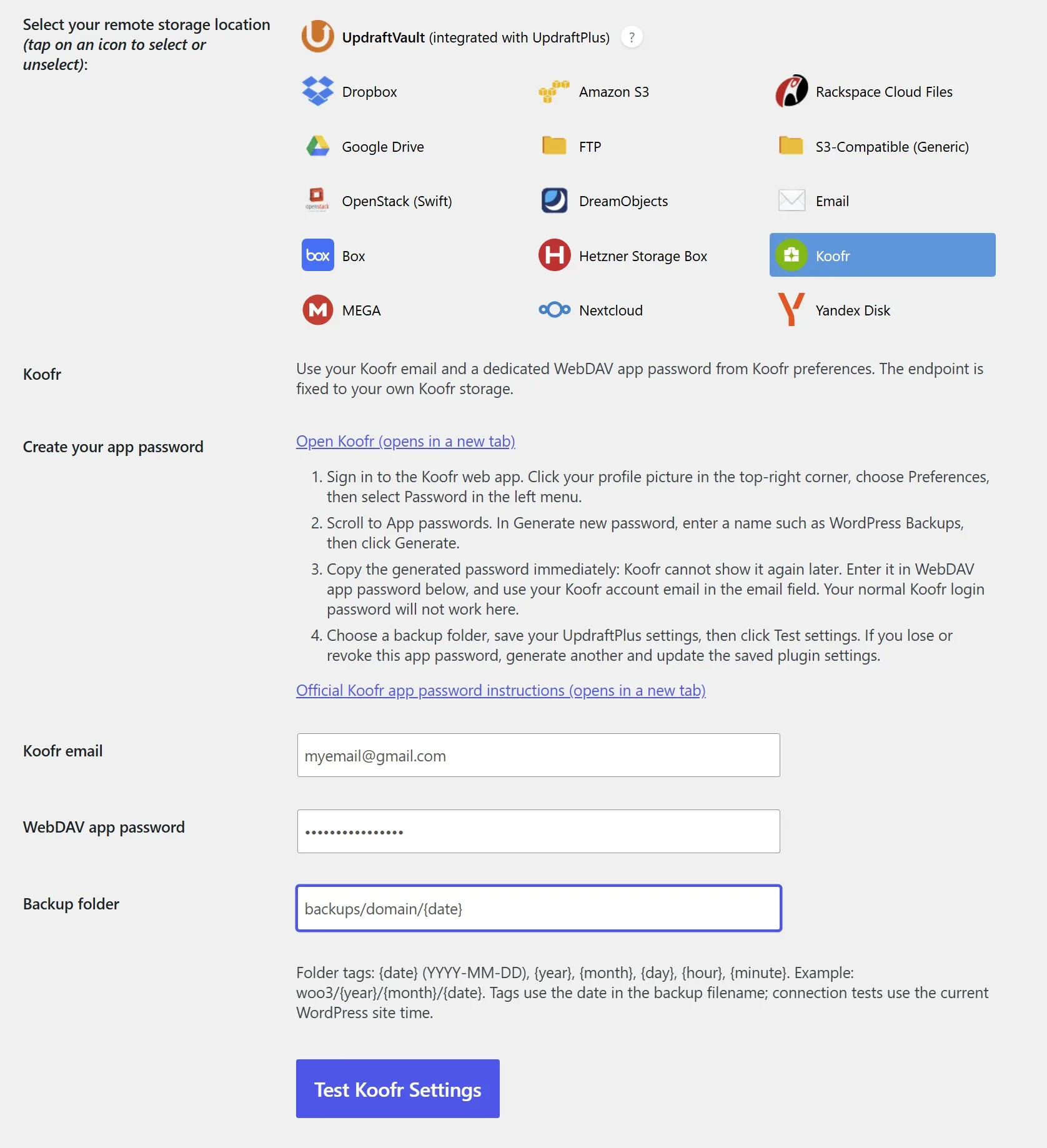
- Open Settings > UpdraftPlus Backups > Settings and select Koofr.
- Sign in to Koofr. Open your profile picture → Preferences → Password → App passwords. Enter a name such as WordPress Backups and click Generate. Copy the password immediately, as it cannot be shown again. Enter your Koofr email and this app password in UpdraftPlus, choose a backup folder, save settings, and click Test Koofr Settings. Official app-password instructions.
- Choose a folder such as Backups/example.com/{year}/{month}/{date}.
- Click Test Koofr Settings. The test uploads, downloads and compares a random file, then deletes it.
- Save settings after a successful test. Run a small backup and wait for remote completion.
- Test a restore on a separate installation before relying on schedules. Use Existing backups > Delete to remove backups, including remote files when offered.
Account and hosting notes
You need a Koofr account with WebDAV access. This add-on uses your own Koofr storage; it does not target Koofr Vault or linked third-party drives. Use a dedicated app password rather than your normal Koofr login password.
Files are streamed without loading the entire archive into PHP memory. Interrupted files restart on retry. Account storage quotas, WebDAV limits and hosting timeouts apply; smaller UpdraftPlus archive split sizes can help.

Key features
- Native storage option and icon in UpdraftPlus.
- Manual and scheduled remote backups.
- Streamed transfers for ordinary compatible WordPress hosting.
- Date-based folders, remote rescanning, restore downloads and retention deletion.
- Empty generated folder cleanup.
FAQ
Is the plugin free?
Yes. Download it free with an amazingwpplugins.com account. You also need your own Koofr account; storage-provider charges and limits are separate.
Do I need UpdraftPlus Premium?
No. The add-on works with UpdraftPlus Free. UpdraftPlus restrictions on selecting multiple destinations still apply.
How do I connect my account?
Sign in at Koofr web app. Click your profile picture (top right), then Preferences > Password. Scroll to App passwords, enter WordPress Backups in Generate new password, and click Generate. Copy the generated password immediately because Koofr cannot display it again later. In UpdraftPlus select Koofr, enter your Koofr email and app password, and choose a site-specific backup folder. The Koofr endpoint is preset; do not enter your normal account password.
Are there any account requirements?
A Koofr account with access to its WebDAV service is required. This integration targets your own Koofr storage, not Koofr Vault or linked third-party drives.
Does it need extra server software?
No gateway or command-line software is required. The host needs 64-bit PHP with cURL and SimpleXML and outbound HTTPS access.
Can I use dated backup folders?
Yes. Use {date}, {year}, {month}, {day}, {hour} and {minute}. Example: Backups/example.com/{year}/{month}/{date}. Retries use the archive date.
What happens when a backup is deleted?
Remote deletion removes the selected backup files. Empty generated folders are cleaned up afterwards; fixed parent folders and nonempty folders are preserved.
Can I restore from remote storage?
Yes. Use Restore in UpdraftPlus and choose the components to recover. Test a restore on a separate site before relying on scheduled backups.
Are transfers encrypted?
Uses standard HTTPS WebDAV. It does not add client-side backup encryption; HTTPS protects the connection.
Why is a backup retrying?
Each file is streamed without loading the archive into PHP memory. An interrupted file starts again on retry. Storage quotas, WebDAV limits and hosting timeouts apply. Use smaller UpdraftPlus archive split sizes when needed. Check the UpdraftPlus log for the actual reason.
Is this an official integration?
No. This is independent software from Amazing WP Plugins, not affiliated with or endorsed by Koofr or TeamUpdraft.
More Amazing WP Plugins

AI Content Assistant for WooCommerce
Your AI-powered content team, built right into WordPress. Writing product descriptions, SEO meta, tags, categories, and alt-perfect images for every single item in a WooCommerce catalog is one of the most time-consuming jobs in running a store — and it’s exactly the kind of repetitive work AI does best. AI Content Assistant for WooCommerce drops…

WooCommerce Export Products to XLS
Export, schedule, and share your WooCommerce product data with ease Formerly on CodeCanyon WooCommerce Export Products to XLS exports your product catalog into organized XLSX, ODS, or CSV files. Choose the exact fields you need, filter products by any taxonomy, and export meaningful values from WooCommerce, custom fields, and ACF. Large exports no longer need…

Amazing Image Optimizer for WordPress
Amazing Image Optimizer for WordPress automatically optimizes, compresses, resizes, and converts images to WebP or AVIF, directly on your server.

Amazing WooCommerce Coupons & Discounts
Amazing Orders & Reorder for WooCommerce plugin turns the My Account orders page into a repeat-sales engine: visual history, one-click reorder & Buy it again.