



















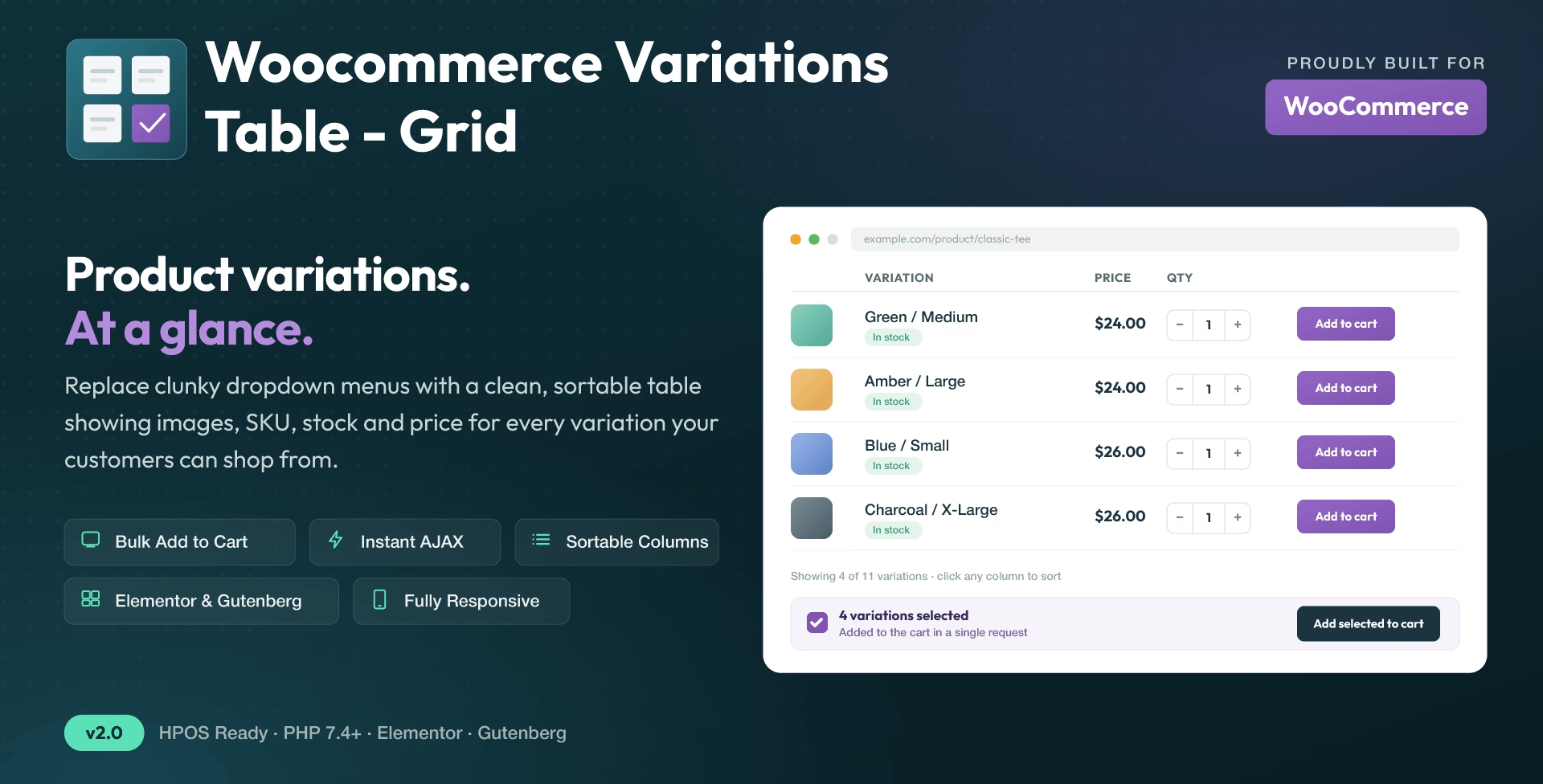
WooCommerce dropdowns are fine when a shopper wants one size or color. A table is more useful when shoppers need to compare stock across options or add several sizes in one order. A clothing buyer, for example, can see which sizes are in stock and enter the quantities for an entire size run.
Set up a table on a variable product
- Create or edit a variable product in WooCommerce. Give the variations their own prices, stock settings, and SKUs where useful.
- Install and activate WooCommerce Variations to Table – Grid. Use the default single-product placement or add
[vartable]in a location that runs shortcodes. For a standalone page, specify the product ID, for example[vartable id="123"]. - Start with columns for attributes, stock, price, quantity and add to cart. Add SKU if buyers order by part number. Keep less useful columns out of the mobile layout.
- Enable row selection and bulk add if buyers commonly order more than one variation. Test one in-stock row, one out-of-stock row, and several quantities before publishing.
Choose the right scope
Start with a table for one product. For a collection page, use the Select Products table to show only the matching variable products. A separate product list is usually clearer when buyers need to browse many different simple products rather than variants of the same product.
See the plugin documentation and compare the available plugins.